
Lightroom
Lightroom Tutorials Lightroom Presets Lightroom Tips and Lightroom Lessons for Amateur photographers and professional photographers.

6 Tips To Capture Candid Family Photos

10 Newborn Photoshoot Ideas & Inspiration

Natural Light Portrait Tips | Use Hard Light to Shape the Body

Creative Wedding Photography Ideas From Award Winning Photographers

Body Photography Tips for Capturing the Beauty Within

10 Photographers Share Their Favorite Holiday Photo

Use These 10 Street Photography Tips to Create Compelling Images

How to Start a Photography Business

The Best Product Photography Backdrops and How to Use Them

Optical Zoom VS Digital Zoom – What’s The Difference?

How to Correct Lens Vignetting and Create Artistic Vignetting in Lightroom 4
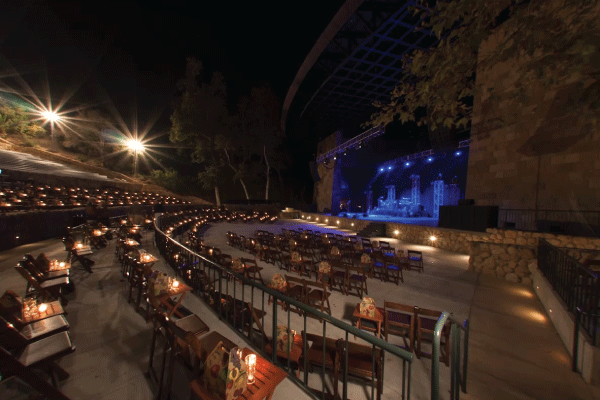
In this tutorial, we will demonstrate how to correct the vignette on your images in Lightroom 4 with the Lens Corrections Panel. In addition, we will demonstrate how to create artistic vignettes as well as explain when it is appropriate to apply artistic vignettes on your images.
How to Correct Distortion in Images in Lightroom 4
In this tutorial, we will demonstrate how to correct the distortion in an image with the Lens Corrections Panel in Lightroom 4. Distortion naturally occurs from the camera lens that was used to capture the shot. Oftentimes, using the Crop Overlay Tool is not enough to straighten out the horizon lines in our image. Instead, the distortion needs to be fixed with the Lens Corrections Panel.

Don’t Throw Away that Image! How to Save and Edit an Imperfect Capture
Sometimes we get an image that has great content but is techinically imperfect. Rather than throwing away a misfocused image for example, we can show you how to save and improve that image.

Soft Proofing: A New Feature in the Develop Module Toolbar in Lightroom 4
Soft Proofing is unique and new to Lightroom 4. In this article, we will briefly discuss the Soft Proofing option found in the Develop Module Toolbar. This option is extremely useful for those who are advanced in Color Profiling for printing.

The Develop Module Menu System in Lightroom 4: 2 Tips if You Forget Shortcuts
Have you ever forgotten the keyboard shortcut in Lightroom 4? This article discusses 2 ways to reference keyboard shortcuts via the Develop Module Menu System.
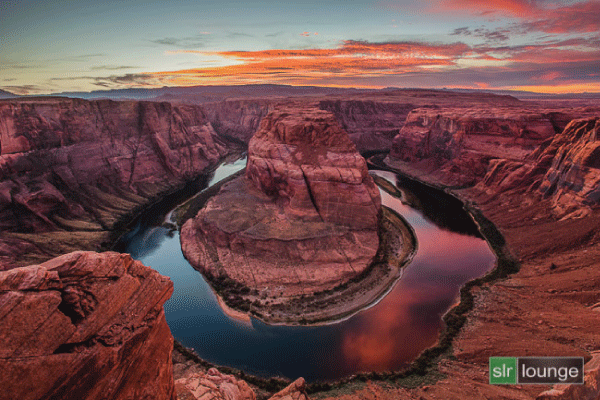
Horseshoe Bend: Final Image Processing in Lightroom 4 – From the HDR Photography Workshop Series
In this last tutorial, we will demonstrate how to apply the finishing touches to create the final HDR image of Horseshoe Bend in Page, Arizona. In addition, we will go over how to create a black and white version of this shot.

How to Use the Sync and Auto Sync Functions to Batch Process Images in Lightroom 4
In this tutorial, we will demonstrate how to use the Sync and Auto Sync Buttons to batch process images in Lightroom 4. Batch processing can save you lots of time in post production, allowing you to spend a little more time behind the camera.

How to Use the Copy and Paste Buttons in Lightroom 4
In this tutorial, we will go over how to use the Copy and Paste Buttons in Lightrooom 4. The Copy and Paste buttons are extremely useful in batch processing, which will save you a lot of time in post production.
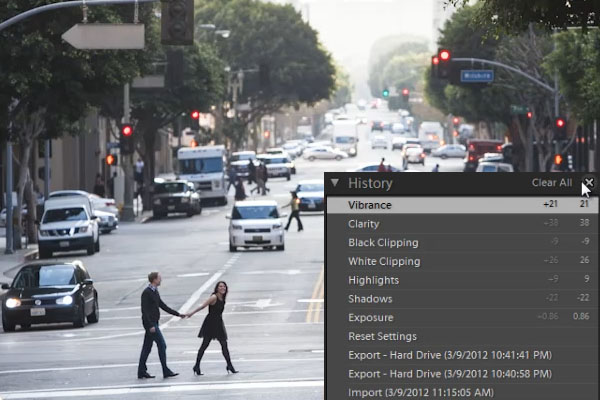
Understanding the History Panel in Lightroom 4
In this article, we will explain the Lightroom 4 History Panel in complete detail. The History Panel records every adjustment made to an image.

Adobe Creative Cloud Subscriptions: Cost-Effective or Costly Mistake?
Hey photographers! Are you ready to pay a monthly bill for Photoshop and other Adobe software? Adobe seems to think that you're ready. Well, almost.

How to Manage Develop Presets in Lightroom 4
In this tutorial, we will demonstrate how to create a new preset in Lightroom 4. In addition, we will go over how to manage develop presets as well as how to bring presets into Lightroom.

How to Use the Previous and Reset Buttons in Lightroom 4
In this article, we will discuss how to use the Previous and Reset Buttons in Lightroom 4. The Reset Button will reset all settings made to an image while the Previous Button will sync settings from a previously selected image to the next image selected. The Previous Button is great when editing images shot at the same scene.


