Every digital photo you take contains a hidden record of exactly how it was made — the camera body, the lens, the shutter speed, aperture, ISO, focal length, whether flash fired, and in many cases where on Earth you were standing when you pressed the shutter. That record is EXIF data, and most photographers either don’t know it exists or never think to use it deliberately.
That’s a missed opportunity. EXIF data is one of the most useful self-coaching tools available to any photographer, and understanding it takes about ten minutes. This guide covers what EXIF data is, how to view it across different applications, why reviewing it regularly accelerates your development, and how to remove it from files when you need to.
This article is part of our Learn Photography guide.
→ See the complete Learn Photography guide
What EXIF data is
EXIF stands for Exchangeable Image File Format. It’s a standardized format for embedding technical information about an image directly inside the image file itself. The data isn’t visible in the photograph — it rides alongside the image data as a separate layer of the file, readable by any application that knows to look for it.
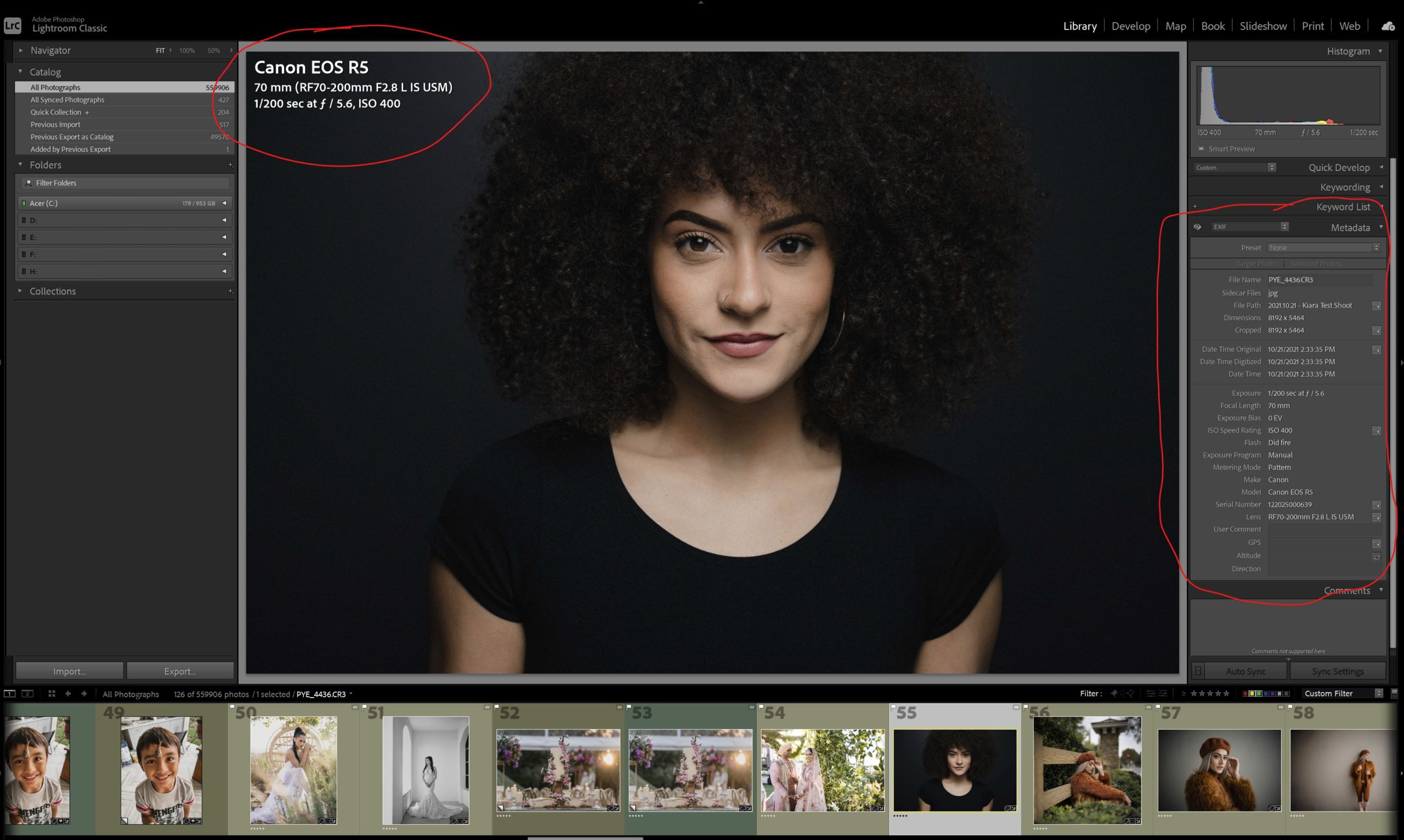
Your camera writes EXIF data to every file it creates automatically, whether you’re shooting RAW or JPEG. You don’t have to do anything to enable it — it’s always there. What’s stored includes:
- Camera make and model
- Lens make and model (when the lens has electronic contacts)
- Shutter speed, aperture, and ISO
- Focal length used
- Whether flash fired
- Date and time of capture
- Image dimensions and file format
- GPS coordinates (on cameras with built-in GPS, or when added afterward)
- Copyright information (if configured in-camera)
In the days of film, if you wanted to remember what settings you used for a particular frame, you wrote them down yourself — for every single shot. EXIF eliminated that entirely. Every technical decision you made at the moment of capture is automatically documented and retrievable at any point afterward.
How to view EXIF data
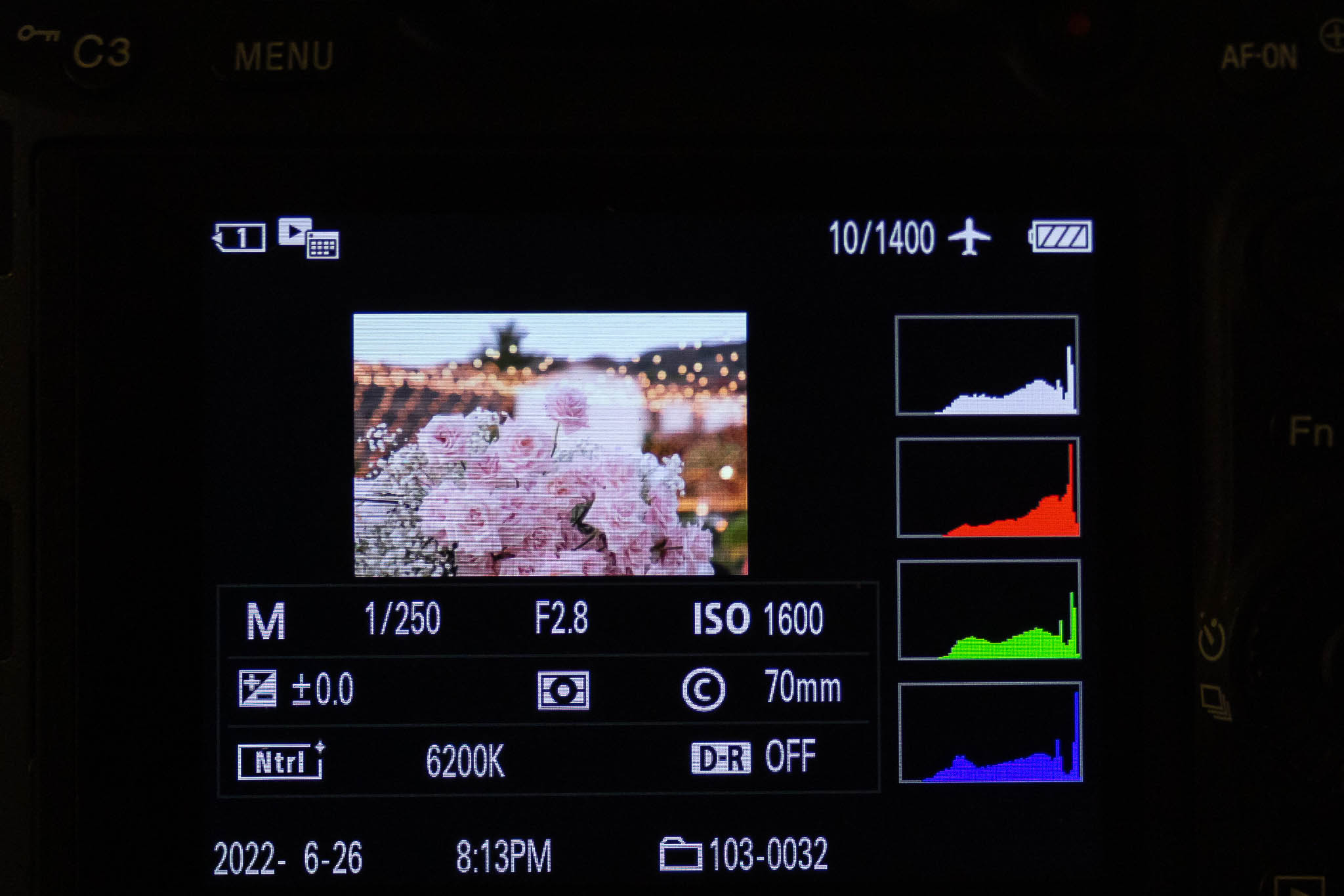
The simplest place to view EXIF data is right on your camera’s LCD during image playback. Most cameras display a detailed info view when you cycle through the playback display options — typically showing shutter speed, aperture, ISO, focal length, and a histogram. Get in the habit of checking this view rather than just the image itself.
On a computer, basic file viewers like Windows Explorer and Apple Finder display minimal EXIF at best. For full access, any dedicated image viewing or editing application works. Adobe Lightroom is the most comprehensive option for photographers already using it for culling and editing.
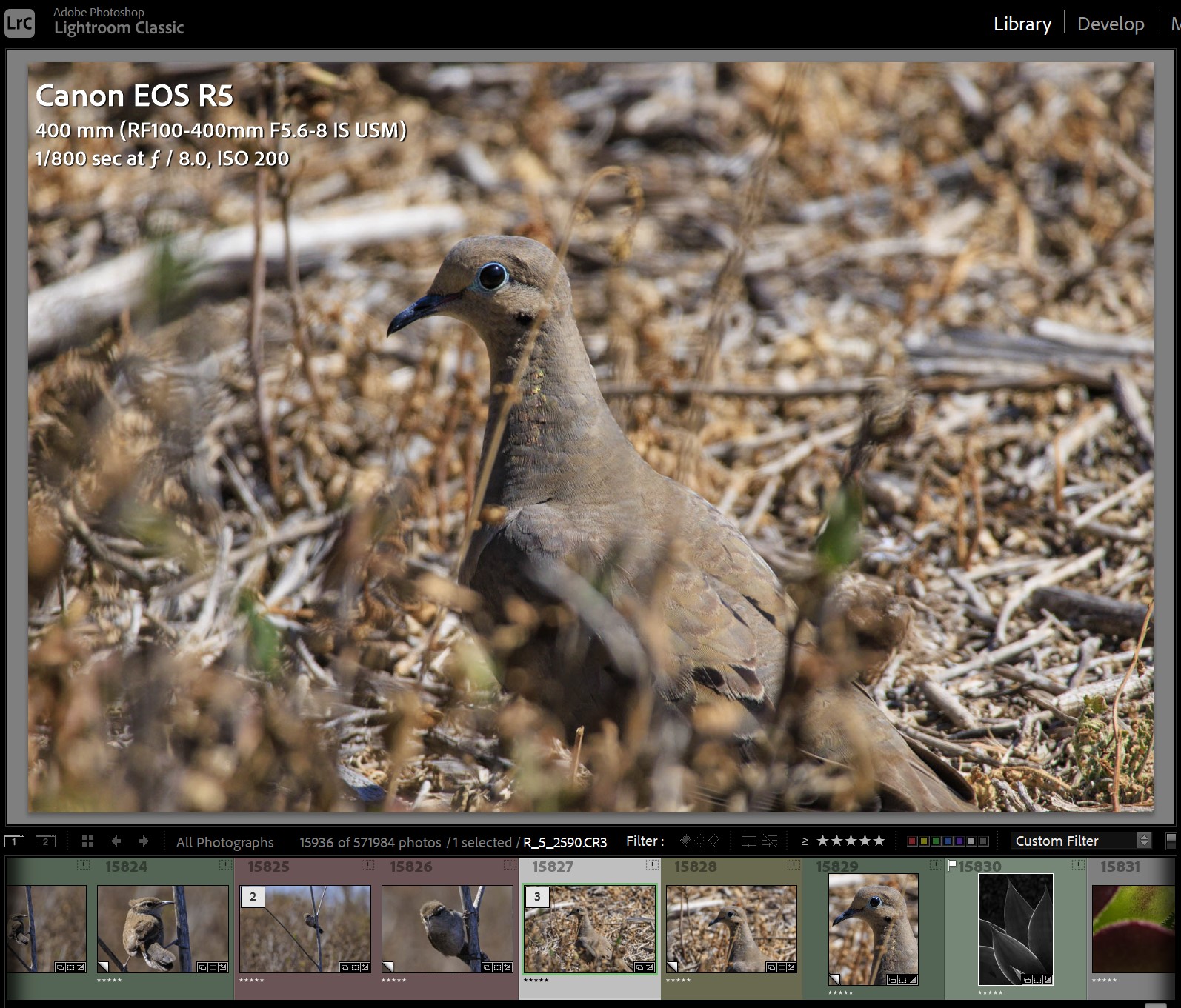
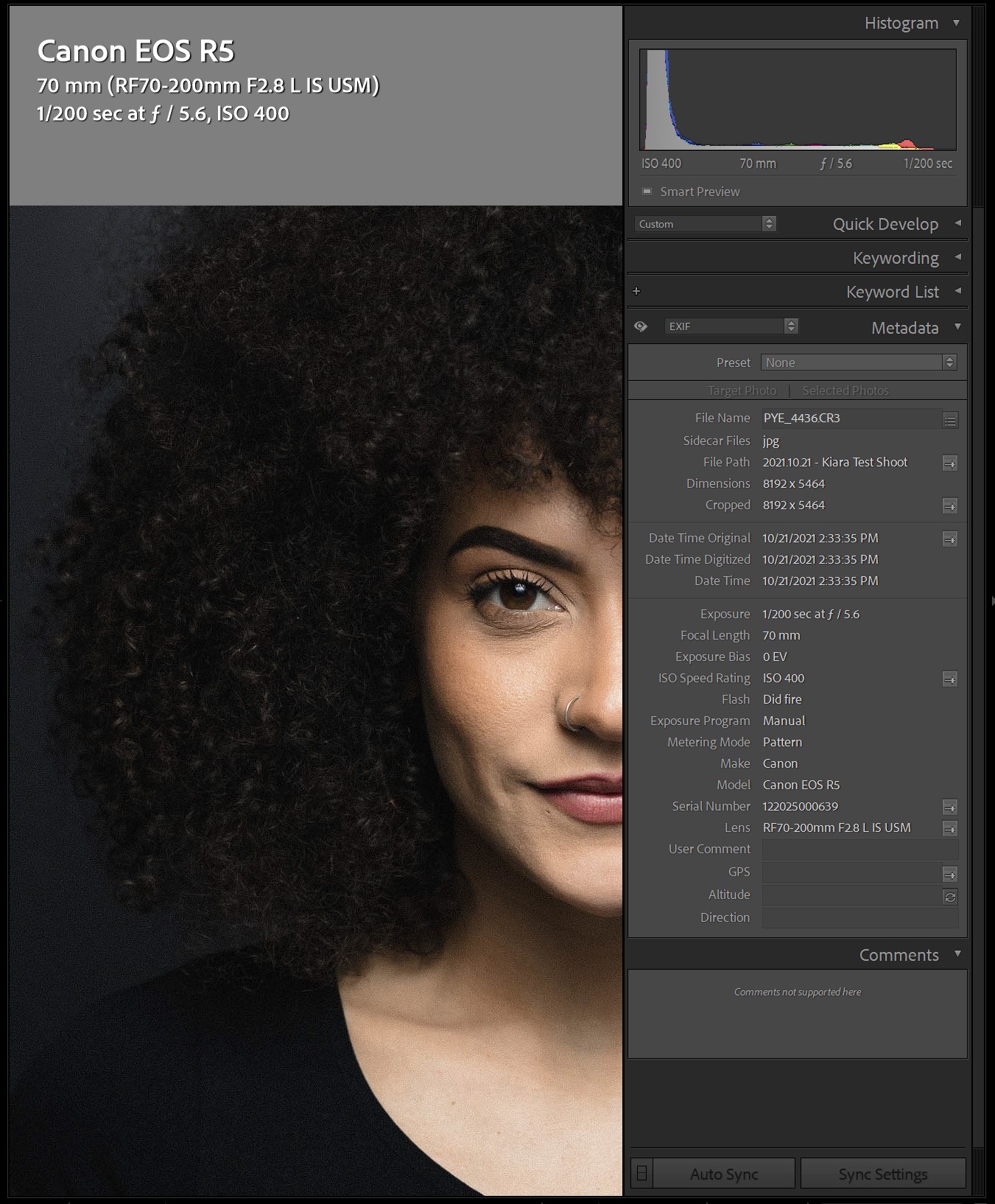
In Lightroom’s Library module, the right-hand panel displays virtually all available EXIF data for the selected image. You can also configure a Loupe view overlay that shows key EXIF in the upper left corner of the image — useful for reviewing settings while also looking at the image itself.
Customizing EXIF display in Lightroom
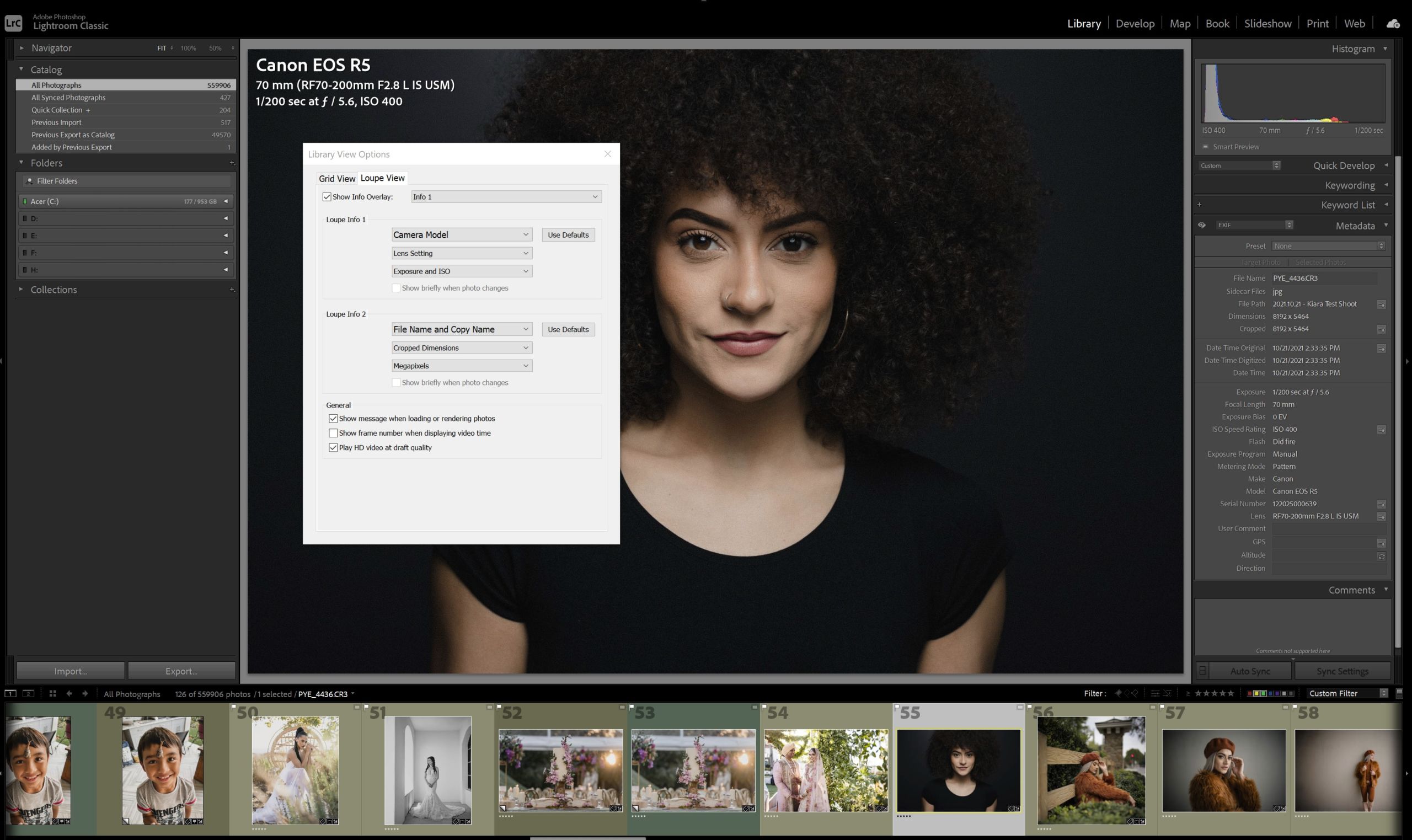
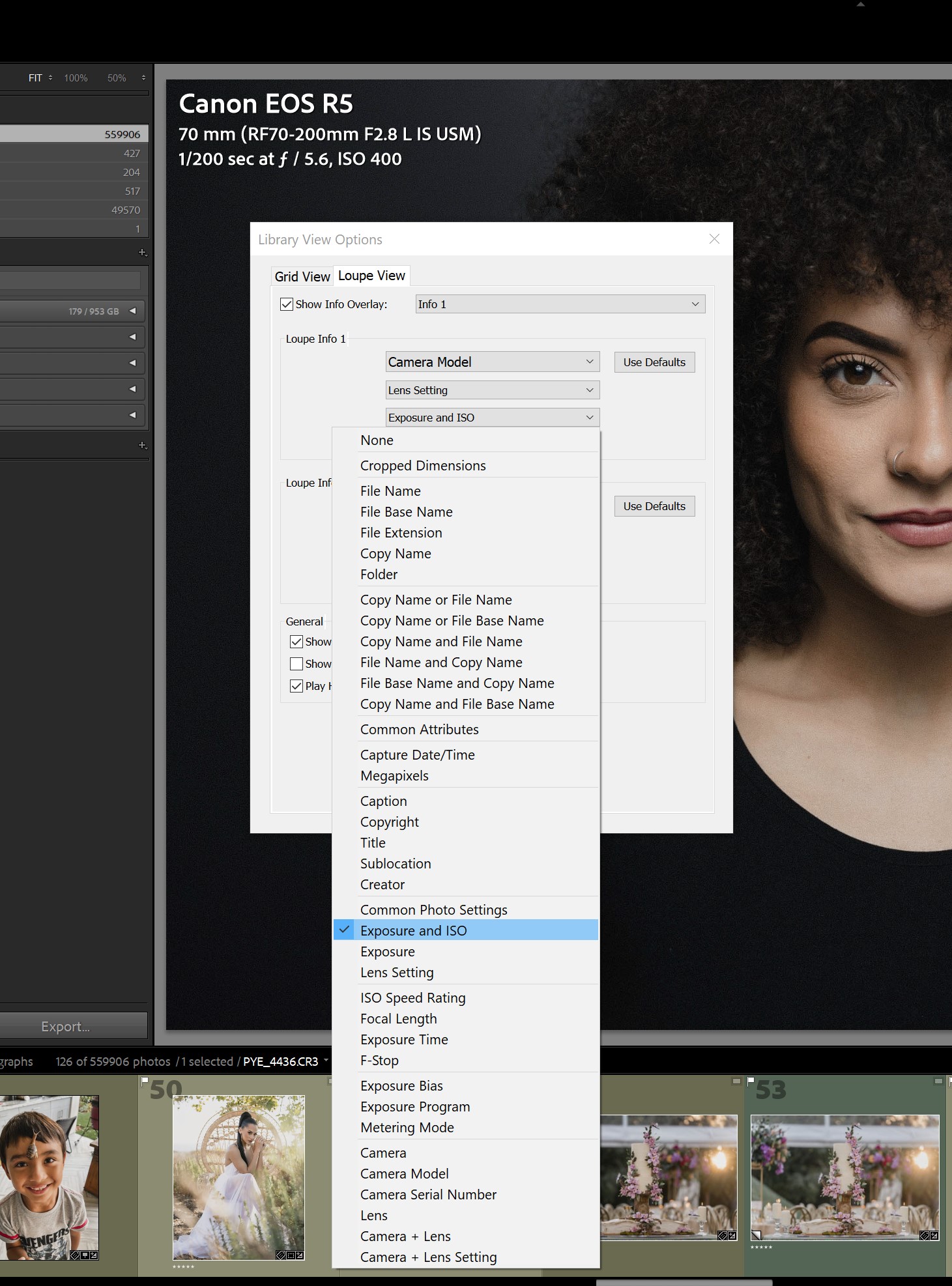
To customize which EXIF data appears as an overlay in Lightroom’s Loupe view, press Ctrl+J (Windows) or Cmd+J (Mac) to open Library View Options. From there you can configure exactly which fields appear in both Grid view and Loupe view.
Lightroom also allows you to add GPS data to images after the fact. If your camera doesn’t have built-in GPS but you logged your location on a phone while shooting, Lightroom’s Map module can import that GPS track and automatically apply location data to every image captured during that time period. Adobe Bridge and Capture One offer similar capabilities.
Why reviewing EXIF data makes you a better photographer
Technical feedback after every shoot
The single most useful habit you can build as a developing photographer is reviewing EXIF data on your images after every shoot — both the keepers and the misses. Blurry images? Check the shutter speed. Background not separated from the subject the way you wanted? Check the aperture. Noisy shadows? Look at the ISO and assess whether the exposure was actually correct at capture.
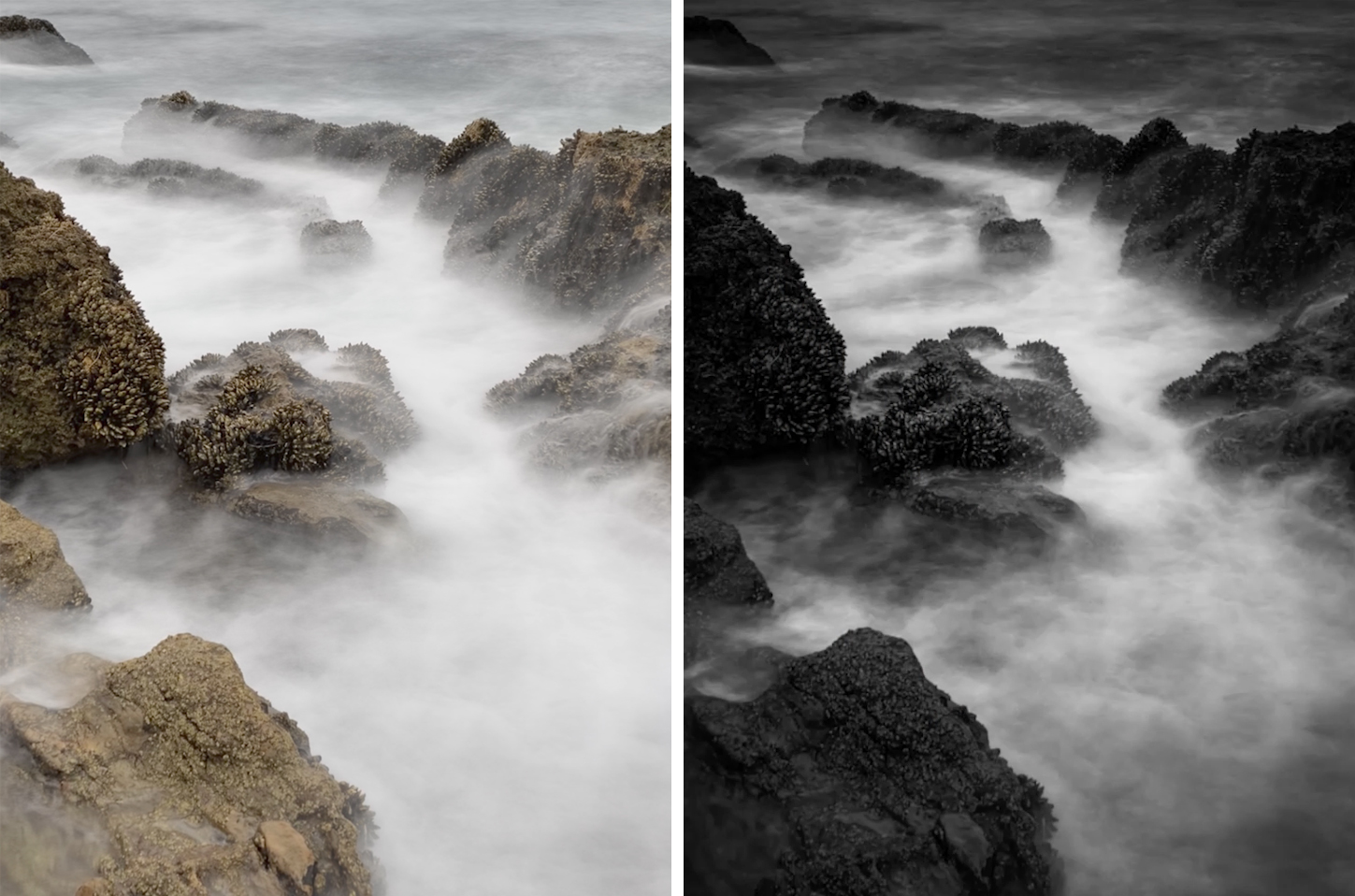
Without EXIF, a soft image is just a soft image. With it, you can see that you were at 1/30 sec with a 200mm lens handheld — and now you know exactly why it’s soft and what to change next time. This feedback loop accelerates technical development faster than almost any other practice.
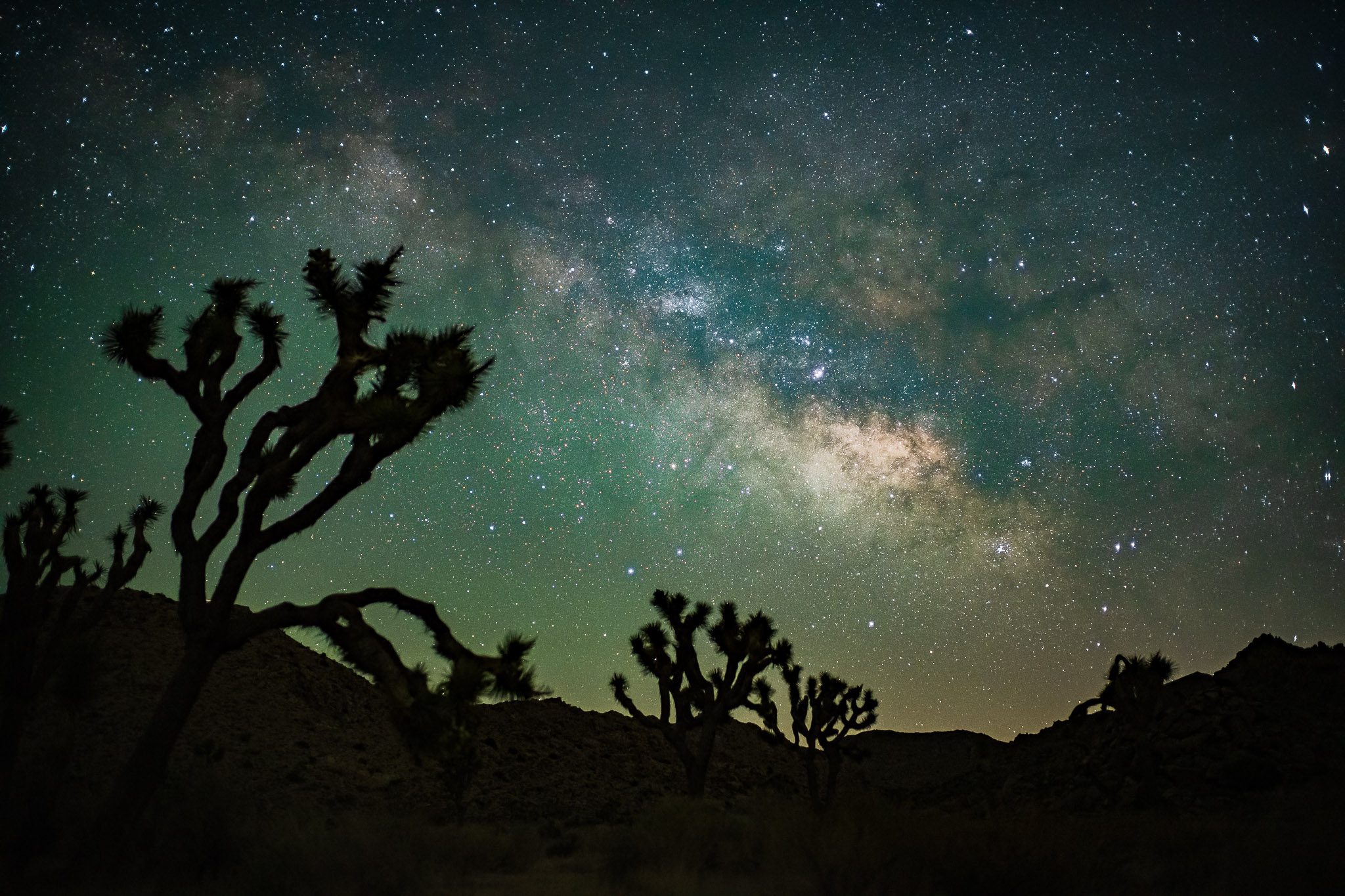
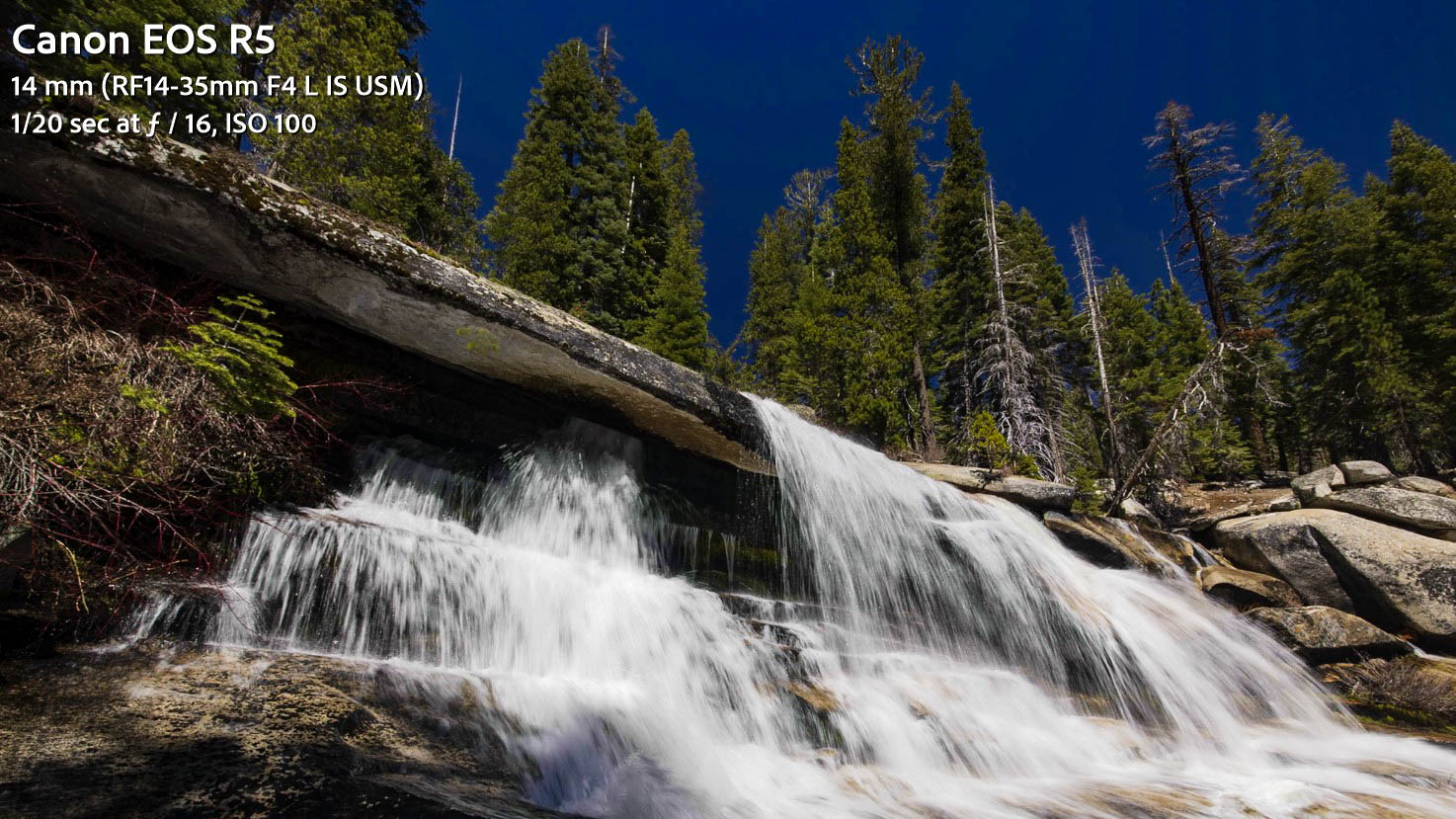
The Milky Way shot below, for example, looks technically demanding. But EXIF data tells you exactly how it was done:
Creative pattern recognition
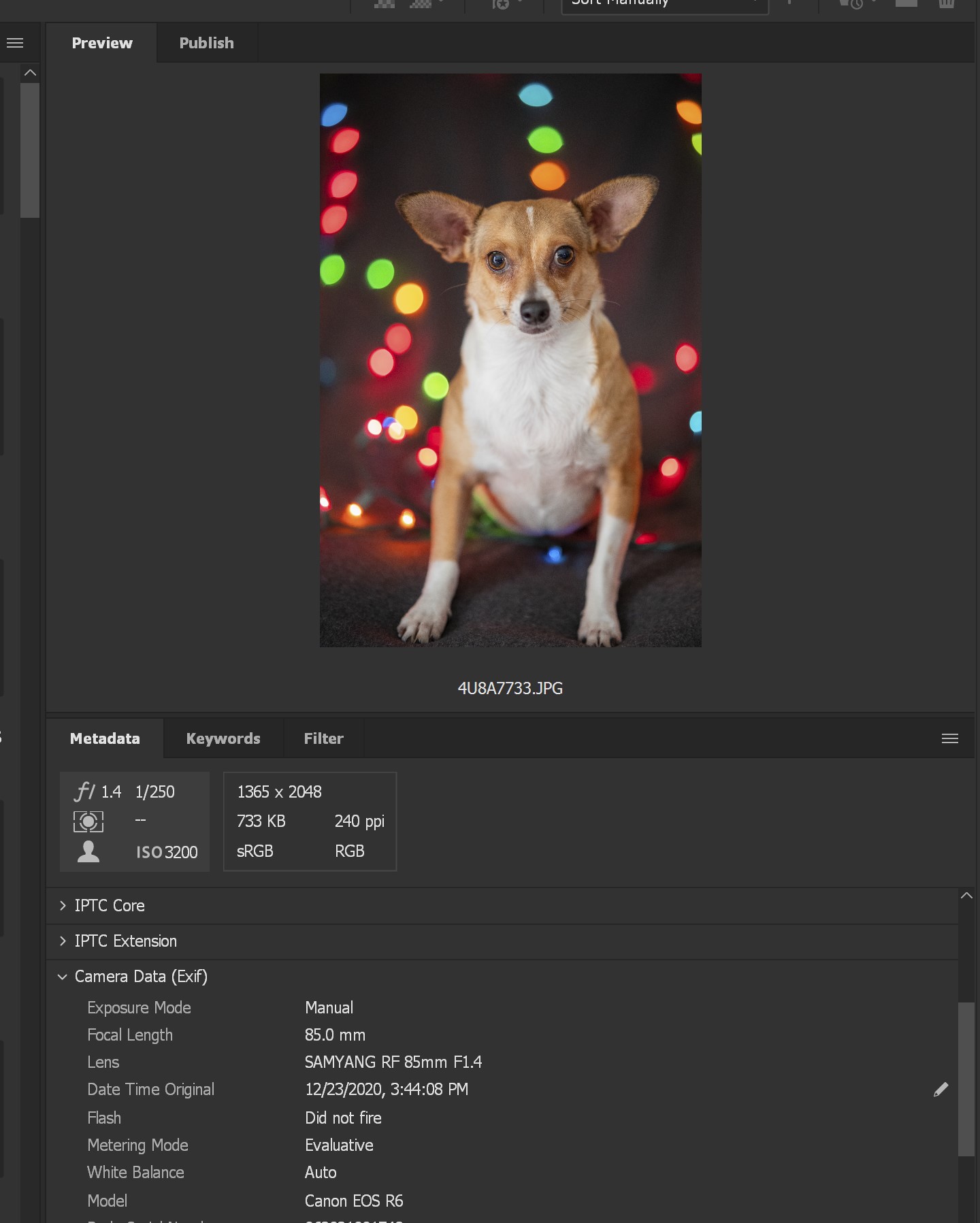
EXIF data isn’t only useful for diagnosing problems. It’s also a window into your creative tendencies. If you catalog your images in Lightroom and spend time reviewing the EXIF of your strongest work, patterns emerge. You may discover you consistently use a narrow range of focal lengths, or that your sharpest portraits cluster around a specific aperture. You may find a lens you own but almost never reach for — or identify that a particular focal length consistently produces your most interesting compositions.
This kind of pattern recognition is difficult to achieve through memory alone. EXIF data makes it objective and reviewable, which is why photographers who engage with it regularly tend to develop a clearer personal style faster than those who don’t.
Chronicling shoots and travel

For photographers who travel or shoot across locations, GPS-embedded EXIF data enables a map view of your entire archive — every image appearing at the location where it was captured. This is both a practical organizational tool and a genuinely enjoyable way to revisit trips and shoots. Cameras with built-in GPS handle this automatically. For cameras without it, a GPS logging app on your phone running in the background can record your track, which Lightroom can then match to your images by timestamp.
Copyright protection
Most cameras allow you to embed your name, copyright notice, and contact information directly into the EXIF of every file the camera creates. Set this up once in your camera’s menu and every image you produce from that point carries your ownership information automatically.
In practice, this has real-world utility. Print labs that check EXIF before fulfilling orders have declined to print images carrying third-party copyright data — essentially catching potential infringement automatically. When exporting for clients or online sharing, you can configure your export to retain copyright data while stripping other information like precise GPS coordinates.
How to remove EXIF data from photos
There are legitimate reasons to strip EXIF before sharing images. GPS data embedded in photos shared publicly reveals precise shooting locations — a concern for photographers who photograph sensitive locations, wildlife nesting sites, or simply don’t want their home address embedded in images shared online. Some photographers also prefer not to share lens and exposure details with competitors.
In Adobe Lightroom’s Export dialog, the Metadata section offers several options including “Copyright Only” — which strips everything except your copyright information — and “All Except Camera and Camera Raw Info” for sharing images without revealing technical settings. Capture One, Adobe Bridge, and most other professional applications offer equivalent controls.
One important caveat: stripping EXIF doesn’t make images untraceable. Camera sensors have unique noise patterns that forensic analysis can potentially match to a specific body, and screenshotting an image on any device creates an entirely new file with no inherited EXIF at all. EXIF removal is a privacy tool, not an anonymization guarantee.
Why EXIF data might be missing

If you import images into Lightroom and see dashes (—) where lens data should appear, the most common explanation is that the lens has no electronic contacts — older manual lenses, certain third-party adapters, and some specialty lenses don’t communicate with the camera body at all. The camera simply has nothing to write for that field.
On some Nikon DSLRs, you can manually register legacy AI-S lens data in the camera menu, and the body will mechanically read the aperture setting from the lens. For most situations with non-electronic lenses, the only option is to manually add the missing data afterward using Adobe Bridge’s metadata editor, or to simply accept the gap and track settings through your own notes when precision matters.
For more on building a systematic approach to reviewing and improving your photography, see the complete Learn Photography hub and our guides on histograms and metering modes.
Frequently asked questions about EXIF data
What is the difference between EXIF data and metadata?
Metadata is the broader category — it refers to any data embedded within a file that describes that file. EXIF is a specific standardized format for storing image metadata, developed originally for digital cameras. All EXIF data is metadata, but not all metadata is EXIF — other metadata formats like IPTC (used for captions, keywords, and copyright) and XMP (used by Adobe applications for edit history and ratings) also exist alongside EXIF within image files. In practice, photographers use the terms interchangeably when referring to camera settings data, though EXIF is the technically correct term for the exposure and equipment information the camera writes automatically.
Does removing EXIF data affect image quality?
No. EXIF data is stored as a separate component of the file and doesn’t affect the image pixels themselves. Stripping EXIF removes the metadata only — the actual image data, resolution, and quality are completely unchanged. The resulting file will be very slightly smaller (the EXIF block itself takes up minimal space) but visually identical.
Can EXIF data be faked or edited?
Yes. EXIF data can be edited, added, or fabricated using applications like Adobe Bridge, ExifTool, and various other metadata editors. This means EXIF data alone isn’t legally sufficient proof of camera ownership or image authenticity in most contexts. It’s useful for copyright claims and practical identification, but serious intellectual property disputes require stronger authentication methods than EXIF review alone.
Does uploading to social media preserve EXIF data?
Most major social platforms strip EXIF data from uploaded images, partly for user privacy (removing GPS data) and partly for file size reduction. Facebook, Instagram, and Twitter all strip most EXIF on upload. Some platforms retain partial data. If you need EXIF preserved — for a stock library submission, a client delivery, or archival purposes — deliver files directly rather than through social platforms, and verify the destination’s handling of metadata before assuming it’s intact.
How do I add copyright information to my EXIF automatically?
Most cameras allow you to set copyright and author information in the menu system, which then embeds automatically in every file the camera creates. The exact location varies by brand — look for “Copyright Information,” “Author,” or similar terms in the setup or shooting information menu. Once set, the data writes to every RAW and JPEG file without any additional steps. You can also add or update copyright information in bulk to existing files using Lightroom’s metadata presets or Adobe Bridge’s metadata templates.