Over the last few years, we’ve seen an explosion of various innovations that streamline creative workflows. From photographers and illustrators to video editors and animators, everyone is looking for this combination: speed and precision. And that’s exactly where the TourBox Elite Plus comes in. With speed and precision, you get efficiency, you get creativity unleashed, and time saved!
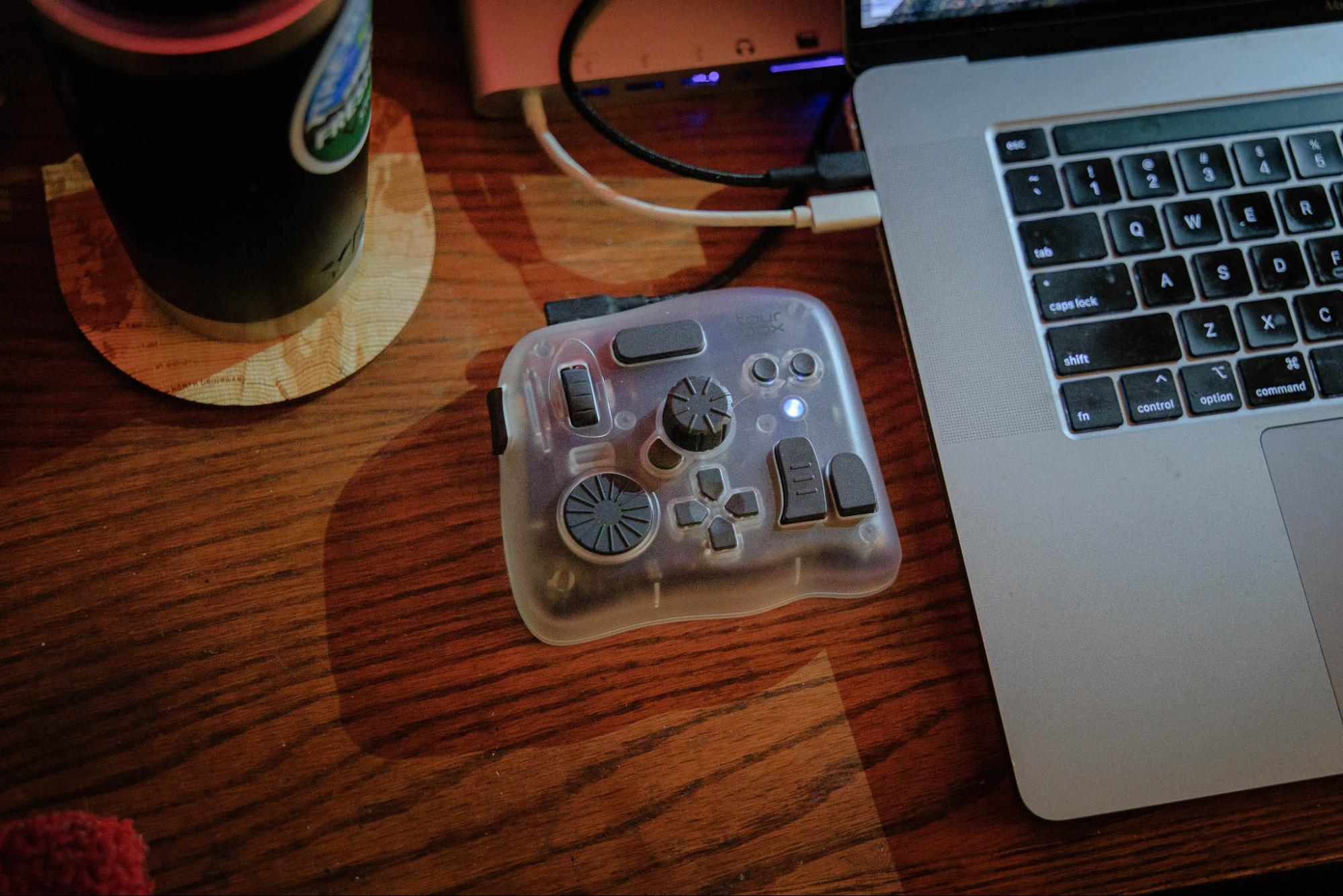
At a glance, I’d call it a futuristic-looking control pad, especially in the “Ice Translucent” color. It’s compact enough for working in a cafe , but weighted very nicely and feels like a sturdy, professional studio tool.
Underneath the hood, you’ll discover an incredibly powerful tool for digital creators of all kinds! Whether you’re working in Photoshop, Procreate, DaVinci Resolve, or Lightroom, this controller turns your tablet, laptop, or desktop computer into a finely tuned creative cockpit.
So, what actually is the TourBox Elite Plus? What sets it apart from competitors and previous versions? We’ll answer all of those questions in this Tourbox Elite Plus review today. First, what it is: among other things, it’s the world’s first single-handed console to map Procreate canvas gestures on iPad. This alone is a game-changer for mobile creators who feel stuck tapping all around their tablet screen for every command.
What else? The Tourbox Elite Plus includes dual-channel Bluetooth, onboard preset storage, and an impressively refined control system. With almost every single key on the device being physically unique, it stands apart from all other controllers and your ordinary keyboard, by letting you keep your eyes glued to your art’s canvas while you work.
What Is The TourBox Elite Plus?
Priced at $252, the TourBox Elite Plus is a dedicated control console for photo & video editors, illustrators, and designers. Simply put, if you crave tactile, physical control over your digital creativity, then this console is designed for you. Its size and ergonomics allow one-handed operation, so that your other hand remains free to draw, retouch, etc.
Not only is virtually every physical button unique, but each button, dial, and knob can be customized! This allows you to control everything from brush size or style, to gestures such as zoom or rotation. You can even set it up for layer management and playback functions!
This Tourbox operates on both iPad and Mac/Windows computers. While earlier versions of the TourBox focused primarily on desktop/laptop editing, the new Elite Plus truly bridges the gap to a tablet workflow. You can now maintain identical control schemes across both platforms — no need to re-learn commands or re-map functions when you switch devices.
Also, with its dual-channel Bluetooth, jumping back and forth between a tablet and a computer has never been more seamless! This makes it perfect for those creatives who just need to have a flexible, open-ended work schedule, feeling totally free to head out to a coffee shop for a quick pomodoro or three, and then head back to a work-from-home office to deliver a final product and …send out the invoice and get paid?
Tourbox Elite Plus Review | Who Is It For?
First and foremost, we are photographers here at the studio. We do edit a lot of video too, but that’s a separate team and we’ll talk about it later. First, we need to talk about our “Who Is It For?” section from the photographers’ perspective.
One of the best advantages of this latest iteration of the TourBox Elite Plus and the TourBox Console software is the new Dynamic Panel for Lightroom Classic. Working even in LRC’s full-screen Develop Module mode, (Shift-F) …you now have access to a beautifully simple, distraction-free editing environment.
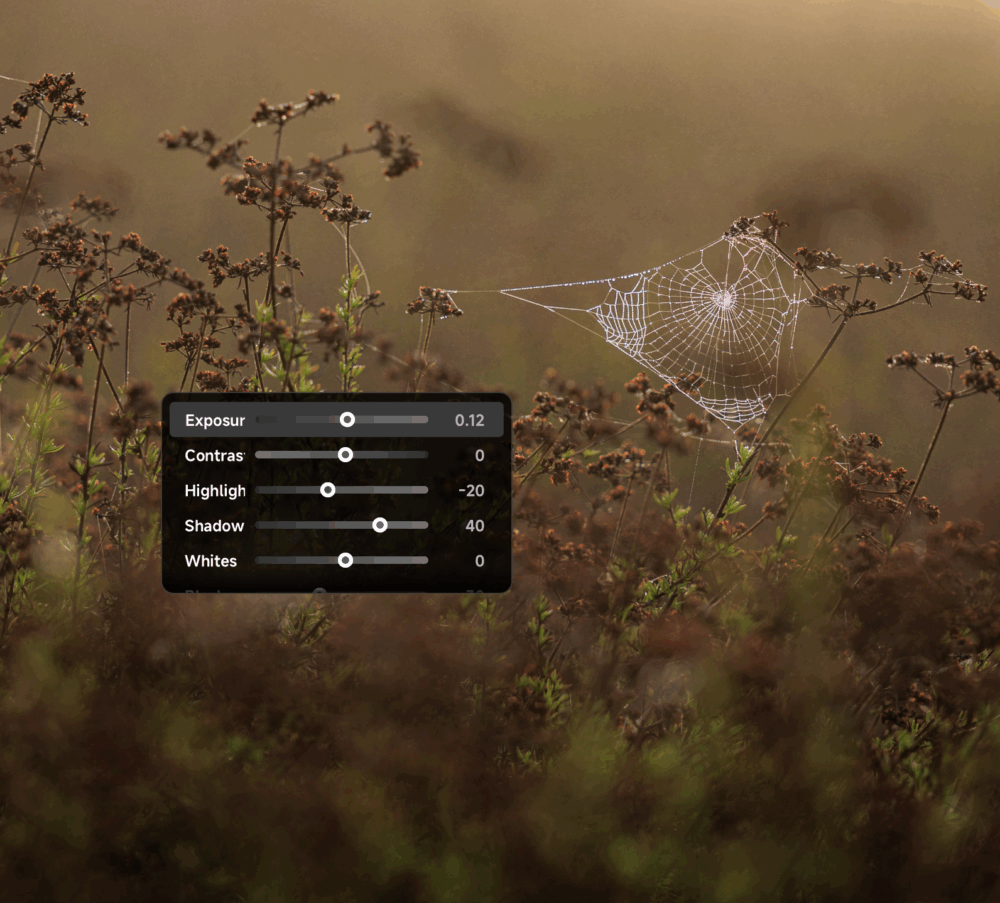
When working in this editing environment, all the basic editing adjustments you might need are at your fingertips, but without having the whole overwhelming panel interface of the normal Develop Module. Simply press the hotkey that brings up the adjustment grouping you want, (Color, Exposure, Presence) …and you can even drag-and-drop the panel around to keep it out of the way of what you’re working on.
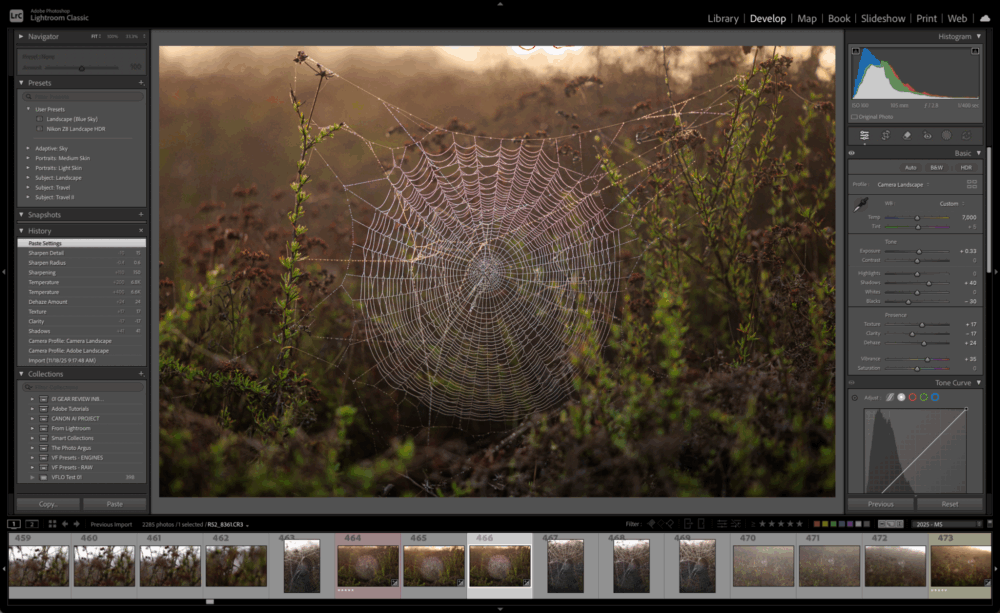
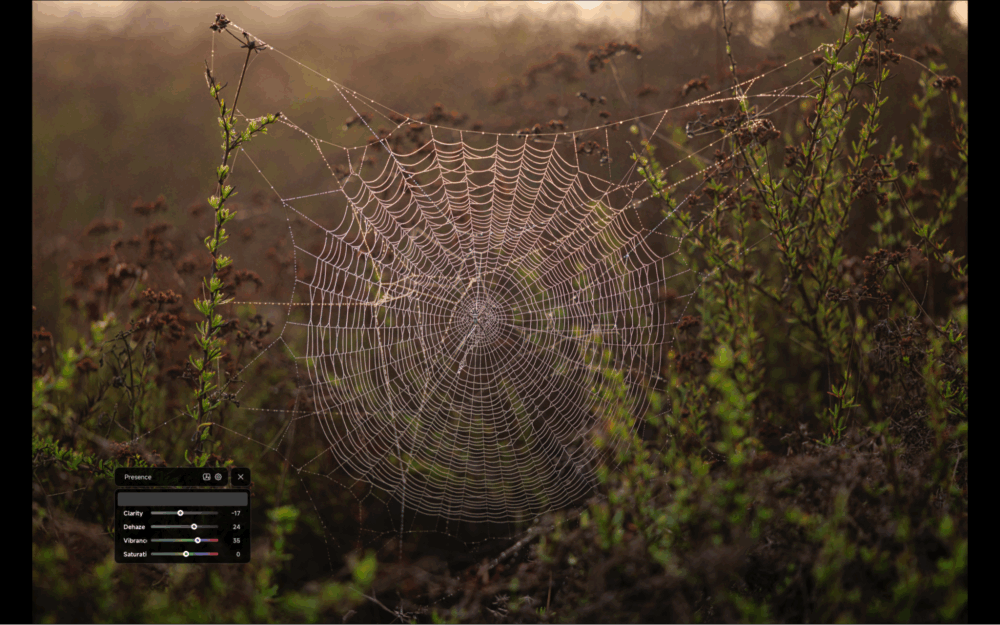
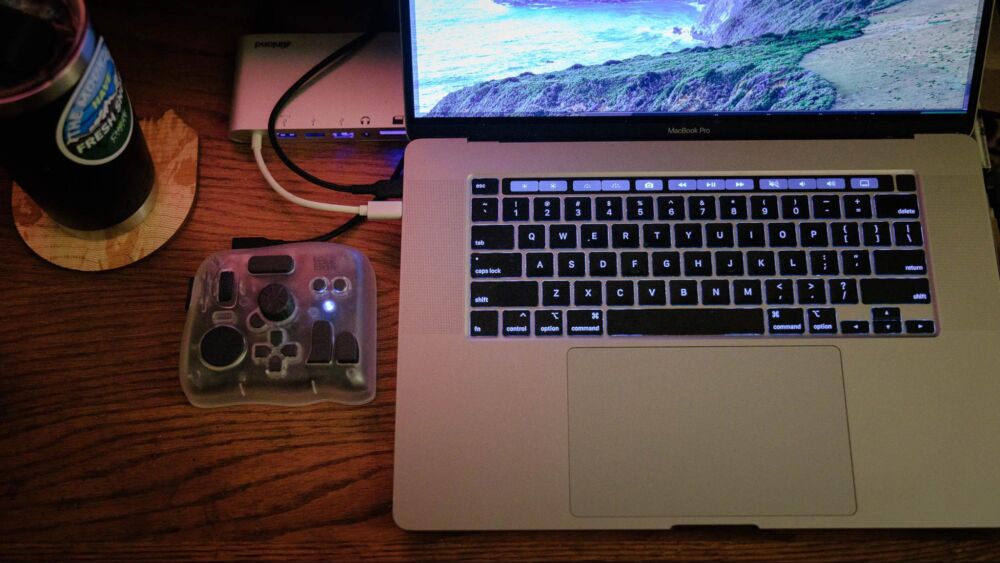
The Dynamic Panel becomes especially valuable when I’m editing on a laptop while traveling, where every bit of screen space matters. Being able to edit my photos in full screen while keeping all controls at my fingertips is a game-changer. For comparison, you can see the standard Lightroom Classic layout versus the full-screen experience with the Dynamic Panel. (See the above two screenshots!) This new Dynamic Panel really delivered on its promise, bringing editors both simple elegance and full control.
When you activate TourBox, a small floating panel appears showing only the sliders relevant to your current edit. The panel updates instantly depending on the module you’re using:
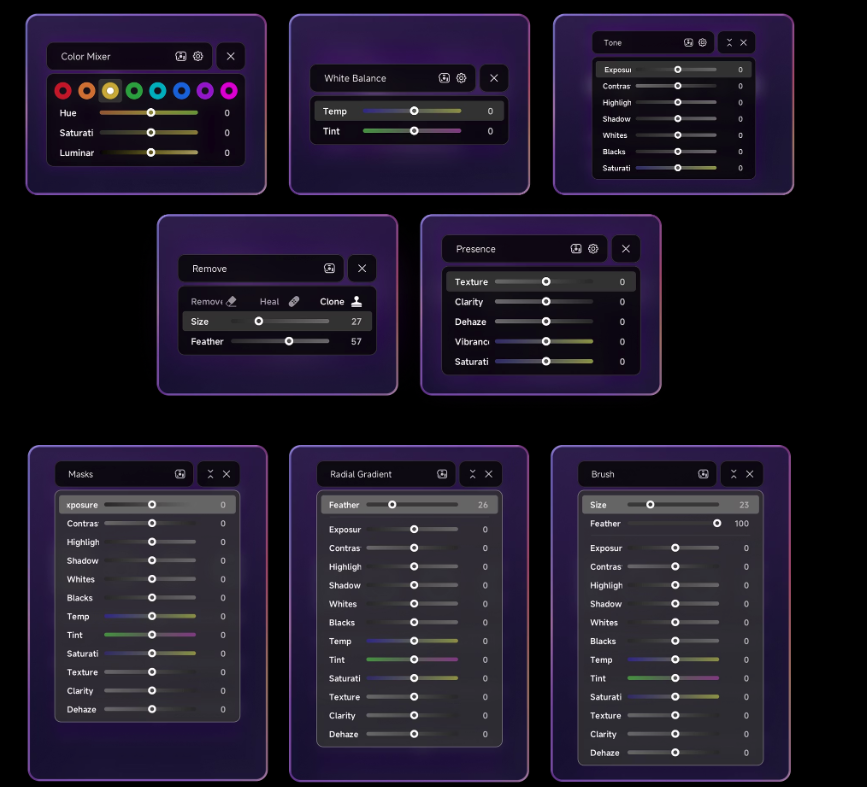
- When you are editing in the Basic panel, You’ll see exposure, temperature, tint, contrast, and more.
- Switching to HSL? The panel instantly updates to hue, saturation, and luminance.
All you need to do is hover over the slider, turn a wheel on the TourBox and it’s done. Your screen stays clean and spacious, while controls remain fast, precise, and accessible.
Besides these panels, TourBox also comes with preset panels that cover nearly any editors’ workflow needs: Color Mixer, HSL, Brush, Mask, and more. If you feel the preset is not as accurate as representing your workflow as either wedding photographers, portrait photographers, even video editors, you can even customize these panels in the software to perfectly fit your workflow. Especially if you do multiple such tasks, it is fully adaptable to your editing style and habits!
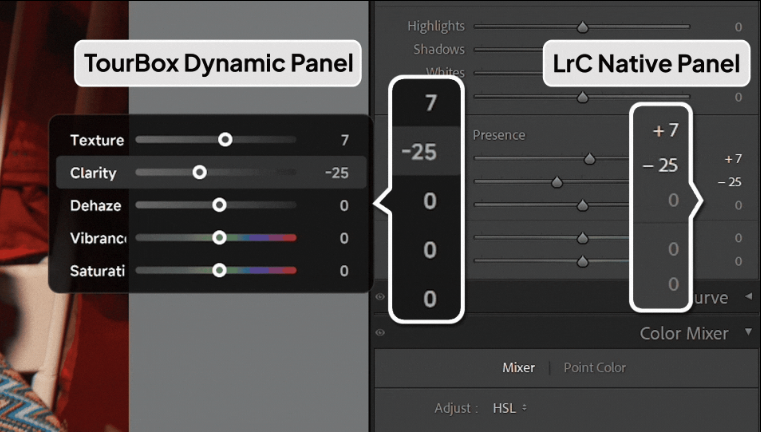
Even though the Dynamic Panel is newly designed by TourBox, every adjustment is perfectly synced with Lightroom’s native sliders, and I found the operation to be refreshingly smooth and bug-free. (We tried a lot of other options in the early days of Lightroom, and they were un-usable!) The values are 1:1 accurate as you can see in the image below, so nothing ever feels vague or just “off”…
All in all, whether we are culling, color-correcting, or doing advanced editing, it’s an artist’s dream to be able to simply flow through a process with minimal distractions. (Especially for anyone with ADHD who is prone to being distracted, like me!)
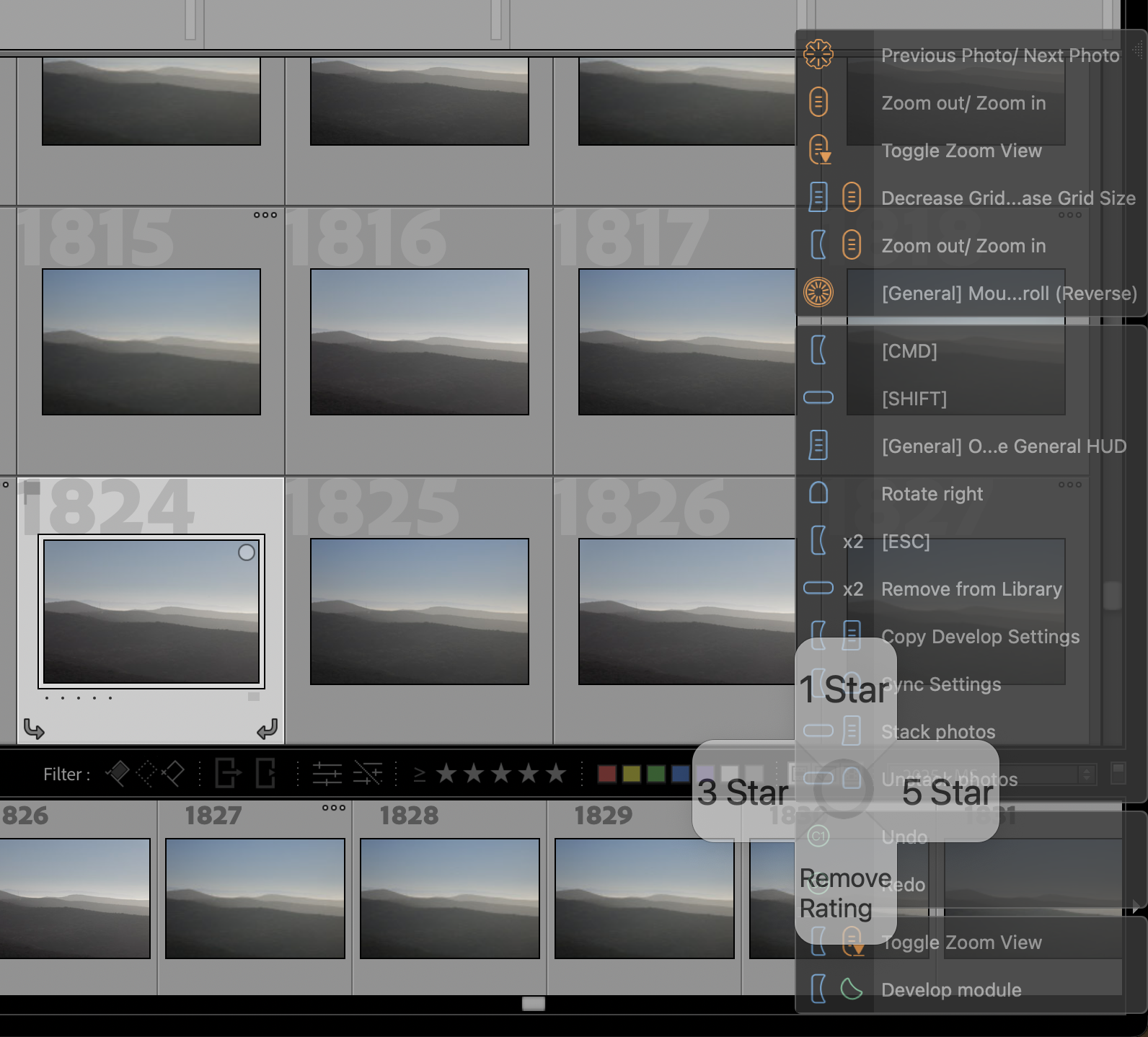
There is also a “HUD” or a Heads-Up Display”, which you can hide or show as needed, to give you a reminder of which physical controls do what tasks. For example, if you’re culling, you can assign star ratings or remove the rating in the Library Module. Then, as soon as you jump to the Develop Module, those physical buttons (the 4-way gaming-style controller buttons) switch to a different task; bringing up the individual Develop Panels that you need…
All in all, what I found is that it’s not just the physical device itself that is a major game-changer in the photo editing workflow. When you combine the software and the actual user experience, especially when editing images full-screen, …it’s a huge deal.
With that said, let’s briefly cover the different categories of people who definitely ought to consider the TourBox Elite Plus:
Photo Editing | Faster and More Fluid
In Lightroom and Capture One, it’s easy to fly through large sets of photos, both in the culling and development process. When sorting keepers and rejects, the TourBox can help you apply ratings/flags, check focus by zooming in, and other things. When it’s time to color-correct the keeper images, the TourBox helps you make adjustments without touching your keyboard or taking your eyes off your photos! You can adjust settings like exposure, contrast, or white balance smoothly with the dials, and fine-tune brush size or opacity on the fly.
The combination of using dials to adjust Lightroom sliders, and using buttons (or other sliders) to jump around between your most-used adjustments, creates a refreshing way to edit photos. Your workflow will feel much more intuitive, and you’ll save time too!
Video Editing | Precision and Speed
For video editors, the Elite Plus offers fine-grained timeline control, and many other things. Jog or “scrub” through footage, trim clips, adjust playback speed, or tweak color grading, all with silky-smooth precision. You can set up a single dial to control scrubbing while using buttons for ripple cuts or marker placement.
The tactile feel adds a level of control that mouse-only editing just can’t match. Essentially, you’re getting a taste of a professional video / audio control board, in a compact, affordable package. Frame by frame, your content will get more polished, and you’ll feel more tuned-in to your unique creative vision.
Procreate Canvas Gestures | The Game-Changer
Here’s another area where the TourBox Elite Plus truly shines in this latest iteration. The Elite Plus is the first controller ever to fully map Procreate’s canvas gestures. That means you can rotate, zoom, pan, and adjust layers using physical controls instead of repetitive pinch gestures. This will transform how you draw and paint on iPad, offering a smoother workflow and less physical strain.
You can even assign buttons to QuickShape activation, layer opacity adjustments, or onion skin toggles for animation work. For illustrators and animators, again, this can be a huge time-saver.
TourBox Elite Plus Review | Build & Design
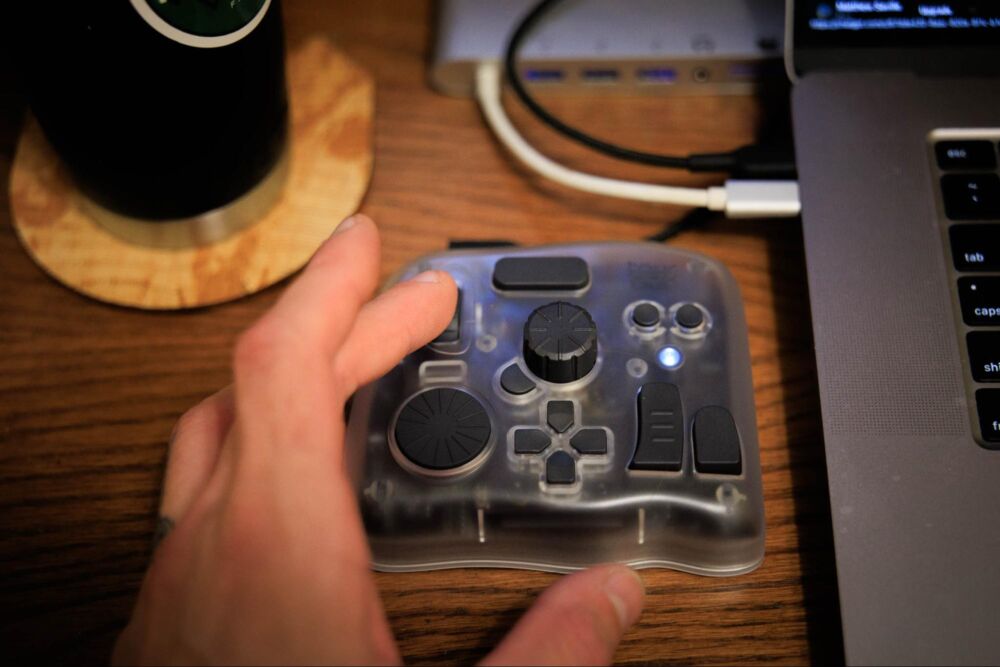
One of the first things you notice is how solid yet comfortable this console feels. The form factor fits naturally in your hand, with buttons positioned where your fingers naturally rest. This is particularly true if you’re right-hand “dominant”, with your left hand on the Tourbox. However, as a left-handed person, I also found almost every button to be very easy to reach with my right hand, save maybe the left-edge button of course…
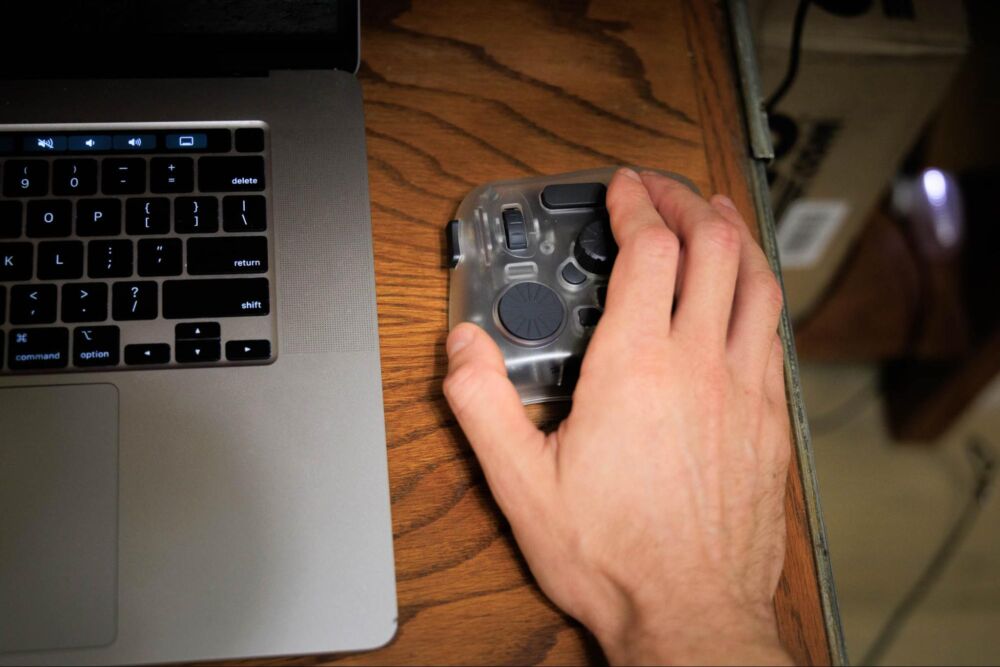
The overall footprint is small enough to travel with you anywhere. It is weighted, though, so once you set it down, it feels stable and will “stay put” at your workstation, whether a home office or a coffee shop table. In terms of the electronics, you’ll find upgraded internals optimized for low-latency Bluetooth performance and refined haptic (audio) feedback for the otherwise silent dials/knobs.
Every button and dial has been tuned for precise tactile response, making it easy to perform fine adjustments — such as subtly tweaking brush flow or nudging exposure sliders. It’s immediately satisfying to use, even during long editing sessions. I might just be hearing things, but it sounds like even the audible haptic feedback of the dials has a different tune for each knob/dial! This level of attention to detail is impressive, making this TourBox feel like a high-end professional device.
Here’s the final reason why we love the TourBox in particular: because the minute you have to look away from what you’re editing or drawing and look at your fingers to make sure you’re pressing the right button among a grid of identical buttons, a major portion of the advantage to using a console is lost. The TourBox Elite Plus eliminates that obstacle because every button feels totally unique. Without taking your eyes off your imagery, you know what settings your fingers are going to control!
TourBox Elite Plus Review | Device & Software Setup

Out of the box, setup is refreshingly straightforward. It takes two AA batteries which are already included; just pull out the plastic stopper and switch it on! For iPad, it’s Bluetooth-only, and pairing is super easy. For a desktop or laptop computer, you can connect via either the USB-C cable or bluetooth. Again, setup is incredibly easy, and then you can start using the TourBox Elite Plus right away thanks to pre-loaded presets for major creative software like Procreate, Clip Studio Paint, Photoshop, Lightroom, DaVinci Resolve, Final Cut Pro, Premiere Rush, Affinity Photo, and many more…
Here’s where the real magic happens. The TourBox Console app allows per-application customization, meaning you can create entirely different control layouts for each creative program. Also, you can create multiple layouts for the same app, and save those as separate presets.
Admittedly, at first the learning curve might seem very intimidating, if you think about programming every button from scratch, to control different tools for every app you use. Our recommendation is to start with the built-in presets, learn them, and then make changes to fit your own needs based on which tools you utilize the most often!
When you move between devices or platforms, that is where things feel effortless. Those same presets you programmed on your desktop can stay with you if you switch to working on an iPad! This is thanks to onboard preset storage. This seems like a small feature, but anyone who has ever programmed hotkeys on multiple devices will tell you what a massive time-saver (and headache saver!) this feature is.
TourBox Console | Customization Without Limits
The TourBox Console software deserves its own section in this TourBox review; it’s an essential part of the physical device. Many hardware controllers suffer from clunky or crash-y setup interfaces, but this one is remarkably intuitive and stable.
My favorite thing is that when you have the Console app open, touching anything on the physical device takes you directly to the settings for that button, dial, or wheel. This way, you can effortlessly assign shortcuts with simple drag-and-drop actions. Once you get the hang of it, you can even assign multi-button functionality!
There’s also built-in support for system-level controls such as adjusting screen brightness, volume, or even taking screenshots. This is handy when you’re working across multiple screens or multitasking between different creative tools and your computer’s Finder / Explorer app too, maybe.
Either way, whether you’re customizing your TourBox for Procreate on an iPad, or DaVinci Resolve on a desktop, the learning curve is surprisingly short. Then, you can dive deeper and deeper as your workflow evolves.
TourBox Elite Plus Review | Build Quality & Reliability
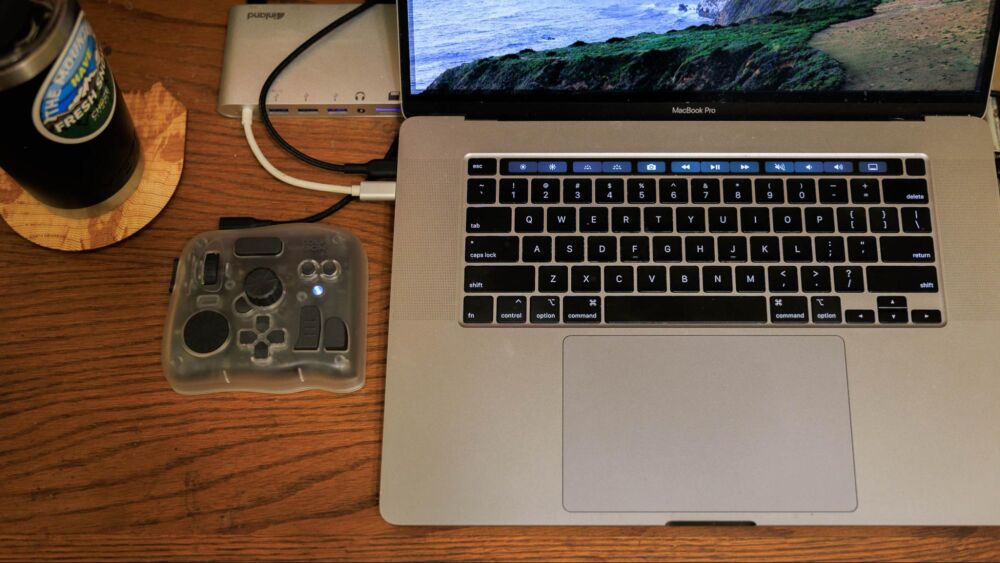
Everything about the TourBox Elite Plus feels professional. The buttons have distinct tactile feedback; each one identifiable by feel alone. (The only two buttons that are physically identical are juxtaposed such that you’ll always be able to tell them apart with a single finger anyways!)
Also, the dials turn smoothly with just enough resistance to make micro-adjustments effortless. All in all, the upgraded guts (internal chipset) ensure minimal latency, and the Bluetooth connection is rock-solid even in our cluttered digital environments.
Lastly, it’s also worth noting that TourBox offers one-year free replacement for faulty devices, and a responsive 24-hour support team on weekdays. For creators who depend on their gear daily, that’s serious peace of mind.
TourBox Elite Plus Review | Value & Competition
The TourBox Elite Plus is built for creators who want to work smarter, and especially if you love physical, tactile controls. On the one hand, if you actually dislike the idea of having to re-wire your brain to use all your tools differently, and you don’t feel pressed for time when it comes to using a much slower traditional process, then honestly this might not be the right tool for you. However, if you’re similar to us as photographers, then you actually like the idea of customizing your creative environment as much as possible, until the whole digital workflow feels effortless and organic.
Especially if you’re someone who jumps between multiple creative tools daily, across both desktop and iPad — the Elite Plus can unify your workflow in a way that few other controllers can.
While the TourBox Elite Plus sits at a slightly premium price tier for input devices, its value and features are unmatched. Offering cross-platform versatility, Bluetooth reliability, and gesture-mapping capabilities make it feel like a bargain compared to juggling multiple separate controllers.
The Elite Plus is particularly ideal value for:
- Photographers who need smooth control and a simplified interface in Lightroom or Capture One
(Dynamic Panel Editing in Lightroom Classic) - Illustrators and animators using tablets (or computers, or both!)
(Physical control of canvas gestures and brush adjustments) - Video editing and color grading work in DaVinci Resolve or Final Cut Pro
(Precise playback and timeline control) - Designers and audio engineers who crave customizable shortcuts across multiple creative applications.
Pros & Cons
Especially for a professional who values efficiency, this device will easily pay for itself in time saved. Even for enthusiasts and serious hobbyists who simply want smoother, more enjoyable editing sessions, the difference in experience is immense.
Pros
- Beautifully simple & elegant photo editing interface
- Smooth, intuitive photo editing workflow
- Seamless dual-Bluetooth switching between PC and iPad
- Excellent tactile design and ergonomics
- Fully customizable with intuitive TourBox Console app
- World’s first controller to map Procreate canvas gestures
- Onboard preset storage for iPad use without software
- Wide compatibility with major creative software
- Solid build quality and responsive controls
- Great customer service and one-year free replacement
Cons
- Brief learning curve for advanced customization
- Slightly premium price compared to entry-level alternatives
- Wireless mode requires charging (fresh batteries) after extended sessions
- Slightly favors left-hand operation (for righthand-dominant users)
Final Thoughts | TourBox Elite Plus Review
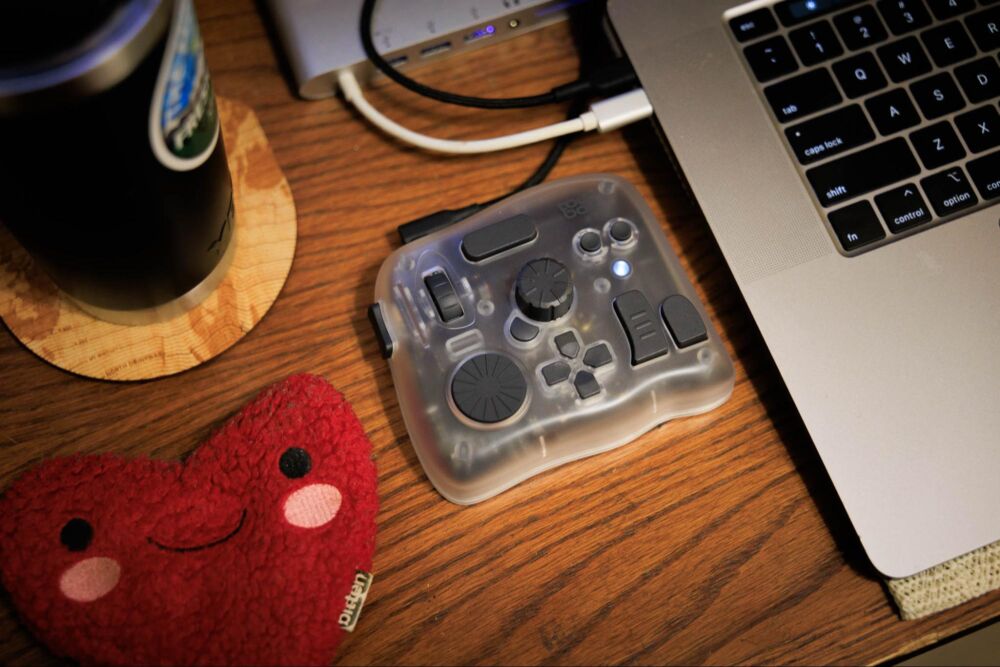
The TourBox Elite Plus isn’t just another creative accessory; it’s a refined, professional-grade console that genuinely enhances how you interact with your digital tools.
It strikes a rare balance between tactile precision, wireless freedom, and intelligent software integration, making it one of the most complete controllers available for creators today.
If your workflow spans across both iPad(s) and computer(s), or you simply want to eliminate repetitive clicks and swipes on a screen or trackpad or keyboard, this device deserves a permanent spot on your desk.
It’s powerful, elegant, and efficient — exactly what a modern creative tool should be!
Check Pricing & Availability here.