There’s nothing more frustrating than trying to get a good picture of something or someone, only to discover later that the photo you took is blurry and virtually unusable. Or so you might think!
A blurry photo might be disappointing, but believe it or not, it might still be recoverable. All you have to do is use one of the several apps on the market designed to help fix blurry and out-of-focus photos, and you’re well on your way to a share-worthy image!
There are dozens of apps around to do this, and it can take hours to find the right one. Instead of driving yourself crazy looking for the best ones, we’ve done the work for you with this list of 8 of our favorite apps, in no particular order, for fixing blurry photos.
Best Apps to Fix Blurry Photos: At a Glance
Here’s a quick overview of the apps we cover, from professional AI-powered tools to free mobile options for everyday fixes.
- Topaz Photo AI – Best AI-powered sharpening, professional grade
- Luminar Neo – All-in-one editor with advanced AI unblur tools
- Snapseed – Best free mobile option, easy to use
- Adobe Lightroom – Industry-standard editor with powerful detail tools
- PIXLR – Free browser and app editor, solid sharpening slider
- Sharpen Image – Simple Android app built specifically for sharpening
- VSCO – Popular mobile editor with sharpening and new AI tools
- FOTOR – Community-focused editor with incremental sharpening controls
- Afterlight – Long-running favorite with natural-looking sharpening
Topaz Photo AI (formerly Sharpen AI)

Available as a stand-alone application or as part of the Topaz Studio bundle, Topaz Labs has long been considered the industry leader for sharpening and recovering blurry images. What was originally sold as the standalone Sharpen AI app has now been consolidated into Topaz Photo AI, an all-in-one platform that combines sharpening, denoising, and upscaling into a single, smarter workflow.
What makes this software stand out is that it contains separate AI models to address each of the three root causes of blur. The Stabilize model tackles camera shake and motion blur, the Focus model corrects out-of-focus images, and the Sharpen model handles general softness and output sharpening. Each model is trained specifically for its blur type, which means it can produce results that traditional unsharp mask tools simply can’t match. Topaz Photo AI goes beyond standard sharpening to recover images that would otherwise be impossible to save.
The software works as a standalone desktop application on both Mac and Windows, and also integrates as a plugin with Lightroom Classic, Photoshop, and Capture One. It starts at $199 for a perpetual license, which includes one year of free updates. After that, continued updates are available through an annual upgrade plan. If you shoot a lot in challenging conditions, whether handheld in low light or chasing fast-moving subjects, this is the most capable tool on this list.
Luminar Neo

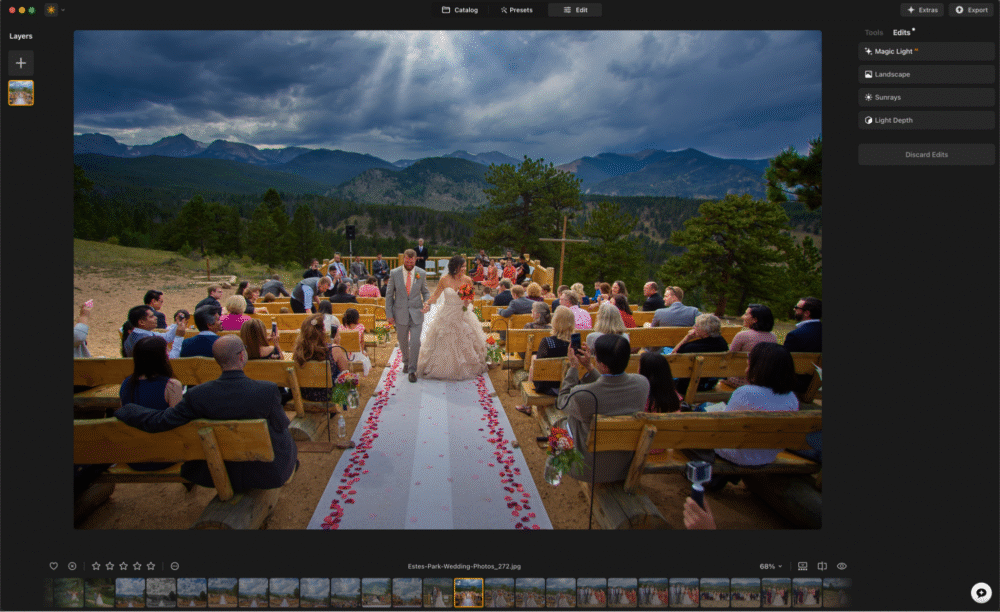
In addition to a comprehensive suite of editing features, Luminar Neo from Skylum offers advanced image unblurring capabilities designed to tackle various forms of blur. It’s a strong choice if you want sharpening tools integrated into a broader photo editing and organizing workflow.
The Supersharp AI Extension is Luminar Neo’s dedicated blur-fixing tool. It uses a neural network that analyzes the depth, perspective, and environment of a photo, then applies a compression algorithm to render sharp, natural-looking results. It handles motion blur, missed focus, and camera shake without introducing the halo artifacts common with traditional sharpening methods.
For photographers working with focus stacking, the Focus Stacking Extension allows combining up to 100 images, each captured at different focus points, into a single frame where every element is in sharp focus. The software handles alignment, cropping, and blending automatically. There’s also the Upscale AI Extension, which can increase image resolution up to six times, making it useful for recovering usable crops from wide shots or breathing new life into older, lower-resolution images.
Luminar Neo is actively developed, with Skylum regularly releasing major updates. Recent additions include an AI Assistant that provides real-time editing suggestions, a Restoration tool for repairing old or damaged photographs, and a cross-device Ecosystem that lets you sync edits between mobile and desktop. It’s available on Mac and Windows, and works as a plugin for Lightroom Classic and Photoshop.
Snapseed

The best thing about Snapseed is that it’s completely free. Unlike many other apps that offer useful editing tools only behind a paywall, Snapseed charges nothing for its full set of features. The app is simple to navigate and includes dozens of editing tools, making it one of the most accessible options for mobile photographers looking to recover a soft or slightly blurry shot.
To fix a blurry photo, upload your image to the app and head to the Tools menu. While there are plenty of filters to explore, the Details tool is the most useful for sharpening. It gives you two controls to work with: Structure, which enhances texture and mid-tone contrast, and Sharpening, which increases edge definition. Using both together tends to produce more natural-looking results than sharpening alone. You can also use the selective adjustment brush to apply sharpening only to specific parts of the image, which is helpful when your subject is soft but the background is already acceptably sharp.
Snapseed is available on both iOS and Android. It won’t work miracles on severely blurry images, but for everyday sharpening needs on mobile, it’s hard to beat for the price.
Adobe Lightroom

Adobe Lightroom is probably the most widely used photo editing app among serious photographers, and for good reason. Whether you’re using the mobile version or Lightroom Classic on desktop, the sharpening tools are precise and well-integrated into the rest of the editing workflow. The app does require an Adobe account to use, but you can sign in with an existing Google or Facebook account to get started without creating one from scratch.
One of the more underrated features of Lightroom is its organization system, which lets you manage and catalog your edited photos inside the app rather than hunting through your camera roll. For sharpening blurry images specifically, the Detail panel gives you control over Amount, Radius, Detail, and Masking, which together let you sharpen exactly what you want without introducing noise in smooth areas. The AI-powered Denoise feature available in recent versions also works well alongside sharpening when you’re dealing with high-ISO shots.
The free version of Lightroom covers the basics, including sharpening tools, but the more powerful features, including cloud storage, advanced masking, and full RAW editing, require a Creative Cloud plan. If you already have an active Adobe subscription, the mobile app is included at no extra cost.
[Related Reading: Best Photo Editing Software]
PIXLR

PIXLR is one of the more versatile free image editing options available, and it works in a browser as well as on mobile, which makes it convenient when you don’t want to install anything. The interface is clean and approachable, and the sharpening tool is easy to find. To fix a blurry image, simply upload your photo and drag the sharpness slider until the image looks clearer.
The key thing to keep in mind with PIXLR is that you can easily over-sharpen if you push the slider too far. Over-sharpened images develop an unnatural crunchy look around edges, which is often more distracting than the original blur. The slider format at least makes it easy to dial things back incrementally, so take your time and zoom in to check the fine details before saving. For a free, no-download option that handles basic sharpening well, PIXLR is a solid choice.
Sharpen Image


The name says exactly what it does. The Sharpen Image app is a focused Android tool built specifically for sharpening and fixing blurry photos. It tends to get overlooked because the interface is fairly bare-bones and doesn’t have the polished look of apps like VSCO or Lightroom.
That said, the app does what it sets out to do. If you have an Android device and need a quick, dedicated sharpening tool without the overhead of a full-featured editor, Sharpen Image gets the job done. It’s a good option to have installed for those moments when a fast fix is all you need.
VSCO

VSCO is one of the most popular photo editing apps around, and it has grown significantly beyond its roots as a filter app. The community aspect is one of its distinctive features: you can post photos to your profile and follow other photographers, giving it more of a creative community feel than a typical editing tool. If you appreciate the look of analog film photography, VSCO has an extensive library of film emulation presets that do a genuinely good job of replicating classic stocks.
For sharpening blurry photos, VSCO’s Sharpen tool adjusts fine edge detail with a simple slider, and the separate Clarity tool handles mid-tone contrast, which can help photos look more defined without over-sharpening edges. Together, they offer a reasonably effective combination for rescuing mildly soft images. VSCO has also introduced an AI Lab feature on iOS with tools including image upscaling that sharpens detail and reduces pixelization, available on the Pro membership tier.
The free version of VSCO is fairly limited. To access the full suite of editing tools and the AI features, you’ll need a paid membership. That said, for photographers who want sharpening tools alongside a strong filter library and a community to share work with, VSCO offers a lot of value in one place.
FOTOR

Like VSCO, FOTOR gives users the option to post their photos directly to a community feed, where they can gain followers and share images with other photographers. The community element is a nice bonus, but it’s not required, and you don’t need to create a profile to use the editing tools.
The sharpness tool is easy to access and use. Upload your photo, navigate to the adjust panel, and drag the sharpness slider. What makes FOTOR’s approach appealing is the ability to make small, incremental adjustments rather than large jumps, which gives you more control over the final result and makes it easier to avoid the over-sharpened look. It’s a straightforward, low-friction option for quick fixes on both desktop and mobile.
Afterlight

Afterlight has been around since the early days of mobile photo editing, and it remains a solid choice. The sharpening tool is effective at bringing clarity to soft images while keeping the result looking natural, which is harder to achieve than it sounds. Push sharpening too hard in most apps and the image starts to look processed; Afterlight tends to handle the transition more gracefully than many of the free alternatives.
It’s a good all-around mobile editor for photographers who want more than just a filter app but don’t need the complexity of Lightroom. If you want a reliable sharpening tool that integrates cleanly into a broader mobile editing workflow, Afterlight is worth having on your phone.
Frequently Asked Questions About Fixing Blurry Photos
Can you actually fix a blurry photo, or is it gone for good?
It depends on the degree and type of blur. Minor softness from missed focus or slight camera shake can often be recovered convincingly, especially with AI-powered tools like Topaz Photo AI. Severely blurry images where fine detail was never captured are much harder to fix, and no app can invent detail that wasn’t recorded by the sensor. The best results come from images that are only slightly soft, not those that are dramatically out of focus.
What causes photos to come out blurry?
Blur in photos generally falls into three categories: camera shake (the camera moved during the exposure), motion blur (the subject moved faster than the shutter speed could freeze), and focus blur (the lens focused on the wrong area or missed focus entirely). Each type responds differently to sharpening tools, which is why apps like Topaz Photo AI use separate AI models for each cause rather than applying a single generic sharpening filter.
Is there a free app that can fix blurry photos?
Yes, several. Snapseed is one of the best free options available on both iOS and Android, offering both a sharpening tool and a structure control in its Details panel. PIXLR is a good free browser-based choice if you prefer to work on a computer. Adobe Lightroom also has a free tier that includes basic sharpening tools. None of these free tools match the results of dedicated AI software like Topaz Photo AI, but they handle everyday sharpening needs very well.
Can I fix a blurry photo on my phone?
Absolutely. Snapseed, VSCO, Lightroom Mobile, FOTOR, and Afterlight are all capable mobile apps with sharpening tools built in. For most everyday cases, a mobile app will do the job. If you’re trying to recover a critically important image with significant blur, a desktop AI application like Topaz Photo AI or Luminar Neo will give you more powerful results.
How much sharpening is too much?
Over-sharpening creates obvious artifacts: bright halos around edges, an unnatural crunchy texture, and exaggerated noise in shadow areas. A good rule of thumb is to zoom in to 100% while adjusting and watch the edges of your subject carefully. As soon as you start to see a bright outline or a gritty texture appearing, you’ve gone too far. It’s always better to sharpen a little less than you think you need and then step back to evaluate the full image before saving.
So what do you think? Is there an app we’ve missed that should be on this list? Let us know your favorites in the comments below.