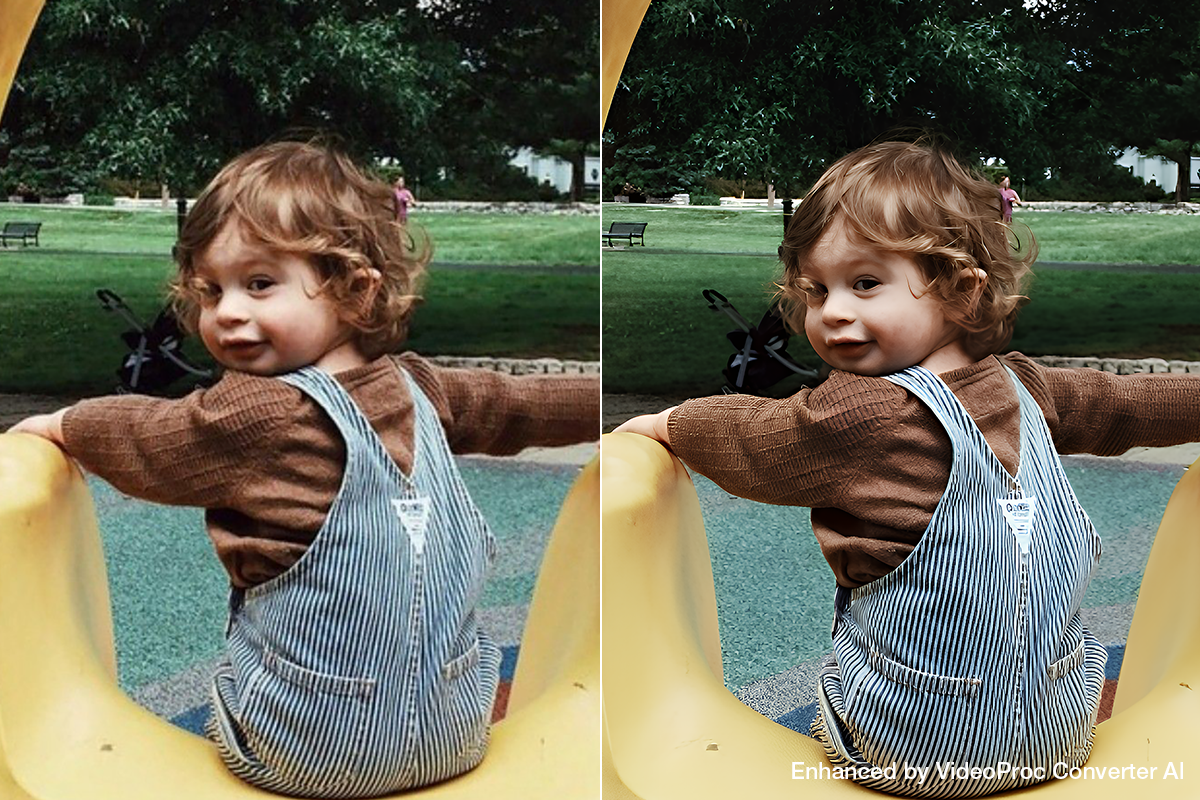
For photographers and videographers, every moment captured is a piece of our real world that has been frozen in time. Whether it’s the vibrant hues of a sunset landscape, the emotion of a memorable moment with friends & family, or the nostalgic charm of our oldest imagery, this is what our passion as artists is all about.
And yet, we are all too familiar with the imperfections that can creep in – low resolution or image noise due to the limitations of a camera sensor, or shakiness in hand-held video footage or windy drone content… These flaws can be truly frustrating! Thankfully, with VideoProc Converter AI, we don’t have to accept such imperfections anymore.
What Is VideoProc Converter AI
VideoProc Converter AI is an easy-to-use, affordable, all-in-one AI video and image enhancer designed for photographers, videographers, and everyday users who want better visual quality. Trained to increase resolution and recover details, it leverages next-gen AI to upscale footage and images to as high as 8K/10K.
Additionally, the software can remove shakiness, thus converting jarring scenes into smooth 60p or even 120p cinematic content. Simply put, it’s an all-around solution for scaling, enhancing, and converting/compressing or even recording/downloading video files and still images.
Thanks to recent updates, VideoProc AI also utilizes the power of level-3 GPU acceleration, so you can enjoy up to 47 times faster processing of your media files. With that being said, let’s dive into this review!
VideoProc’s Four Major AI-Driven Video & Image Enhancement Features
There are four key features that we’d like to highlight which give VideoProc its value. They are Video Super Resolution, Stabilization, Frame Interpolation, and Image AI. If you’re a content creator who works with both still images and video footage, then you’ll want to read this whole review! If you only focus on one or the other, then you’ll still find certain tools that are worth the investment. If you’re interested in jumping in, see their Mega Sale Special Offer.
1. Super Resolution
First and foremost, this is an impressive tool. It does just what it says it does: The AI-driven Super Resolution feature focuses on enhancing and upscaling video, allowing you to scale footage by 2X, 3X, or 4X. In practice, that means low-resolution sources like 240p–720p can be refined into clean 1080p, while 720p or 1080p footage can be enhanced to true 4K. It intelligently improves video quality by reducing noise, removing blur, and restoring realistic details, resulting in sharper, cleaner footage without noticeable artifacts or detail loss. It’s an effective way to breathe new life into older or lower-quality videos that would otherwise look dated on modern displays
Technical Insight:
With four specialized AI models integrated into the AI Super Resolution module, each trained on a vast dataset of videos and images, the tool can enhance and upscale different types of visual content with impressive results. Its latest models, including Gen Detail v3 and Real Smooth v3, excel at predicting missing pixels and reconstructing textures while preserving natural edges, helping restore clarity and detail in low-resolution or compressed footage.

Usage Scenarios:
- Enhance compressed videos downloaded from social media or streaming platforms.
- Upscale cropped video clips that have lost resolution during editing or reframing.
- Elevate old DVDs or archived camcorder footage for sharper playback on modern 4K displays.
- Reduce noise in videos captured with high ISO settings or in low-light environments.
- Recover detail and sharpness from blurry or out-of-focus footage.
Pros & Cons:
As you might expect, the quality of results will always vary depending on the amount of data you are starting with. If you try to take a 480p video captured on an old camera and/or with a sub-par lens, then trying to go all the way to 4K resolution will not “magically” create detail from nothing. The results are indeed impressive, but for our uses we saw the best quality when sticking to upscaling 720p video to 2K or 4K, and upscaling 2K imagery (about 3–4 megapixels) to 4K (about 8 megapixels).
2. Video Stabilization
This tool will help you eliminate both camera shake and/or motion blur from video footage. The process is push-button automatic, and the results are impressively accurate.
Sometimes your videos may have complex motion happening all throughout the frame, and sometimes there can be significant displacement of sharp detail due to the shutter speed used for that video capture. If this happens, in the past it has been a huge pain to stabilize video footage!
While remaining the original video resolution, VideoProc AI can still help achieve the highest possible video quality through either its automatic or manually controlled stabilization tool. There are two main stabilization modes, and four presets plus three cropping modes.
Technical Insight:
The software uses AI (subject recognition) to recisely detect and track key points within video frames, and calculates a smooth camera trajectory to minimize motion between those key points.

Usage Scenarios:
- Stabilize videos with fast-moving objects (too fast for the shutter speed the camera used?)
- Remove wind-related shakiness in drone footage
- Minimize hand-holding shake from fast-paced action scenes (especially without a gimbal)
Pros & Cons:
The greatest benefit here is that it’s virtually effortless compared to almost all other video editing software’s stabilization tools. While high-end progams seem to require an advanced degree in mastering that software before you even understand how to use the tool, let alone get good results, VideoProc’s AI-powered results are not just effective and impressive, but they’re almost effortless to achieve, which significantly lowers the barrier between a beginner content creator and high-end, cinematic results.
3. Video Frame Interpolation
This third key feature also does what it says: For video users who may have captured a lot of video at normal or slower framerates (FPS) such as 24p or 30p, this tool can reate smoother videos with AI-generated, realistic, higher FPS.
To be precise, you’ll be able to boost a video clip’s frame rates by 2x, 3x, 4x, or even 5x, enhancing FPS from, for example, 25/30fps to as high as 480fps!
Technical Insight:
What VideoProc is doing here is integrating scene change detection and analysis to prevent incoherent motion and unnatural artifacts. It’s harnessing deep convolutional neural networks, and generating intermediary frames using the latest AI models with motion estimation. This effectively minimizes potential artifacts brought by rapid movements or abrupt scene transitions. (In other words, you can give a “Hypersmooth” look to that old GoPro footage that you almost trashe because it was so shaky!)
Usage Scenarios:
- Smooth outdoor sports footage (biking, surfing recording, etc)
- Enhance the fluidity and clarity of their gameplay recordings
- Convert videos to different frame rates to fit platform-specific FPS standards
- Create captivating visual effects like stop-motion or bullet-time (using rendered high-FPS footage played back at normal FPS to create a slow-motion effect!)
Pros & Cons:
As with the Super Resolution tool, it is important to note that your results may seem to borderline on “magic”, but any time there is interpolation, you’re not actually creating new detail or motion that was never there in the first place. The AI is very good, but it’s not an absolute substitute for a modern camera with a high framerate.
4. Image AI
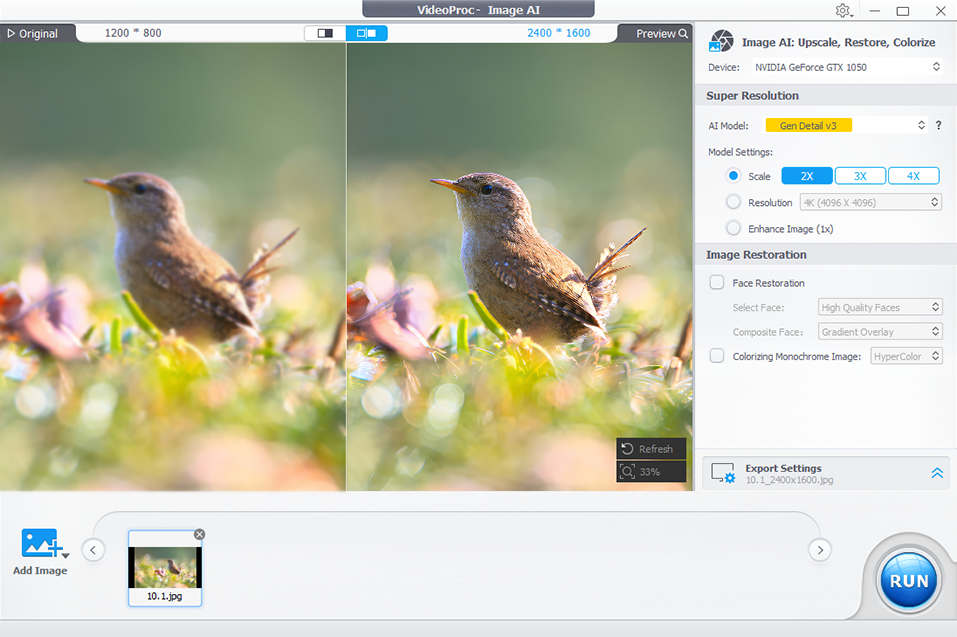
Image AI in VideoProc Converter AI uses Super Resolution to enlarge your photos to 4K, 8K, or even 10K. It naturally enhances fine details and textures while deblurring, denoising, and sharpening images to improve clarity without introducing artifacts. Beyond simple upscaling, it also offers useful features such as restoring faces in old or blurry photos, giving your images a lifelike and polished quality with minimal effort.
Usage Scenarios:
- Upscale vacation or landscape photos to share on social media or print as posters.
- Enlarge AI-generated, anime, or game artwork for streaming or digital galleries.
- Make product photos sharper and clearer for online store listings.
- Restore faces and details in old photos or blurry faces in group shots.
- Make cropped images look crisp and detailed for closer views or zoom-ins.
Pros & Cons
VideoProc Converter AI’s Image AI performs best with good-quality source images, so very small or heavily compressed photos may not upscale perfectly. That said, it handles 2K to 4K or 4K to 8K/10K upscaling very well, maintaining natural textures and clear details. Additional features, such as restoring old or blurry photos, are a big plus.
VideoProc AI Review | Additional Useful Features
Aside from these four key features we wanted to highlight in our review, there’s a bunch of other details and features we could also mention that add to the software’s value.
VideoProc AI offers a CONVERT feature, which can convert from over 370 input formats to more than 420 output formats; this feature uses video remuxing with no re-encoding or quality loss. The tool also includes preset profiles for compatibility with popular devices.
A COMPRESS tool also does its job with impressive results: reduce file size up to 90% without visible quality loss! This feature offers customizable target sizes and compression ratios, and ther are six additional compression methods.
The VideoProc AI RECORD function is able to create full or partial screen captures, including external screens, even iPhone/iPad devices, and webcam. You can choose to include or exclude audio from microphones, speakers, etc.
For those with truly “ancient” media that is storing precious imagery, there is the Rip DVD tool. You can convert DVDs to common digital formats like MP4, and also create 1:1 DVD backups.
The DOWNLOAD tool also is self-explanatory: you can save video, audio, and subtitles from over a thousand UGC sites, and either maintain original video quality or choose your preferred quality compression.
FAQs
1. What are the core AI features of VideoProc Converter AI?
VideoProc Converter AI’s core AI features include Video AI, which upscales and enhances video quality up to 4K, reduces shakiness, and can increase frame rates to 120 or 240 fps; Image AI, which elevates image quality up to 10K, enhances details and sharpness, deblurs faces, and more; and Audio AI, which removes background noise and can separate vocals from other music.
2. Who can benefit from using VideoProc Converter AI?
Photographers, videographers, content creators, beginners, hobbyists, and aspiring professionals can all benefit. It’s ideal for anyone looking to upscale, enhance, restore, and archive old or low-quality videos and images, or to process various media files efficiently.
3. What are the pros and cons of VideoProc Converter AI?
VideoProc Converter AI works on both Mac and PC with a user-friendly interface suitable for beginners yet still professional. Its AI features improve low-resolution, shaky, or low-FPS videos and images and support versatile tasks including batch compression and conversion. On the downside, it requires the proprietary app and doesn’t run in the cloud or browser, which may limit Chromebook or mobile use. During the current Mega Sale, it’s available for a one-time payment of $39.95 for a lifetime license with lifetime updates, and it comes with several premium tools, making it a very good value.
Conclusion
VideoProc Converter AI is indeed a fantastic solution for both video and image processing. Its AI-driven capability of enhancing older, lower quality video and images makes it a handy tool for many situations! Whether you’re simply looking to restore, enhance, and archive old home videos, GoPro recordings, or smartphone clips, this software has most beginners covered.
Grab VideoProc Converter AI at an unbeatable price! For a limited time, get a lifetime license for just $39.95, including lifetime updates and free access to the latest AI models. You’ll also receive four premium bonus tools, including a free AI image background remover. Don’t miss out. Take advantage of the special gift offer here.