If you’ve paid attention to the photography & videography industry over the last decade, you know that the demand for video content has never been higher. Much of that demand is due in large part to popular content creators who have raised the bar with their production quality. From TikToks and Instagram Reels to YouTube tutorials and product demos, creators and brands are under pressure to produce professional-quality content quickly, often without the luxury of large budgets or production teams. Enter AI-powered video editing tools, platforms that are reshaping the way creators plan, edit, and publish their content.
In 2025, AI tools are no longer just “nice to have.” They’ve become essential for streamlining workflows, improving quality, and helping content stand out in crowded feeds. Below, we explore some of the most notable AI video editing tools available today, and we share our notes on what makes them unique with the goal of helping you find the best fit for your workflow.
Jump to a Section
Vmake.ai: The Versatile All-Rounder
Who It’s For
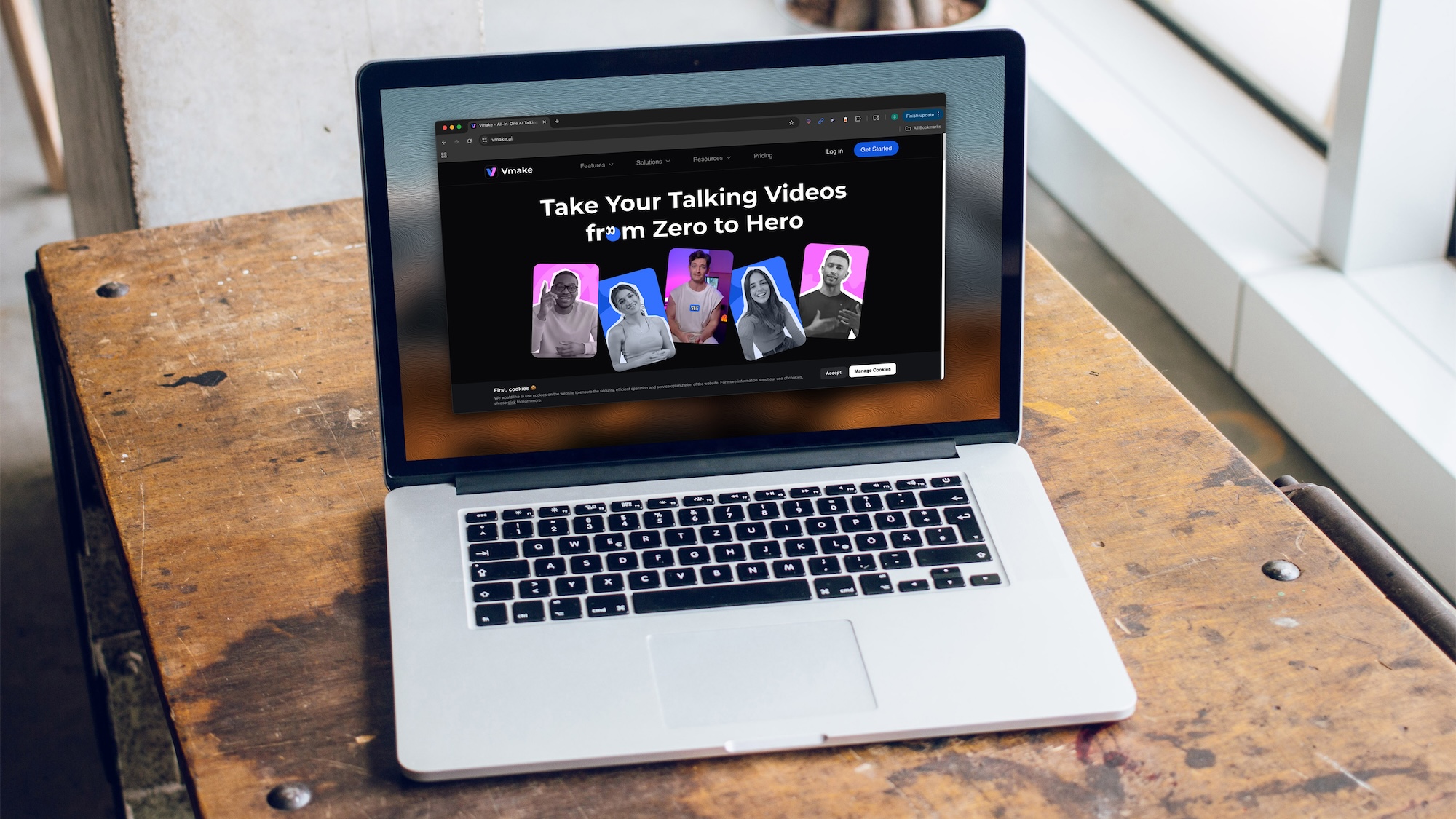
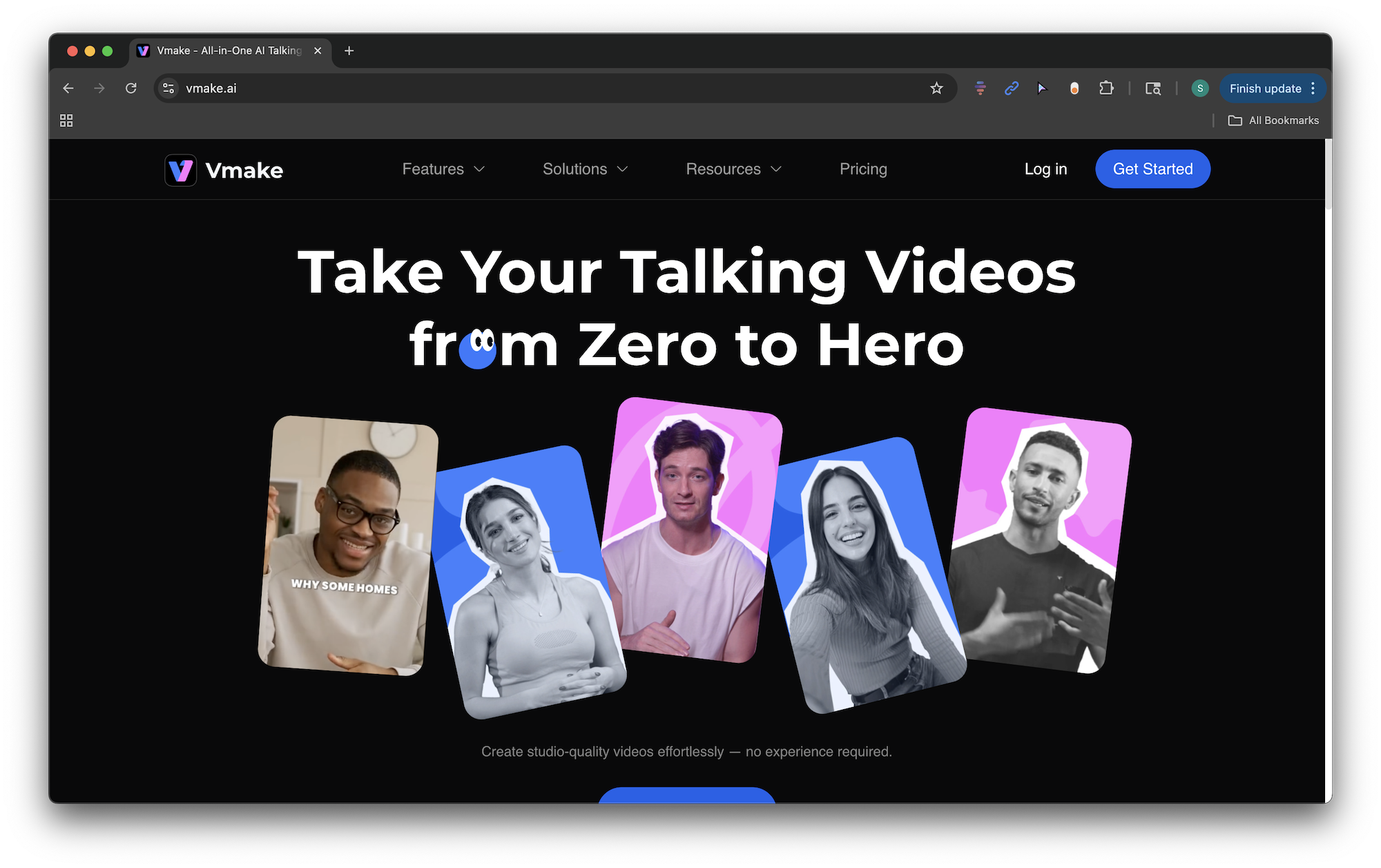
We’ll kick it off with a one-stop shop, “all-rounder” option. While some AI video tools excel at one specific task, Vmake.ai takes a more versatile approach by combining multiple features, making it ideal for creators and businesses that want an all-in-one solution. Also of note, Vmake.ai is accessible via web browsers on both desktop and mobile devices, which offers flexibility for creators on the go.
What It Does
As an all-in-one type of solution, Vmake.ai does a lot. For starters, the platform’s AI Video Background Remover lets users isolate subjects without the need for chroma key setups or complicated masking. As such, it produces clean results quickly (in seconds, in fact). Unlike some simpler tools, Vmake.ai also allows for custom backgrounds using solid colors, branded visuals, or even transparent layers, in an effort to give creators more flexibility in shaping their content.
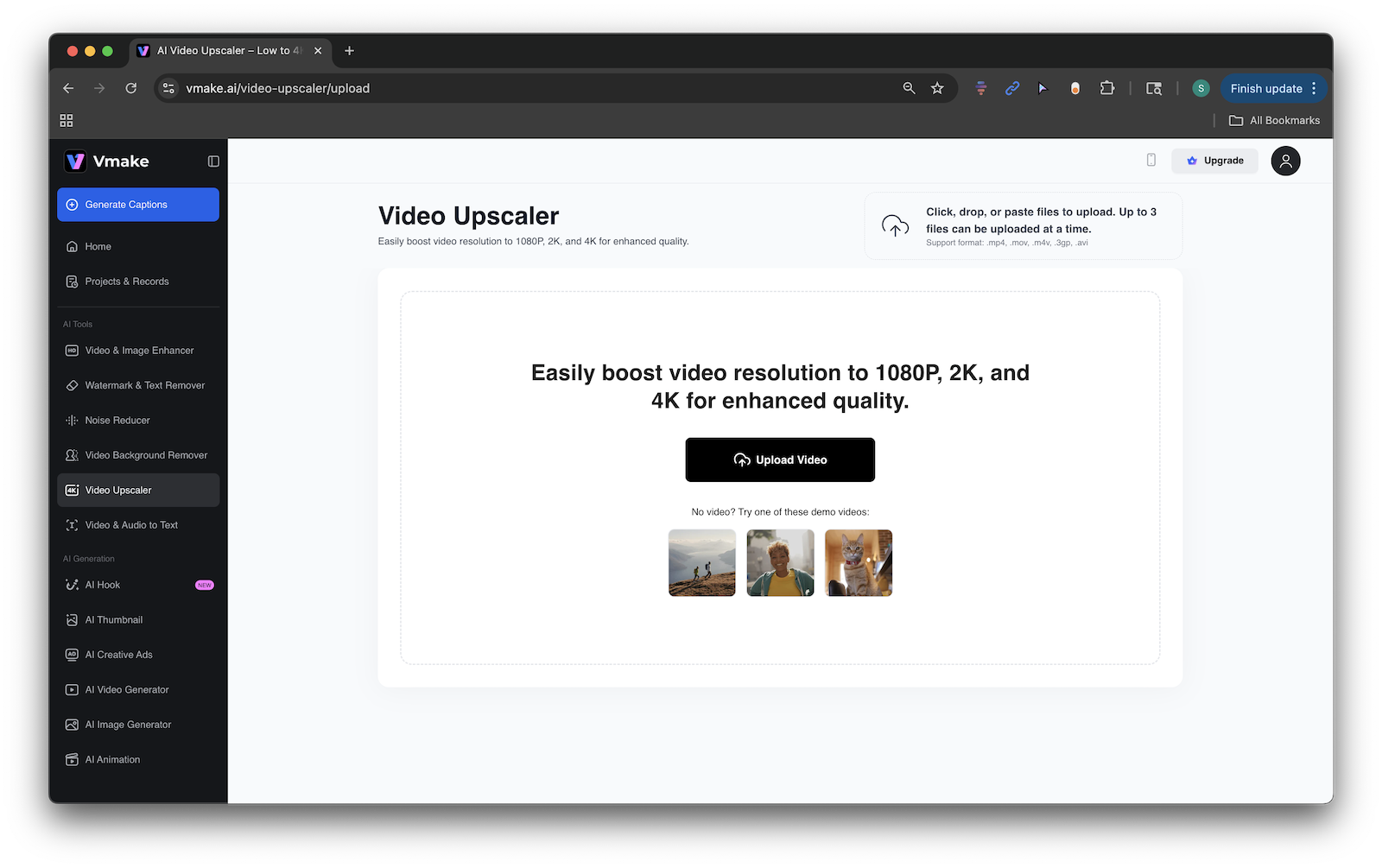
Beyond background removal, Vmake.ai’s Video Upscaler brings low-resolution footage into sharp focus, upscaling 480p or 720p clips into crisp 2K or 4K outputs while enhancing color, reducing noise, and maintaining manageable file sizes.
Batch processing is another standout feature, allowing creators to edit multiple clips simultaneously, which is ideal for teams juggling high-volume projects.
What really sets Vmake.ai apart is its balance of usability and depth. It’s intuitive enough for beginners, with one-click automation for core tasks, yet powerful enough to meet the needs of marketers, educators, and professionals producing commercial content. Social media editors can use it for polished reels, e-commerce businesses for distraction-free product demos, and presenters for high-impact webinars. Like we said, it’s an all-rounder.
Key Features
- Single-Click Background Isolation: Automatic detection and separation of subjects.
- Multi-Format Support: Compatibility with formats like .mp4, .mov, .m4v, .avi, and .3gp.
- Batch Processing: Processing up to three videos simultaneously per user for bulk editing.
- Precise Detection: Proprietary algorithms retain clean edges with precise subject tracking.
- Custom Background: Add transparent layers, solid colors, green screens, or custom visuals.
Pricing
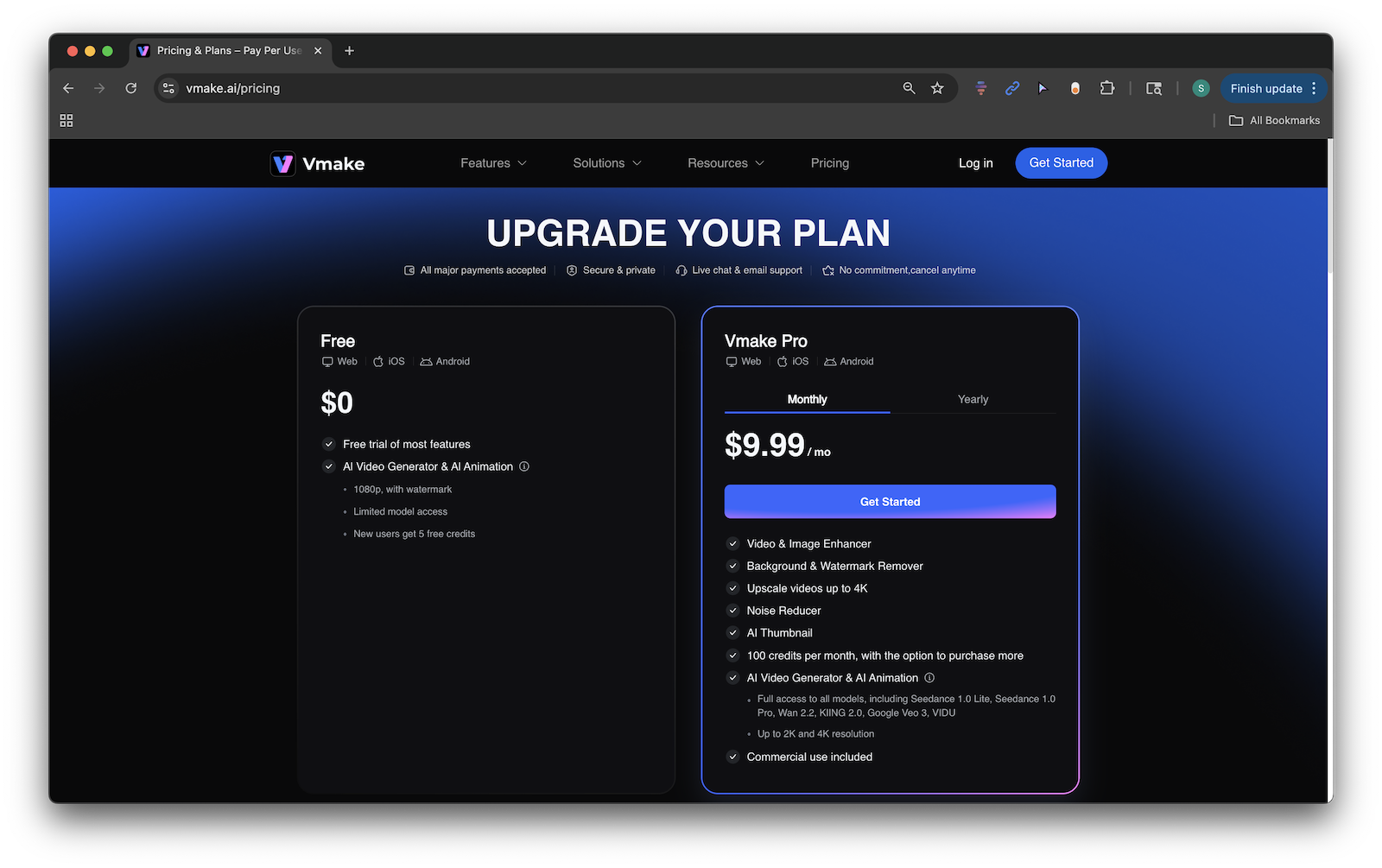
Vmake.ai offers a free trial with access to tools like AI Video Generator and AI Animation. For $9.99/month or $69.99/year, you can upgrade to Vmake Pro and get access to all of the Vmake.ai’s tools, including the Image Video Enhancer, Background and Watermark Remover, Noise Reducer, and more. According to their site, “Vmake Pro members receive a free usage quota of 30 times per feature within a 24-hour period for all features like Video & Image Enhancer, Noise Reducer, Video Background Remover, and Video Watermark Remover. Credits can be used beyond this quota.”
Canva Pro: Design Meets Video Editing
Who It’s For
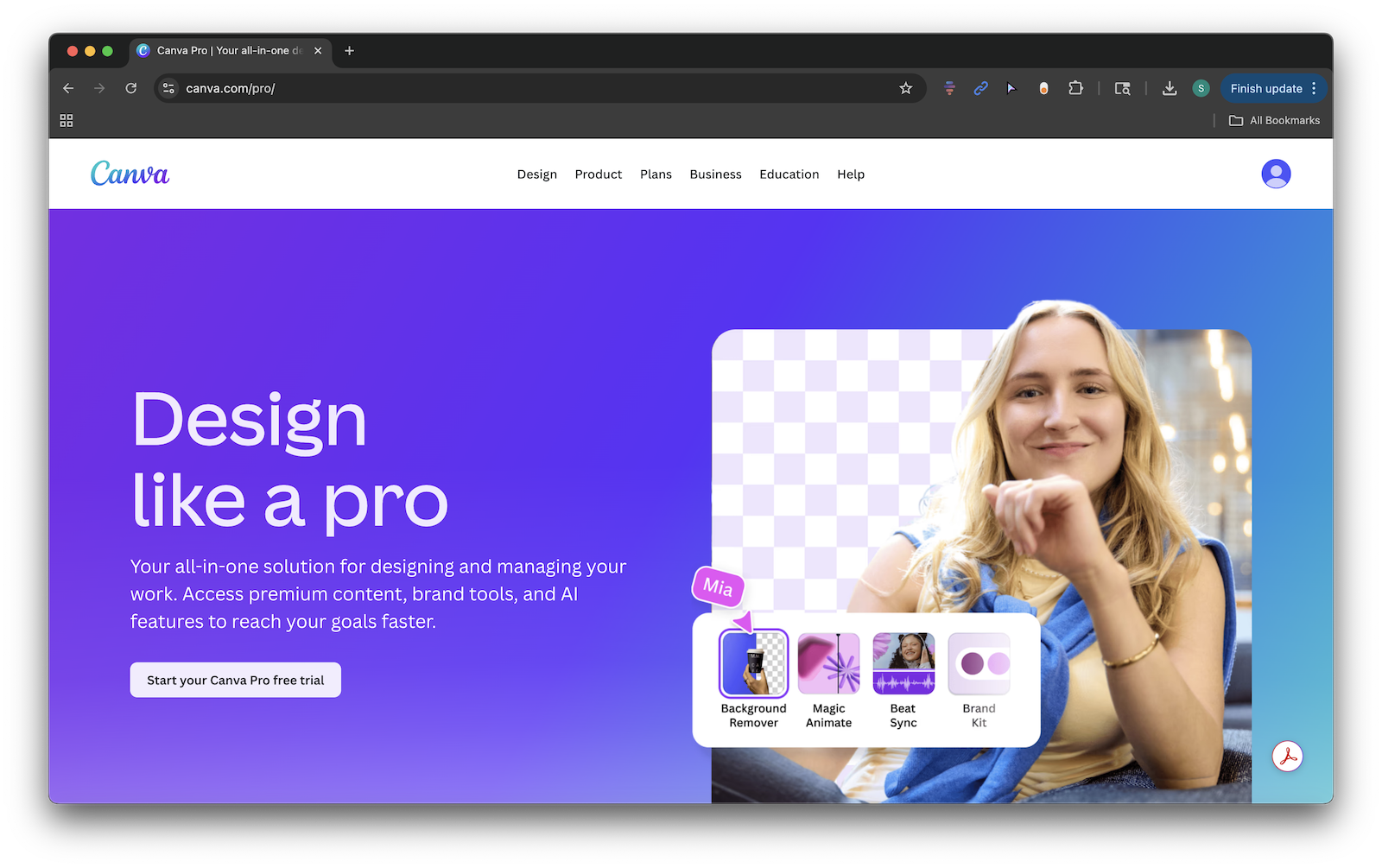
For creators who already use Canva for graphics, Canva Pro’s AI-powered video editing suite is a natural extension. In addition, marketers and small businesses will appreciate Canva Pro’s all-in-one approach, which seeks to bridge design and video editing in a single platform. It shines in scenarios where video is just one piece of a broader visual workflow.
What It Does
Like Vmake.ai, Canva’s “Pro” option strives to be an all-in-one solution. The platform integrates background removal, motion graphics, and templates into one streamlined workspace. Its biggest advantage is accessibility. You can edit everything, including social posts, presentations, and short-form videos, without switching tools.

Canva’s background remover and brush-based refinements make it possible to isolate subjects in just a few clicks, while its massive template library ensures you can layer text, graphics, and animations seamlessly.
Key Features
- One-click background remover for both images and video clips
- Drag-and-drop templates for social media, presentations, and ads
- Integrated animations, text, and graphics for branded visuals
- Manual brush refinements for touch-up control
Pricing
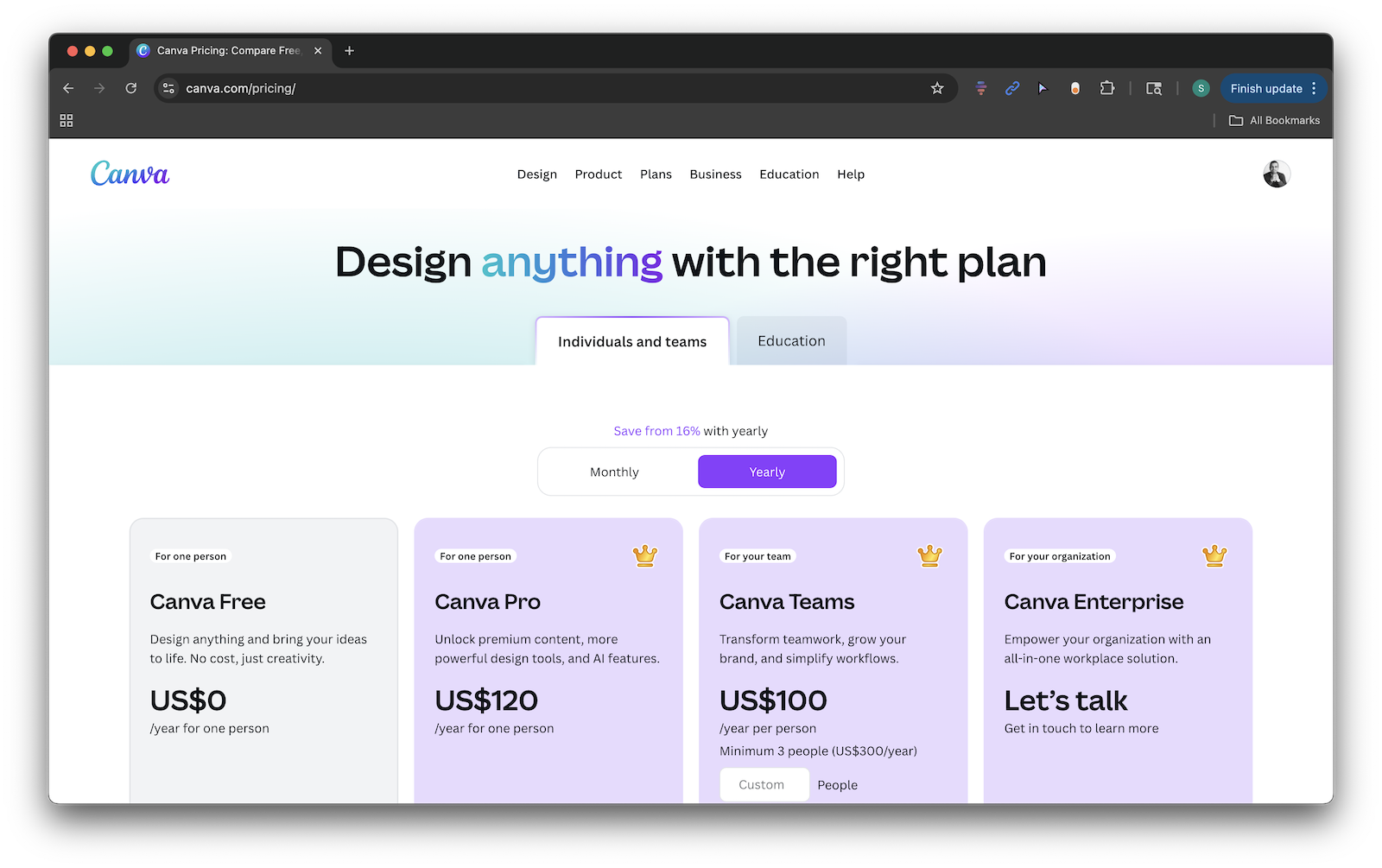
Canva offers a variety of plans to meet different users’ needs. Usage limits and AI-powered design tools vary between plans.
Unscreen: Simplicity in Background Removal
Who It’s For
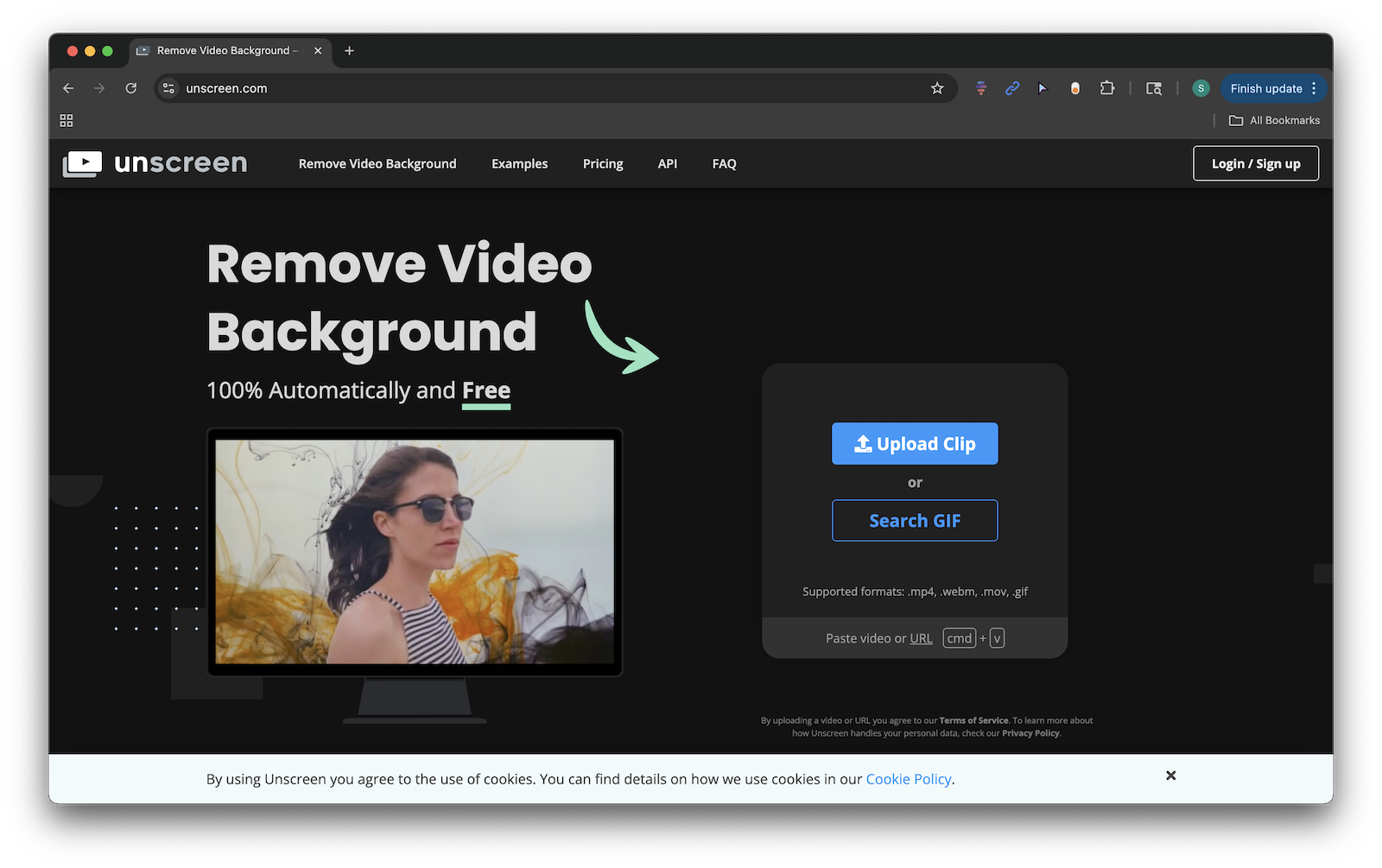
If your priority is quick, clean background removal, Unscreen delivers a no-frills, web-based solution. Unscreen supports common formats like .mp4, .mov, and .gif, making it useful for GIF creators, meme makers, and social media editors who need background-free video fast. While limited compared to full editing suites, its strength lies in its simplicity. It’s a tool that does one thing well, and it does it quickly.
What It Does
By uploading a clip, the AI automatically detects and removes the background with no green screens, manual masking, or editing expertise required. Instead, all you need to do is simply upload your footage and let the AI handle the rest. While it doesn’t offer advanced customization or editing tools, it excels at producing clean subject cutouts in seconds. Unscreen is especially popular with meme creators, TikTok editors, and marketers who just need distraction-free footage ready for layering into another project.
Key Features
- 100% automatic subject isolation, no manual masking required
- Supports .mp4, .mov, .webm, and .gif formats
- Cloud-based, no installation necessary
- Pro add-ons like HD export and Adobe Premiere/After Effects plugins
Pricing
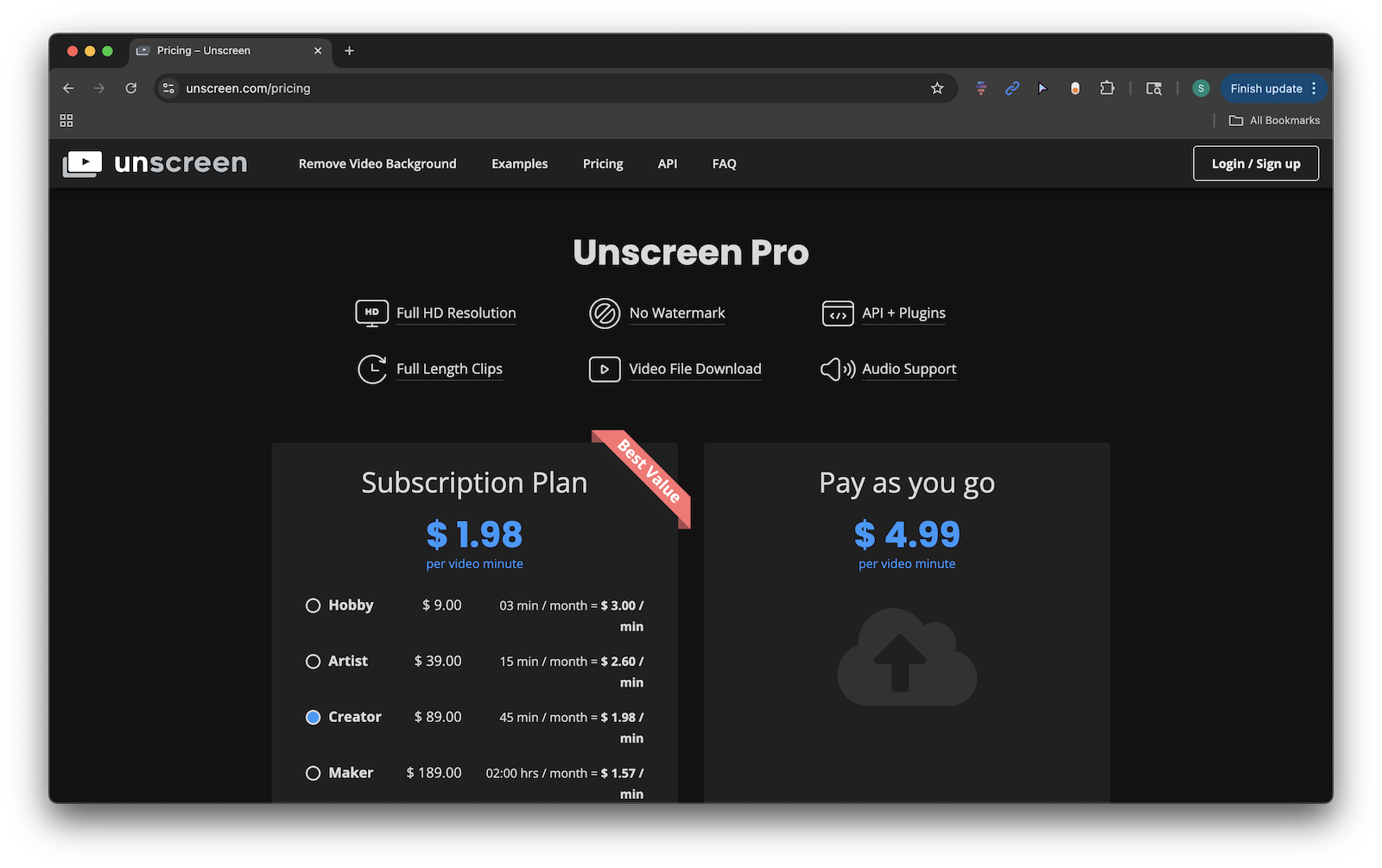
In addition to a minimal free option, Unscreen offers a variety of pricing plans based on time usage and specific features needed.
Cutout.pro: Background Remover and Enhancement

Who It’s For
For creators working with older or lower-resolution footage, Cutout.pro is a reliable option for upscaling. It can boost videos from 240p or 480p to 2K resolution while simultaneously reducing noise, stabilizing shaky footage, and smoothing motion artifacts. This makes it especially valuable for filmmakers restoring archival content or influencers repurposing mobile-shot clips for YouTube. Its automation and browser-based accessibility make it ideal for those who don’t want to wrestle with advanced editing software but still need professional-grade results.
What It Does
Cutout.pro’s video toolkit centers on a few core capabilities: AI image-to-video generation, automatic video background removal, and AI video enhancement. The image-to-video tools can animate a single photo into a short clip or generate videos from text prompts, images, or rough storyboards, all in the browser, so creators can spin up social-ready motion from stills without a traditional NLE.
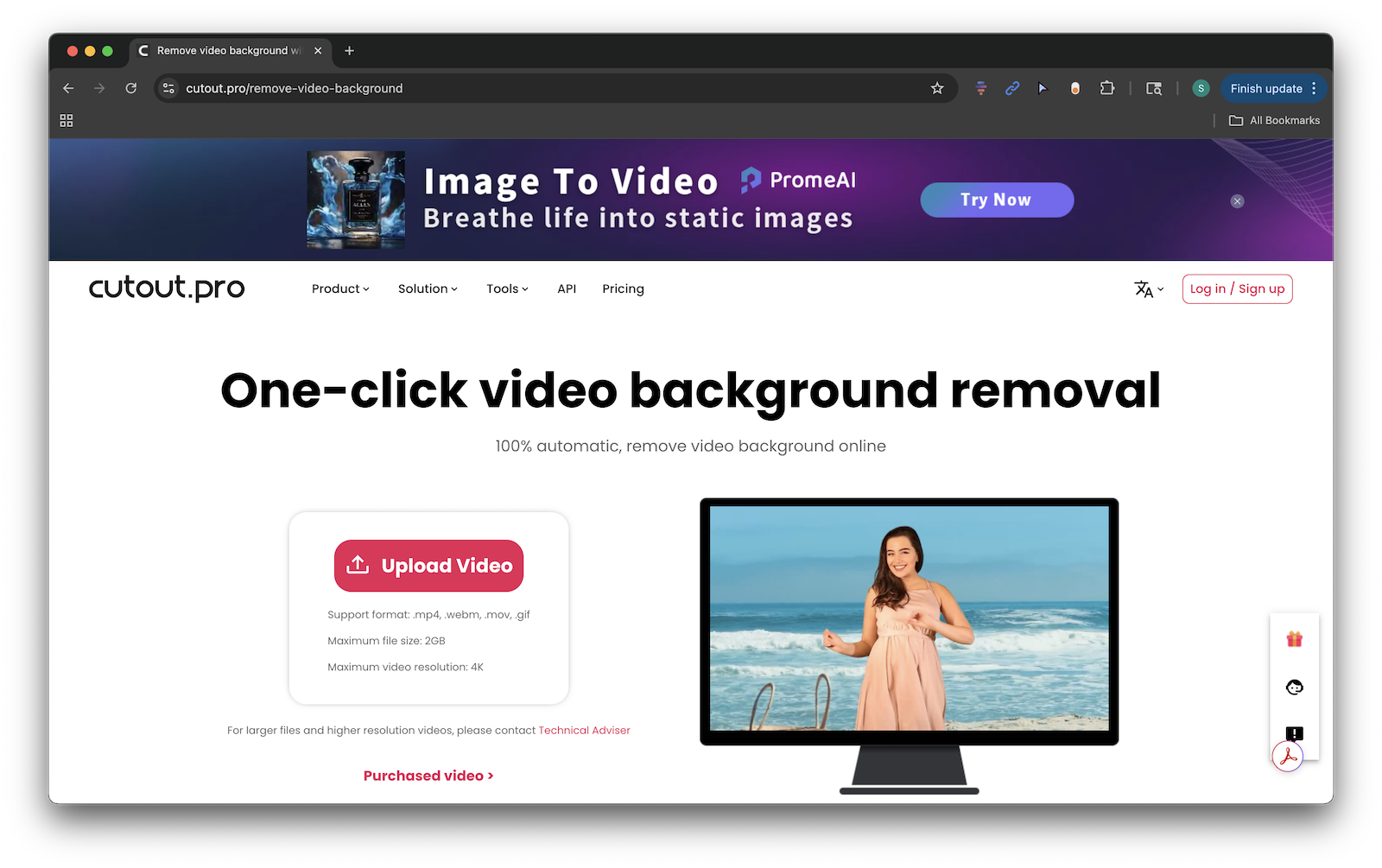
For compositing, the video background remover isolates subjects without a green screen, with web workflow for casual users and an asynchronous API for teams that need to run background removal at scale.
Also, through its AI Video Enhancer, users can automatically sharpen footage, upscale resolution up to 4K, reduce noise, stabilize shaky clips, reduce motion artifacts, apply deinterlacing and motion interpolation, and even improve contrast and color. The best part? These features are all accessible via browser or its desktop app.
Key Features
- AI Image-to-Video Generation: Turn single images, storyboards, or prompts into animated clips
- Video Background Removal: Fully automated subject isolation, no green screen or manual masking required
- AI Video Enhancer: Automatic upscaling (up to 4K), noise/artifact reduction, motion stabilization, deinterlacing, motion interpolation, sharpening, and color/contrast enhancement via web or desktop
- API Capability: Asynchronous processing for batch workflows and production integration
Pricing
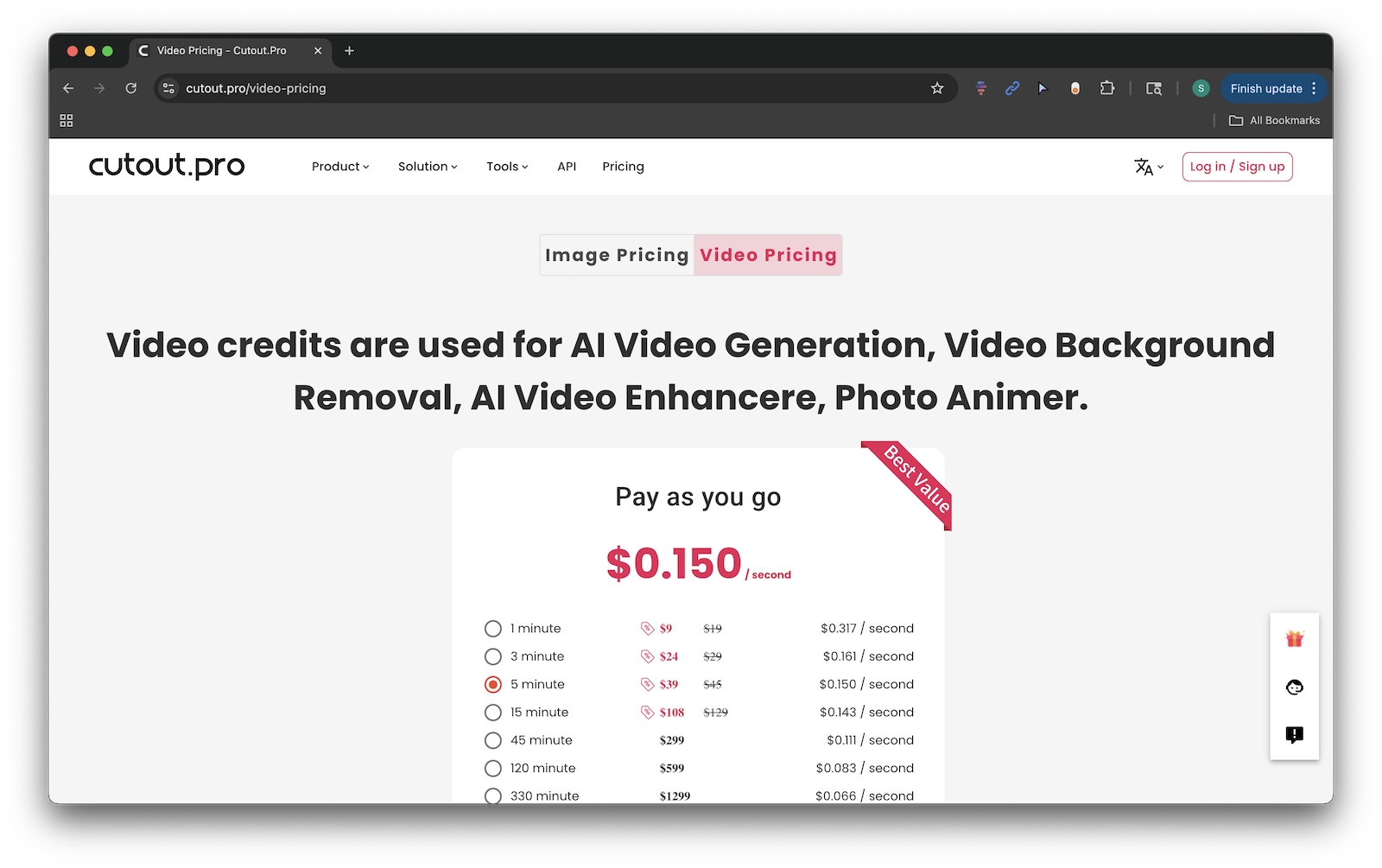
You can register on cutout.pro using your Google account or Facebook account. Then, you can log in and purchase pay-as-you-go credits.
TensorPix: 4K Upscaling in the Cloud

Who It’s For
Another player in the upscaling arena is TensorPix, which focuses on cloud-based, high-resolution enhancement. This makes it particularly appealing to professional users who want to breathe new life into VHS-era content or early digital footage. Its batch processing and API integration also make it a strong choice for enterprise teams looking to scale their workflows.
What It Does
Where many AI tools stop at basic resolution enhancement, TensorPix pushes into specialized territory with its advanced cloud-based upscaling engine. Using deep learning engines with over 200 million parameters, it can upscale video to 4K at up to 60fps, while also reducing noise and adding motion interpolation.
What sets it apart is its Ultra 4 Engine, a deep-learning model trained on hundreds of millions of parameters to reconstruct fine details rather than just stretching pixels. The result is sharper edges, cleaner textures, and footage that feels truly remastered rather than artificially enlarged.
TensorPix also includes Deep Clean 4 filtering, which actively reduces noise and compression artifacts that often plague older or heavily compressed video. Combined with motion interpolation, it can smooth frame transitions for more natural motion, particularly useful when dealing with jittery archival footage or low-frame-rate clips.
Beyond individual creators, TensorPix supports batch processing and API integration, making it a viable solution for production houses, archivists, or businesses that need to process video at scale.
Key Features
- Upscales SD/HD footage to 4K at up to 60fps
- Uses deep-learning engines for sharp detail reconstruction
- Includes noise/artifact reduction and frame interpolation
- Batch processing and API support for larger teams
Pricing
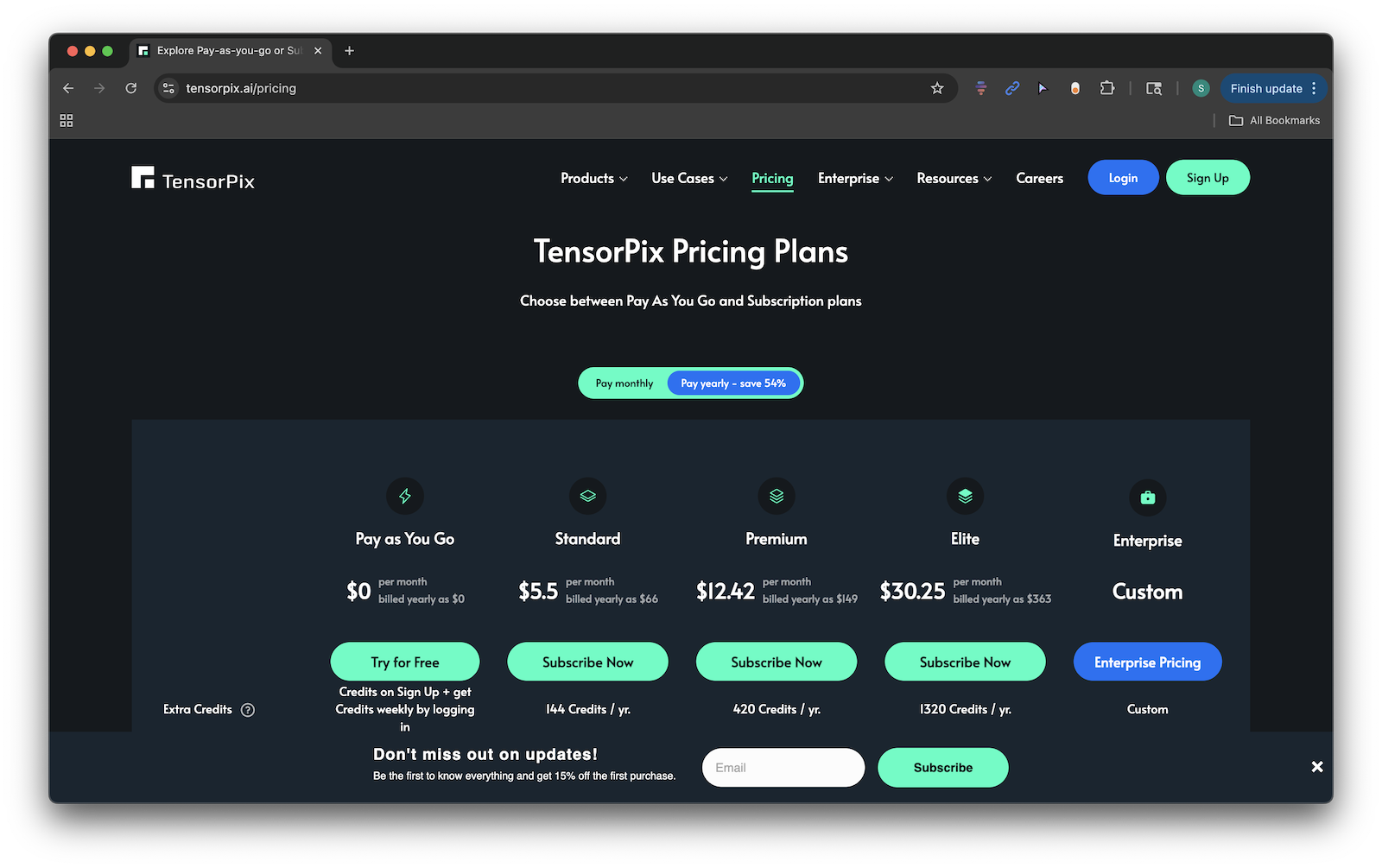
TensorPix offers a number of different pricing plans to accommodate a variety of users.
Choosing the Right Tool in 2025
The best AI video editing tool depends on your needs. Canva Pro is great if you’re already building social campaigns in its ecosystem. Unscreen works well if you just need fast background removal. Cutout.pro and TensorPix excel at video upscaling, particularly for archival or mobile-shot content.
For creators and businesses seeking a balance between speed, flexibility, and professional output, Vmake.ai stands out as one of the strongest all-rounders on the market. It combines the strengths of background removal and upscaling into one platform, helping creators produce high-quality content without the steep learning curve of traditional editing software.
Final Thoughts
AI is no longer on the sidelines of video editing. It currently stands at the center of how creators work in 2025. Whether you’re a photographer expanding into video, a social media marketer, or a business owner looking to elevate your brand presence, these tools can dramatically reduce the time and cost of producing professional content. As the ecosystem continues to evolve, the key is to find tools that fit your workflow. For many, that means specialized solutions like Canva Pro, Unscreen, or TensorPix. But for those who want a versatile, easy-to-use editor that covers multiple bases, Vmake.ai is quickly becoming a go-to choice.