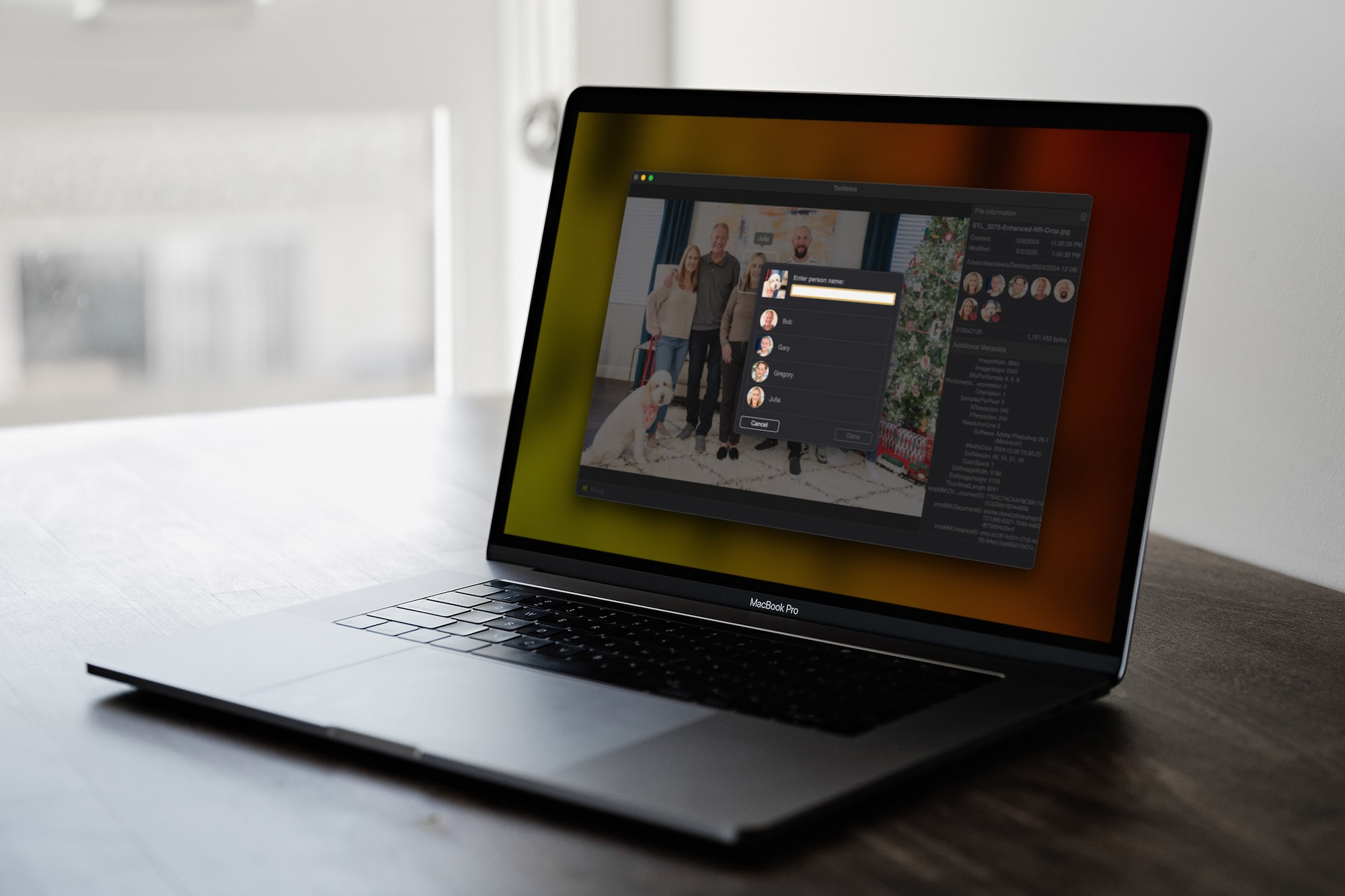
Facial recognition has become one of the most useful tools for organizing modern photo libraries. Whether you’re managing family snapshots, professional shoots, or business assets, the ability to search and group images by person can save hours of work.
There’s no single “best” option for everyone — some tools emphasize ease of use, others focus on professional workflows, and a few are designed with privacy or collaboration in mind. The programs below are presented in no particular order; choose based on your needs and priorities.
TONFOTOS
Who It’s For
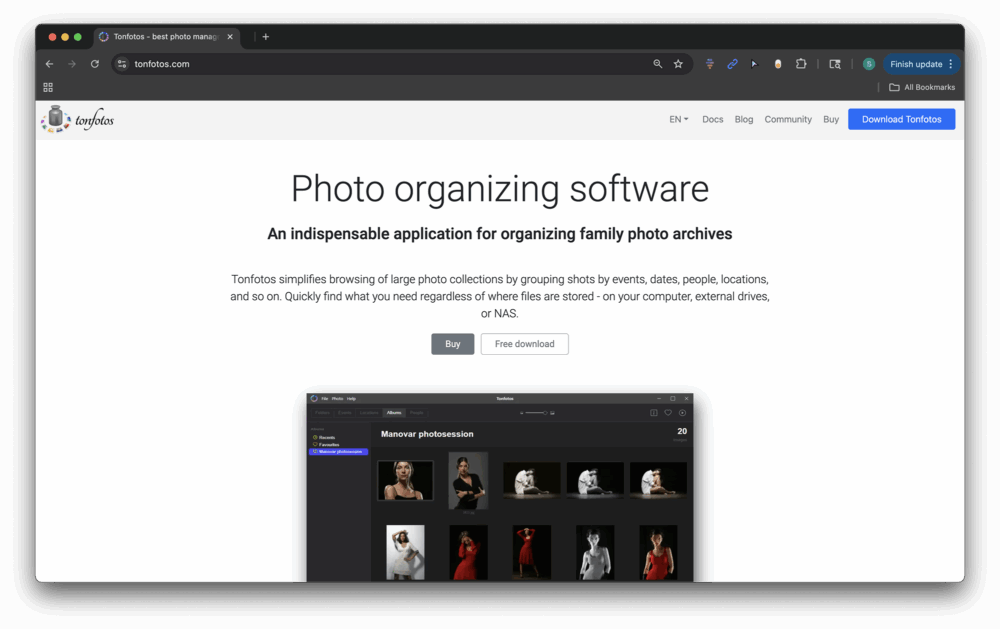
Because of its unique organizational capabilities, in addition to its facial recognition features, Tonfotos makes an ideal choice for families, genealogists, and personal users who want to organize large collections while also tracking relationships and family history.
What It Does
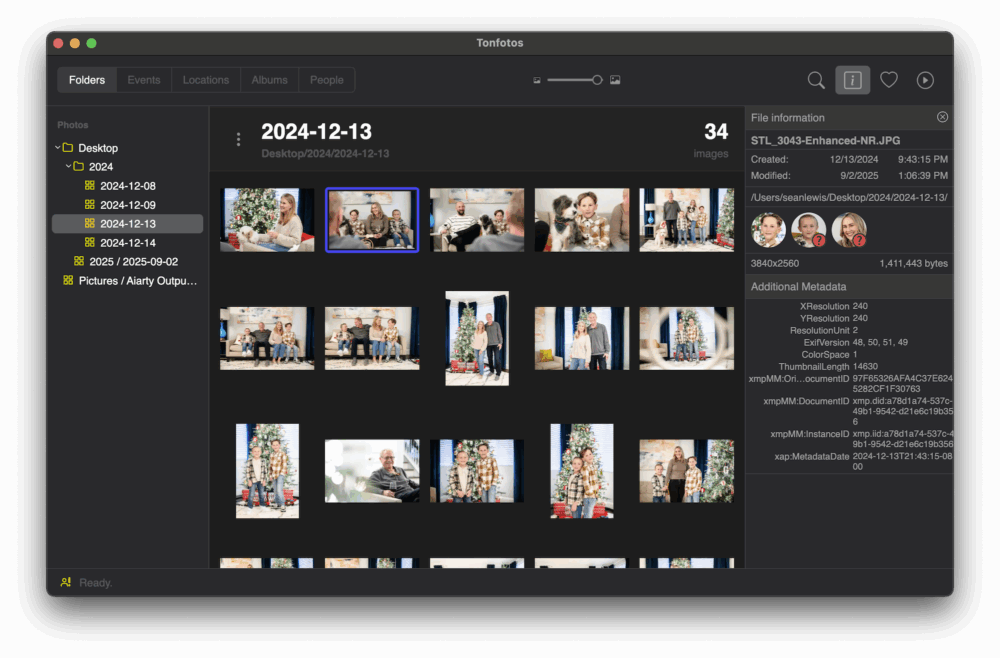
Tonfotos is a photo management tool with built-in facial recognition that goes beyond simple tagging. It lets you define relationships between people, add personal details, and generate printable family trees.
Perhaps one of the coolest applications of the facial recognition feature is using it to quickly identify specific people across a vast collection of photos for the purpose of locating their best images for inclusion in photo albums, slideshows, and so on.
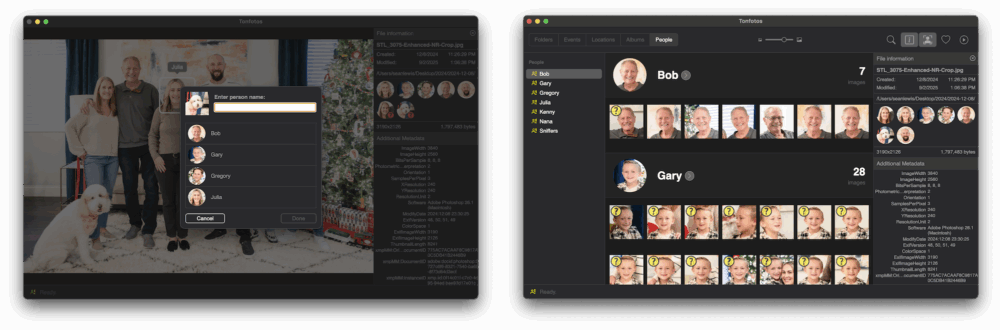
Anybody can claim they’ve built an easy-to-use platform that is also one of the most efficient or powerful options on the market. In the case of Tonfotos’ facial recognition tool, it delivers on both fronts. You can set up a new folder, import your images from wherever they’re stored, and start mapping names and relationships right away. Tonfotos also offers clear and concise tutorials for those who prefer direct guidance rather than taking time to explore the app.
Key Features
- Clean, user-friendly interface
- Duplicate photo handling
- Completely free version (no time limit)
- Relationship mapping with custom metadata (birth dates, family roles, etc.)
- One-click family tree generation
- Drawback: Initial indexing of large archives can be slow
Pricing & Platforms
- Free version; paid upgrades available — Windows, macOS
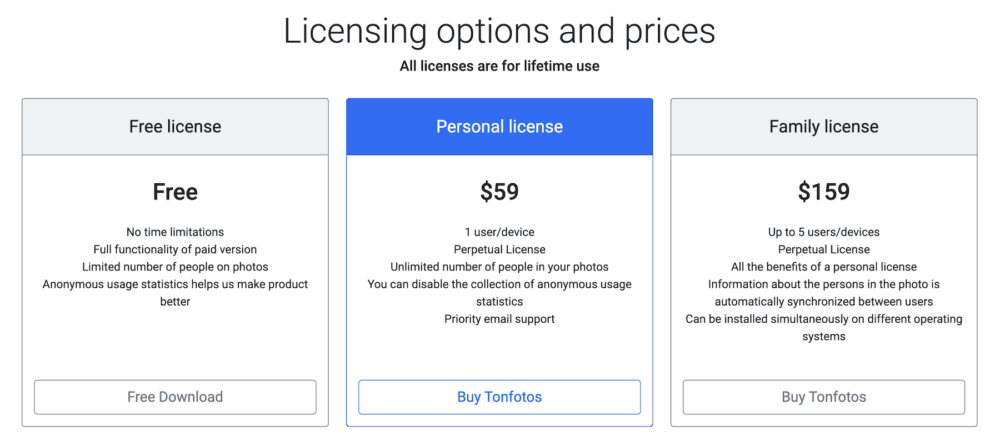
While most services offer some sort of free option, Tonfotos’ free license lands on the more robust side, which no time limitation and the full functionality of the paid version. It does place a limit on the number of people you can identify in photos, but if that’s an issue for you, the paid options are both affordable and perpetual. No subscription necessary.
Editorial Note
Tonfotos represents one of the newer entrants, but it offers distinctive family-history tools that set it apart from traditional organizers.
Google Photos
Who It’s For
As you might expect, Google Photos is designed more for casual users, families, or anyone who wants a simple cloud solution that automatically organizes photos across devices. You might already have and use this app on your mobile device, but it’s also easy to find on your computer.
What It Does
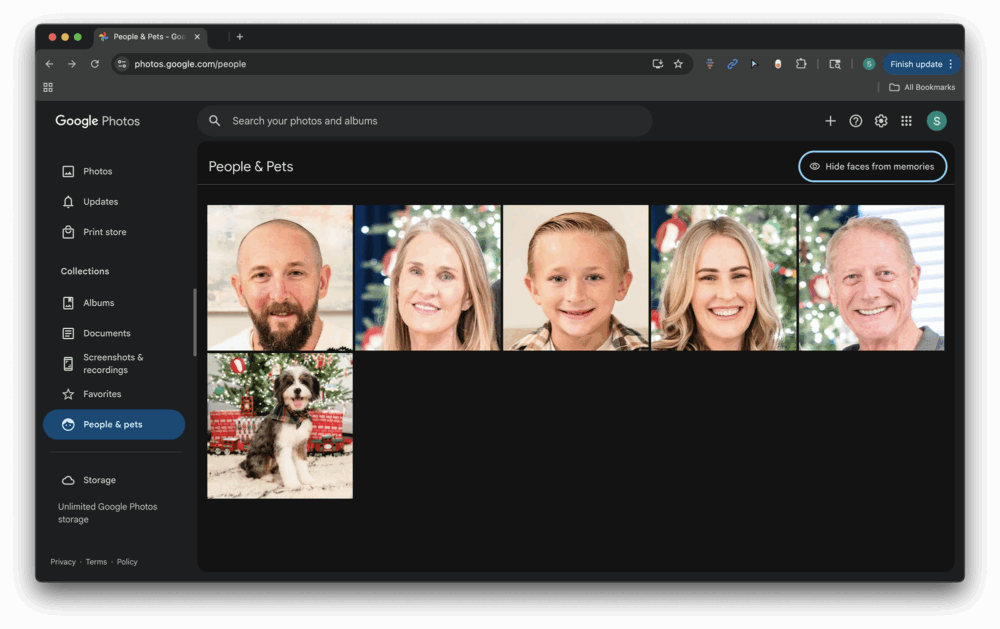
Google Photos makes facial recognition easy by automatically scanning your uploaded images and grouping them by individual faces. Once your library is backed up to the cloud, the software uses its AI to identify and group people/faces across your collection, and it creates a dedicated section where you can assign names to each face.
From there, searching becomes as simple as typing someone’s name into the search bar, instantly pulling up every photo that includes them. The feature also works across devices, so whether you’re on your phone or desktop, your albums stay organized and consistent. This makes it easy to create shared albums, find old memories quickly, or sort thousands of photos into meaningful collections without manually tagging each one.
Key Features
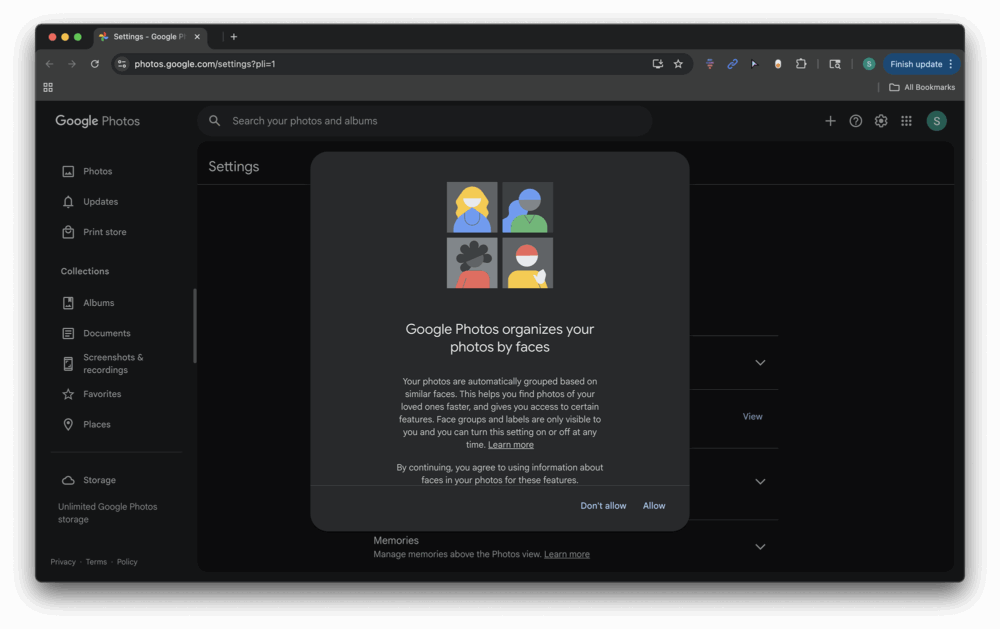
- Automatic facial recognition and grouping (so long as you have “Group Similar Faces” enabled in your settings.
- Cross-device syncing (Android, iOS, web)
- AI-powered search (“show me pictures of Bob from Christmas 2024”)
- Easy sharing and album creation
- Drawback: Privacy trade-offs since images are stored in Google’s cloud
Pricing & Platforms

Google Photos includes 15GB of free, shared storage. If you require additional storage, you can pick up a paid Google One plan for Android, iOS, or Web.
Editorial Note
We likely wouldn’t recommend Google Photo for a pro workflow, but it does set the bar for convenience and ease of use.
Adobe Lightroom Classic
Who It’s For
Most everybody reading this is going to be familiar with Lightroom Classic, but you might not have known about its “People View” feature. Lightroom Classic’s facial recognition feature will appeal to professional photographers and serious enthusiasts who need face tagging within a pro editing/catalog workflow.
What It Does

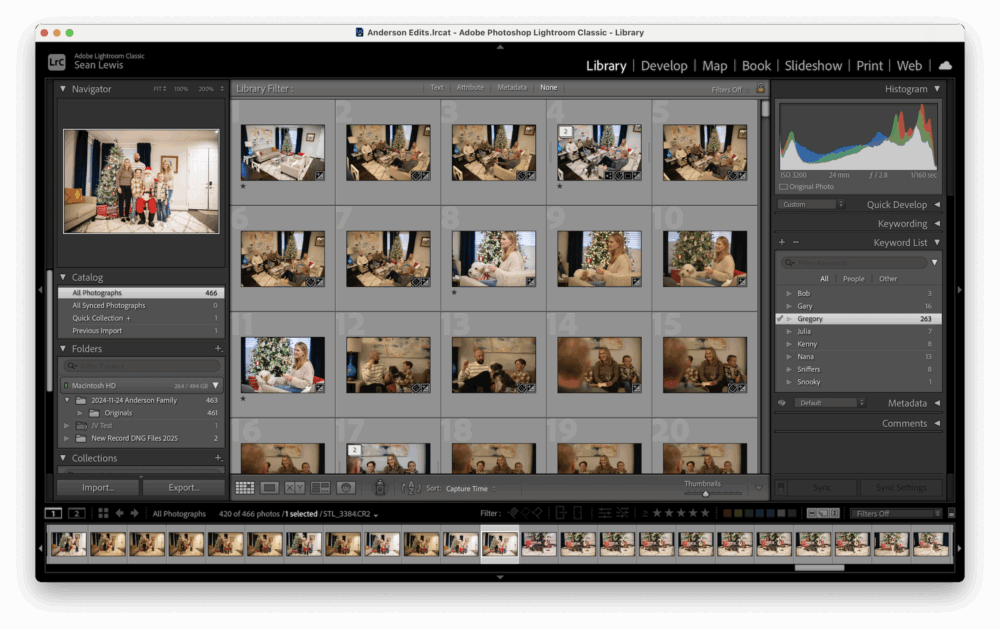
Lightroom Classic combines robust cataloging and pro-grade editing. Its facial recognition can help you tag and organize people without leaving your main editing app. In Adobe Lightroom Classic, facial recognition is woven directly into the catalog system, making it an integrated part of your existing workflow.
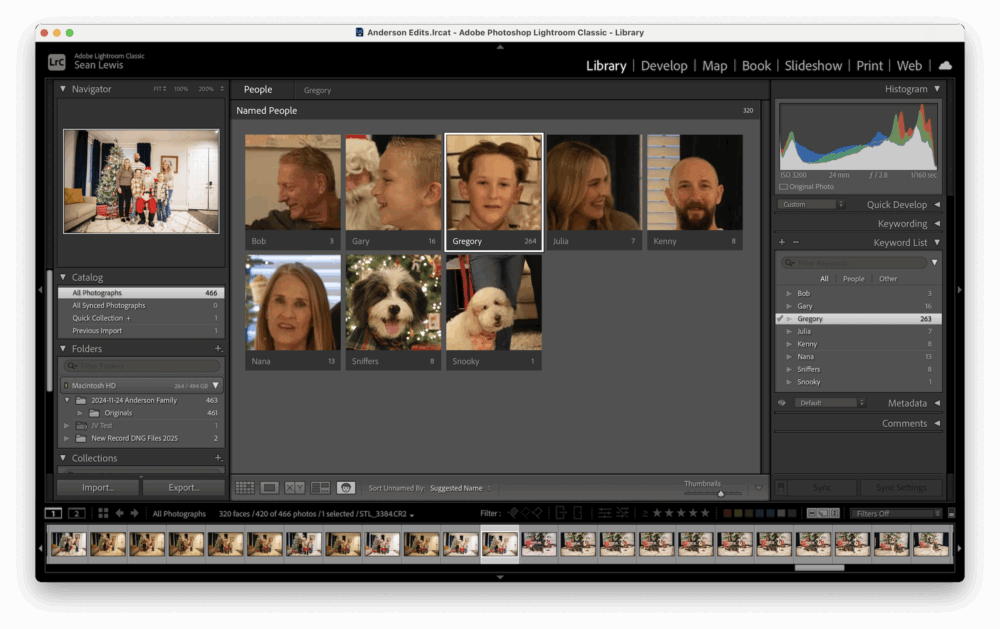
Once enabled, Lightroom scans your library and detects faces across your images, presenting them in a dedicated People view where you can assign names and confirm matches. Over time, the software learns and improves its accuracy, automatically suggesting identities for new photos based on your prior tags. This integration means you can quickly filter and locate all images of a particular person while still working within Lightroom’s other editing and organizational tools.
Key Features
- Facial recognition integrated with catalog system
- Non-destructive pro editing tools
- Works alongside cloud-based Lightroom ecosystem
- Deep organizational features (collections, keywords, smart filters)
- Drawback: Subscription-only; overkill if you only need organization, and it’s also quite slow to learn
Pricing & Platforms
It has been a while now since Adobe switched over to a subscription model, so it should come as no surprise that you’ll need to subscribe to an Adobe Photography Plan (Windows, macOS) in order to access this tool.
Editorial Note
Adobe Lightroom Classic is ideal for photographers already invested in Adobe’s ecosystem.
ACDSee Photo Studio

Who It’s For
ACDSee falls into a territory ideal for enthusiasts and prosumers wanting an all-in-one editor + organizer with fast performance. Unlike platforms that rely heavily on cloud storage and automated grouping, ACDSee runs locally, which is ideal for users who want more control and privacy while still offering quick and accurate tagging.
What It Does
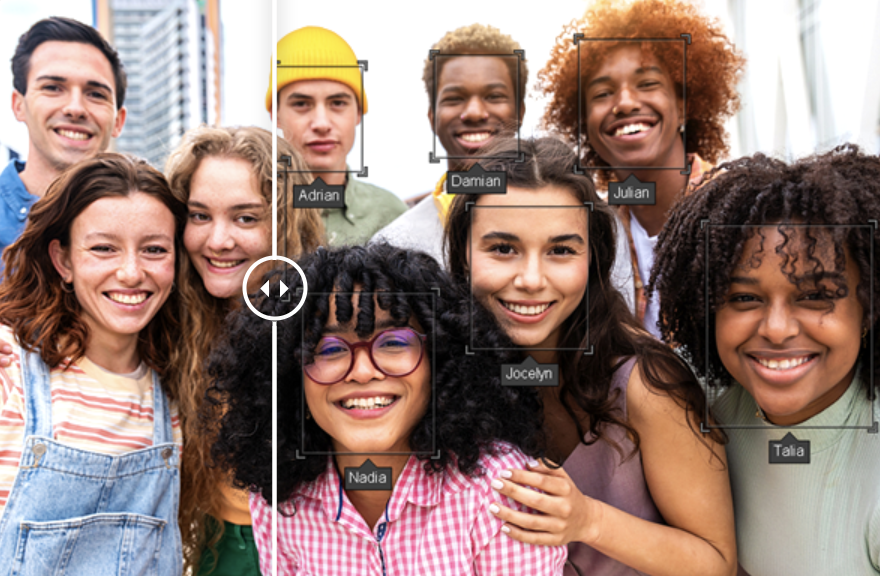
In a standalone application, ACDSee blends facial recognition, cataloging, and advanced editing into a single desktop app. ACDSee Photo Studio offers a quick and easy-to-use approach to face recognition that works alongside its other photo management tools. Once you import your images, the software scans for faces and creates a “People view” where you can assign names, confirm matches, and train the system to recognize individuals more accurately over time. Similar to other platforms on this list, this learning process allows ACDSee to automatically tag new photos as your library grows. Because it integrates with the program’s broader cataloging and editing features, you can quickly pull up every shot of a specific person, organize family albums, or streamline professional workflows where client identification is needed.
ACDSee takes a traditional but versatile approach, focusing on efficiency, RAW compatibility, and customizable organization that can prove helpful to photographers managing large libraries on their own systems.
Key Features
- Accurate, quick face recognition
- Integrated editing and management (RAW support)
- Robust catalog & metadata control
- Mobile integrations available
- Drawback: Busy interface; learning curve for newcomers
Pricing & Platforms
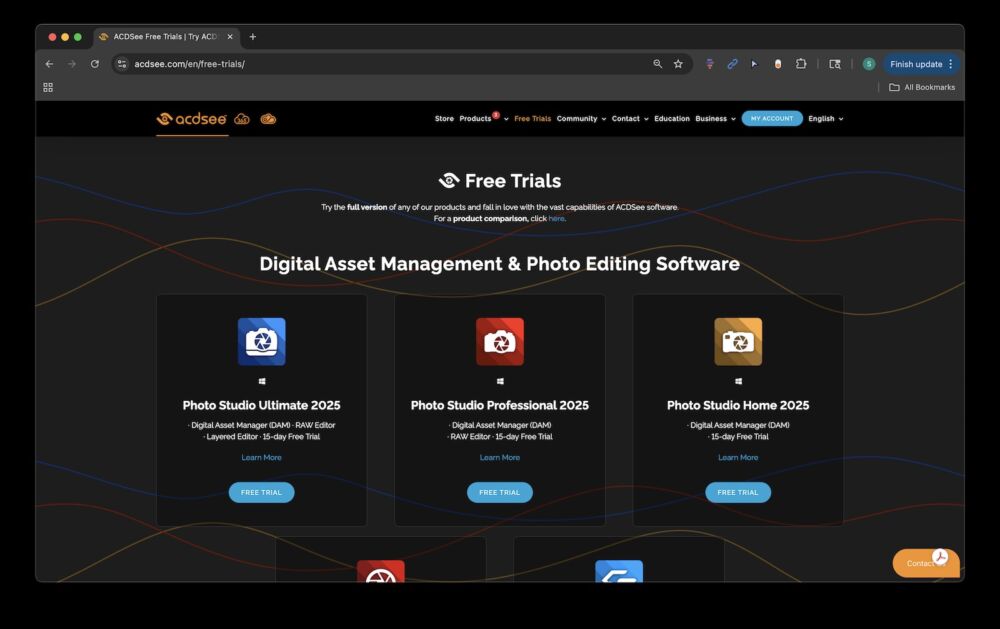
ACDSee offers a few different free options, but they do not include access to the face recognition tool. In order to use this feature, you’ll need to either go for a free trial or look into picking up a perpetual license or subscription (available for Windows, macOS). The latest versions will be available in late September of 2025.
Editorial Note
ACDSee does a solid job of balancing speed, editing power, and organization in a standalone application.
digiKam
Who It’s For
digiKam provides a great option for open-source enthusiasts and privacy-conscious users who want maximum control.
What It Does
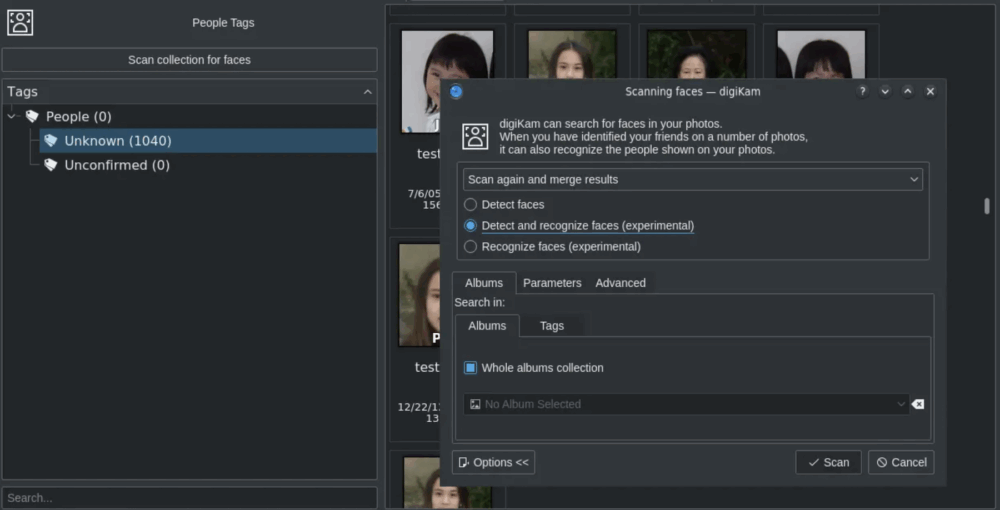
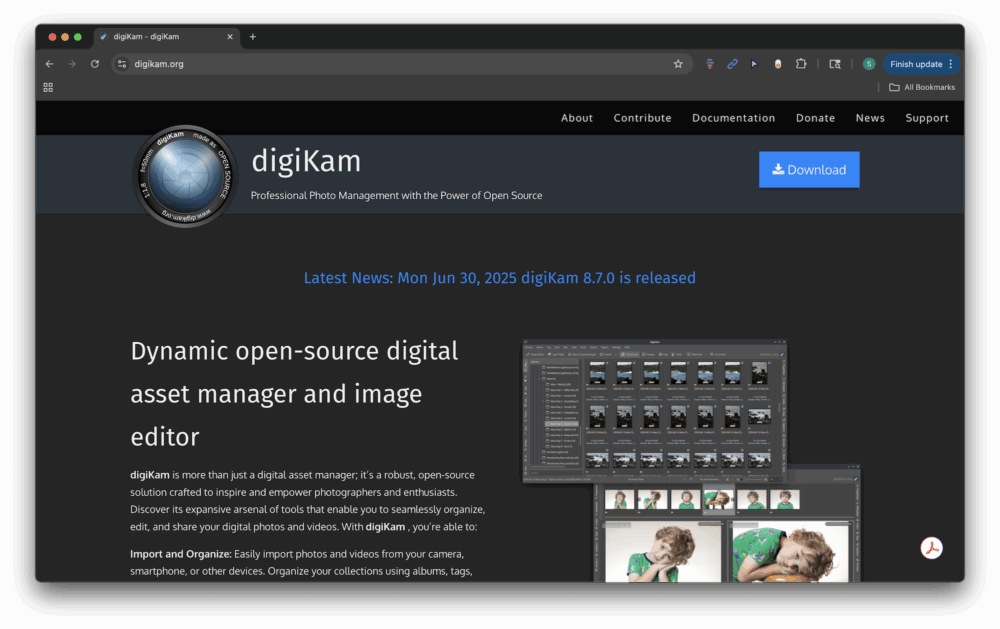
digiKam is a free, open-source photo manager with local facial detection/recognition, flexible tagging, and batch processing. digiKam’s face recognition provides an open-source solution that runs entirely on your computer, giving you control over how your photos are scanned, tagged, and stored. Once activated, it detects faces in your library and allows you to confirm or assign identities, gradually learning from your input to improve accuracy. The system works in tandem with digiKam’s metadata and batch-processing capabilities, making it easy to organize larger archives with more precision.
digiKam differs a bit from competitors like Google Photos or Lightroom Classic because its emphasis is on privacy and customization. It is open source and processes images locally, which means users are not tied to a subscription model or cloud storage.
Key Features
- Local face detection & recognition
- Extensive tagging, metadata, and batch tools
- RAW format support for most cameras
- Active community and plugin ecosystem
- Drawback: Dated UI and steeper learning curve
Pricing & Platforms
digiKam is free (open source – compatible with Windows, macOS, Linux).
Editorial Note
While it might not be the prettiest platform, it is definitely capable for power users at zero cost.
Daminion
Who It’s For
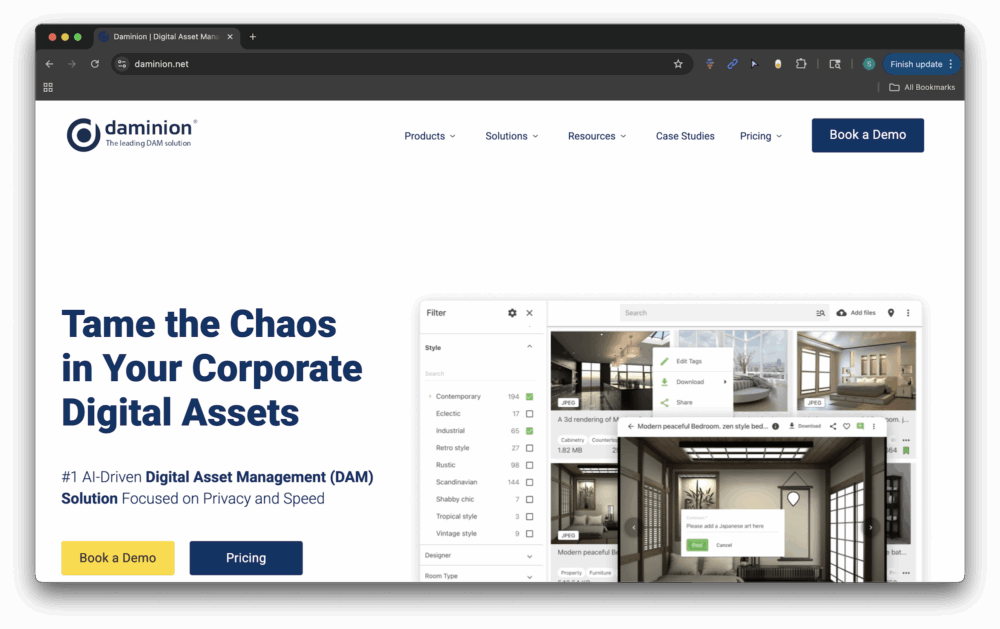
Unlike some of the other tools included on this list, which are geared toward personal or family use, Daminion distinguishes itself by providing a centralized, multi-user catalog.This collaborative structure makes it a standout choice for studios, agencies, or corporate teams that need reliable facial recognition as part of a broader asset management system.
What It Does
DAM (Digital Asset Management) system with facial recognition, centralized catalogs, and permissions suitable for multi-user environments. Daminion’s face recognition is designed with teams and organizations in mind, making it particularly useful in environments where multiple people need access to the same photo library. Once images are imported, the system scans for faces and allows users to assign or confirm identities, with recognition improving as more tags are added. Because Daminion operates within a Digital Asset Management (DAM) framework, these face tags integrate seamlessly with advanced metadata, version control, and permission settings, so large archives remain both searchable and secure.
Key Features
- Face tagging in shared catalogs
- Version control and advanced metadata
- User roles and permission management
- On-premises deployment options
- Drawback: Overkill for solo or casual users
Pricing & Platforms

Daminion pricing is available upon request, and two options are presented: Local (on-premises) and Cloud. You can learn more about Daminion’s pricing options here.
Editorial Note
Daminion represents a professional-grade choice when team collaboration and control matter most.
Apple Photos
Who It’s For
Apple users who want a simple, built-in solution with seamless syncing across their Apple devices. This is not really recommended for any professional workflows, but it’s great for personal use.
What It Does
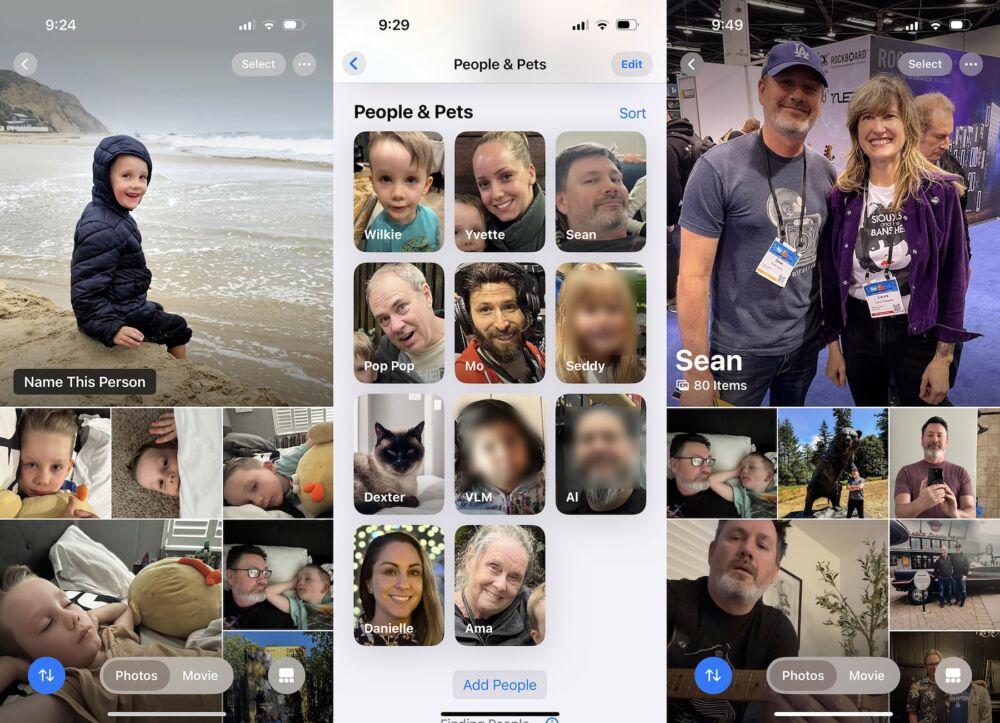
Simply put, Apple Photos groups faces, syncs across iCloud, and offers quick edits on iPhone, iPad, and Mac. The process is simple and straightforward. If you’re using an iPhone or iPad to capture photos, you’re already going to have the images stored and ready to organize. All you need to do is open the application, scroll down to “People and Pets,” and start adding names to the people and pets that appear in the photos, as illustrated above.
Key Features
- Face albums and person search
- iCloud syncing across devices
- Quick, user-friendly editing tools
- Local/on-device intelligence with optional cloud backup
- Drawback: Limited compared to pro-focused tools
Pricing & Platforms
Apple Photos is free with Apple devices; iCloud storage plans available — iOS, macOS
Editorial Note
This option is perfect for users who value simplicity and tight ecosystem integration.
Microsoft Photos
Who It’s For
Microsoft Photos will best serve Windows users who need free, basic organization with face grouping.
What It Does
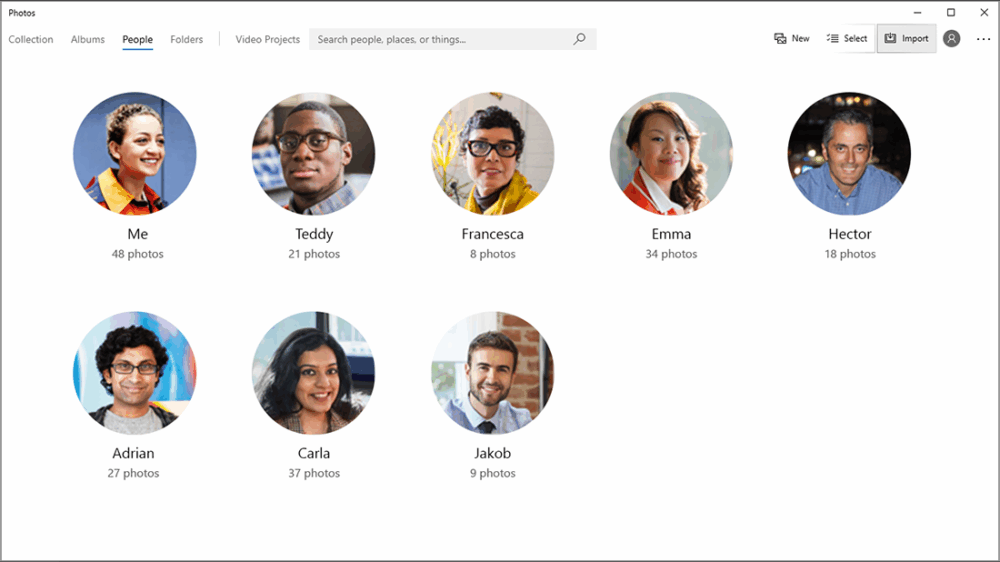
Microsoft Photos provides face grouping, light organization, and basic edits as part of Windows. Microsoft Photos includes a straightforward face recognition feature that automatically detects and groups people in your library, making it easy to browse images by person without manually tagging each file. Once faces are identified, you can confirm names and let the software continue learning, gradually improving its accuracy as new photos are added. While simpler than pro tools like Lightroom or ACDSee, its strength lies in being free, built directly into Windows, and tightly connected to OneDrive for easy cloud backup and access across devices.
Key Features
- Automatic face grouping
- OneDrive integration for backup
- Simple editing and sharing
- Included with Windows
- Drawback: More limited than dedicated photo suites
Pricing & Platforms
Microsoft Photos is free with Windows.
Editorial Note
This application provides a convenient starting point for casual organization on Windows.
Zoner Studio
Who It’s For
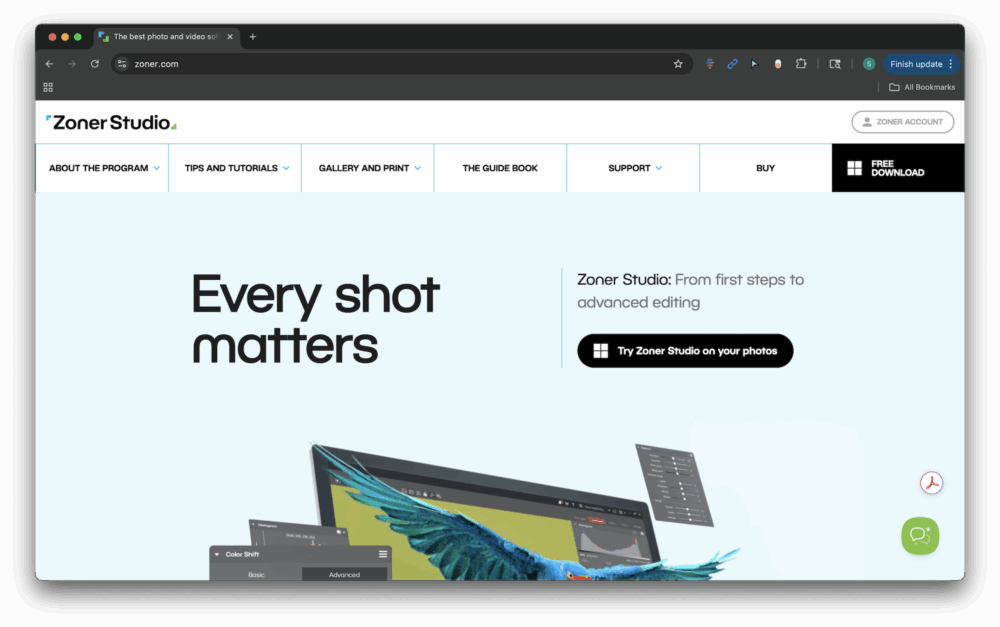
We’ve previously reviewed Zoner Studio (formerly Zoner Photo Studio X), which is built for photographers who want an affordable, all-in-one workflow solution that combines photo management, RAW development, retouching, and even light video editing. It’s a strong choice for busy shooters, particularly Windows users, who want face-aware tools without investing in the higher costs or complexity of some of the other options.
What It Does

Zoner Studio can basically cover your entire workflow, from importing and organizing photos to editing and output. In addition to its broad feature set, it includes AI-powered face detection and face-aware editing options, such as facial adjustments and anonymization tools. Their AI Close-ups feature allows users to quickly zoom in and find the sharpest images. This feature, combined with Zoner Studio’s Autostack tool, which groups together similar photos, comes in handy when sorting through a large collection of images. Overall, the result is a versatile program that works equally well for everyday photo management and creative retouching.
Key Features
- AI-driven face detection and selection to quickly locate and manage portraits
- Automatic anonymization tool for blurring faces or license plates
- Multiple modules for management, RAW development, layered editing, print, and video
- Regular updates with new AI features, plus recognition such as the EISA Best Photo Software award
Pricing & Platforms
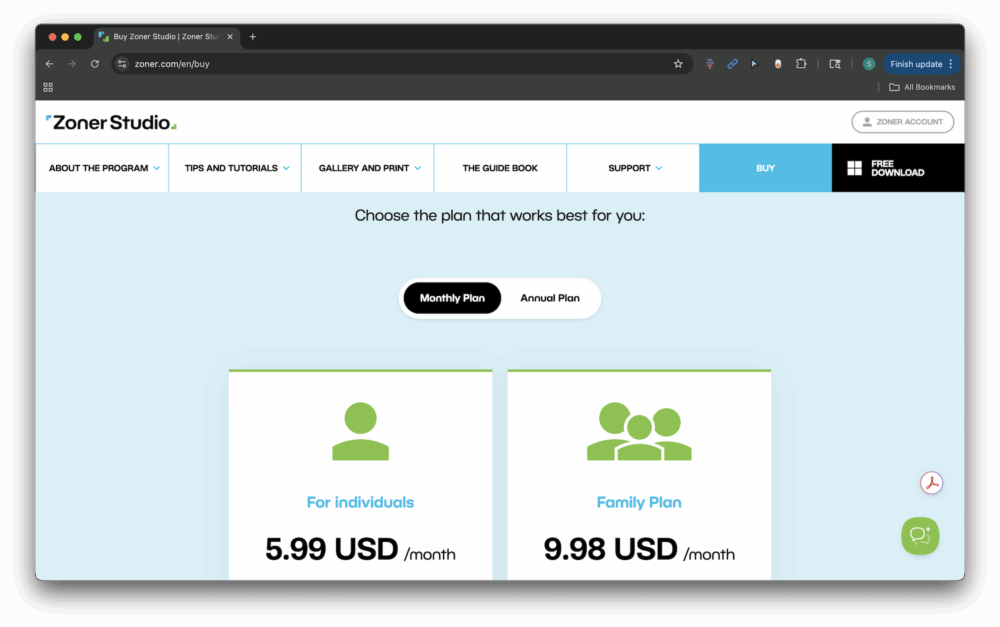
Zoner Studio is available for Windows (10 and 11, 64-bit). The subscription runs about $5.99/month or $59/year, with a family plan option. A free trial is also available for those who want to test the software before committing.
Honorable Mentions
- CyberLink PhotoDirector — Creative editor + organizer with people tagging.
- TagThatPhoto — Accuracy-focused face recognition and tagging, local-first.
- Peakto — Modern, AI-assisted photo hub for Mac; growing feature set.
At-a-Glance Comparison
| Software | Best For | Platforms | Pricing | Pros | Cons |
|---|---|---|---|---|---|
| Tonfotos | Families & genealogists | Windows, macOS | Free; paid upgrades | Relationship mapping, family tree, duplicate finder | Indexing can be slow; smaller user base |
| Google Photos | Casual users (cloud convenience) | Android, iOS, Web | Free 15GB; Google One plans | Seamless sync, strong AI search, easy sharing | Cloud privacy trade-offs |
| Lightroom Classic | Professional photographers | Windows, macOS | Adobe subscription | Pro editing + catalog, integrated face tagging | Subscription; heavier learning curve |
| ACDSee Photo Studio | Enthusiasts & prosumers | Windows, macOS | Perpetual or subscription | Fast recognition, RAW support, all-in-one | Busy interface; learning curve |
| digiKam | Open-source & privacy-minded | Windows, macOS, Linux | Free | Local processing, powerful tagging & batch tools | Dated UI; complex for beginners |
| Daminion | Teams & organizations | Windows (server/client) | Team/enterprise licenses | Shared catalogs, permissions, on-prem options | Too complex for personal libraries |
| Apple Photos | Apple ecosystem users | iOS, macOS | Free; iCloud plans | Built-in, user-friendly, iCloud sync | Limited compared to pro tools |
| Microsoft Photos | Windows users (free basics) | Windows | Free with OS | Face grouping, OneDrive tie-in, simple edits | Windows only; basic vs. dedicated managers |
| CyberLink PhotoDirector | Hobbyists (creative editing + org) | Windows, macOS | Perpetual or subscription | Effects + people tagging in one app | Cataloging not as deep as pro DAMs |
| TagThatPhoto | Accuracy-focused tagging | Windows, macOS | Subscription or one-time | Precise recognition, local-first | Limited editing/organization extras |
| Peakto | AI-assisted Mac photo hub | macOS | Subscription | Modern UI, smart search | Newer product; smaller user base |
| Zoner Studio | Everyday Shooters | Windows | Subscription | All-in-one with multiple features | Windows only; no native Mac version |
How to Choose the Right Software
Here are a few key factors to keep in mind when considering the options we’ve presented above.
- Privacy vs. convenience: Cloud tools (e.g., Google, Apple) sync everywhere; local tools (e.g., digiKam, Tonfotos) keep data on your machines.
- Casual vs. professional: Casual users value simplicity; pros need editing, metadata control, and durable catalogs.
- Solo vs. team: Individuals do well with desktop apps; teams should consider DAMs like Daminion.
- Budget: Free options exist; subscriptions and pro suites add features that may pay off in time saved.