Whether you shoot with a camera, cinema rig, or drone, an SD card error can put hours of irreplaceable work at risk. Your camera may display a generic card error, while Windows shows the card as having 0 bytes or an unrecognized RAW file system.
In this context, “RAW” describes a file system that Windows cannot recognize. It is not the same as a camera RAW file such as a CR3, NEF, or ARW. The safest response is to separate data recovery from card repair: recover your photos and videos first, then troubleshoot or reformat the card.
This guide explains common causes of file-system corruption, how to recover files from an affected SD or microSD card, and how to prepare the card for future use.
What Causes SD Card File-System Corruption?
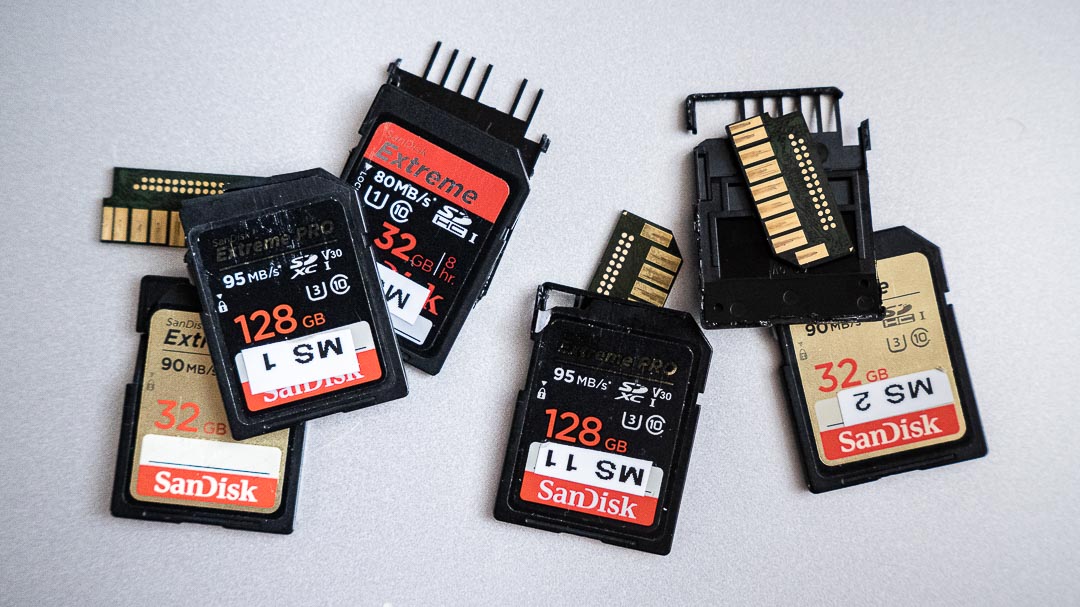
High-speed cards from SanDisk, Samsung, Lexar, Sony, and other reputable manufacturers are designed for demanding photo and video workflows. Even so, their file systems can become corrupted during everyday use.
- Removing the card while it is active: Taking an SD or microSD card out of a camera or reader while files are being written can interrupt updates to the file system.
- Camera power loss: If a camera loses power while saving a burst, finishing a long exposure, or recording video, it may not complete the write operation.
- Worn or failing flash memory: Memory cards have a limited number of write cycles. As a card ages, failing memory cells or controller problems can lead to errors.
- Disconnecting a reader without ejecting it: Removing a card reader while the computer still has cached writes in progress can damage data or file-system metadata.
- Formatting in an incompatible device: A card formatted on a computer or another camera may use settings that your current camera does not fully support.
First Aid: Recover Your Data Before Repairing the Card
When an SD card appears as RAW, it can be tempting to run a repair utility, rebuild the partition, or format the card immediately. Avoid doing that until you have recovered or imaged the card. Any operation that writes to the affected media can reduce the chance of a successful recovery.
Stop using the card, remove it from the camera, and do not save anything else to it. If the card disconnects repeatedly, reports the wrong capacity, becomes unusually hot, or is not detected by Disk Management, consider using a professional recovery service rather than continuing with do-it-yourself scans.
Because a RAW file system may not mount in File Explorer, normal copy-and-paste methods may not work. Recovery software can scan the card for recognizable files even when the directory structure is damaged.
Recovering Files With EaseUS Data Recovery Wizard
EaseUS Data Recovery Wizard offers a graphical recovery workflow for Windows and macOS. It can scan memory cards for photos, videos, and camera RAW files, then let you preview recoverable files before saving them elsewhere.
The free version currently recovers up to 2GB of data, with 500MB available by default and the remainder unlocked through a social share. A typical photo or video card may require a paid license. At the time of publication, the Windows version starts at $69.95 for a one-month license. Check the official EaseUS pricing page before purchasing, since pricing and license terms can change.
Step 1: Connect and select the SD card
- Connect the affected card to your computer with a reliable USB or USB-C card reader.
- Install and open EaseUS Data Recovery Wizard on your computer’s system drive. Never install recovery software on the affected card.
- Select the SD card from the available drives and begin the scan. Confirm the card by its capacity so you do not scan the wrong device.
Step 2: Review the scan results
- Allow the scan to finish for the most complete results. The time required will depend on the card’s capacity, speed, and condition.
- Filter the results by photo or video, or search for extensions such as .CR3, .NEF, .ARW, .DNG, .MOV, or .MP4.
Step 3: Preview and recover your files
- Preview important files when the software supports their format. A thumbnail alone does not always confirm that the full file is intact.
- Select the files you need and click Recover.
- Save them to a different drive, never to the affected SD card. Open several recovered photos and videos to verify them before taking any further action with the card.
Free Alternative: PhotoRec and TestDisk
PhotoRec and TestDisk are free, open-source recovery tools. PhotoRec ignores the damaged file system and searches the card for known file signatures, so it can recover files from media that will not mount normally.
PhotoRec has a steeper learning curve than a typical graphical recovery application, although QPhotoRec provides a basic graphical interface. It also may not preserve original filenames or folder structure. Like any signature-based recovery tool, it can struggle with fragmented files, particularly some camera video formats.
Always send recovered files to a separate drive. The official PhotoRec documentation specifically warns against saving recovered files to the source card because doing so may overwrite data that has not yet been recovered.
How to Troubleshoot a RAW SD Card Without Formatting
After your photos and videos are safely recovered and verified, you can rule out connection and Windows configuration problems before reformatting the card. These checks may restore access if the problem is a reader, port, driver, or drive-letter issue. They will not repair a genuinely damaged RAW file system.
You may see advice to run chkdsk X: /f, replacing X with the card’s drive letter. CHKDSK can repair supported Windows file systems, but it generally cannot process a volume that Windows identifies as RAW. Do not force repair operations before recovering your files.
Method 1: Check or Assign a Drive Letter in Disk Management
If the card has a healthy, recognized partition but no drive letter, assigning one can make it appear in File Explorer. Changing the drive letter will not convert a RAW file system back to FAT32 or exFAT.
- Press Windows key + X, then select Disk Management.
- Find the SD card by matching its reported capacity. Be careful not to select another drive.
- If the partition is healthy but lacks a letter, right-click it and select Change Drive Letter and Paths.
- Select Add or Change, choose an unused letter, and click OK.
- Refresh File Explorer and check the card again.
If Disk Management still lists the file system as RAW, return to recovery rather than attempting further write-based repairs.
Method 2: Test the Card Reader, USB Port, and Driver
A poor connection or faulty reader can sometimes make a healthy card appear inaccessible.
- Disconnect the reader and inspect the card for dirt or visible damage. If needed, gently clean the contacts with a clean, dry, lint-free cloth. Do not use liquids or abrasives.
- Try a different USB port, card reader, and computer if available.
- To reinstall the reader driver in Windows, right-click Start and open Device Manager.
- Expand Disk drives, Memory technology devices, or Universal Serial Bus controllers, depending on how the reader appears.
- Right-click the reader, select Uninstall device, and then restart the computer before reconnecting it. Windows will normally reinstall a compatible driver.
Reformat the Card Only After Recovery
Once you have verified your recovered files, reformat the card before returning it to service. For a card that will be used in a camera, follow the camera manufacturer’s instructions and format it in that camera. For general computer use, the SD Association’s SD Memory Card Formatter is designed specifically for SD, SDHC, SDXC, and SDUC cards.
Formatting erases the card’s file-system records, so double-check your backups first. If the card produces another error after a full reformat, retire and replace it. A memory card that has already shown unexplained corruption is not worth trusting on a paid assignment.
How Photographers Can Reduce SD Card Errors

Recovery software can help in an emergency, but a consistent media-handling routine offers better protection.
- Format cards in the camera that will use them: After backing up and verifying a shoot, format the card in-camera before its next job. Avoid moving one card between different cameras without reformatting it.
- Do not interrupt write activity: Wait for the camera’s access light to turn off before powering down, opening the card door, or removing the card.
- Replace questionable cards: Retire any card that repeatedly reports errors, slows down unexpectedly, disconnects, or shows an incorrect capacity.
- Use reliable readers and cables: A stable reader and connection reduce interruptions during large transfers.
- Eject media before disconnecting it: Use the operating system’s eject command and wait for confirmation before removing the card or reader. Microsoft recommends this practice to reduce the risk of data loss.
- Maintain multiple verified copies: Keep at least two copies of every shoot on separate storage devices before formatting the original card.
Conclusion
An SD card that appears as RAW is not necessarily empty. In many cases, the file-system records are damaged while some or all of the underlying photos and videos remain recoverable.
The safest approach is simple: stop using the card, recover the files to a separate drive, verify them, and only then troubleshoot or reformat the media. Whether you choose a graphical tool such as EaseUS Data Recovery Wizard, an open-source option such as PhotoRec, or a professional recovery service, protecting the original card from further writes gives you the best chance of getting your work back.
Suggested meta title: How to Fix a RAW SD Card: A Photographer’s Guide
Suggested meta description: Learn how to recover photos and videos from a RAW SD card, troubleshoot card errors safely, and reformat the media after protecting your files.
Suggested URL slug: /fix-raw-sd-card/