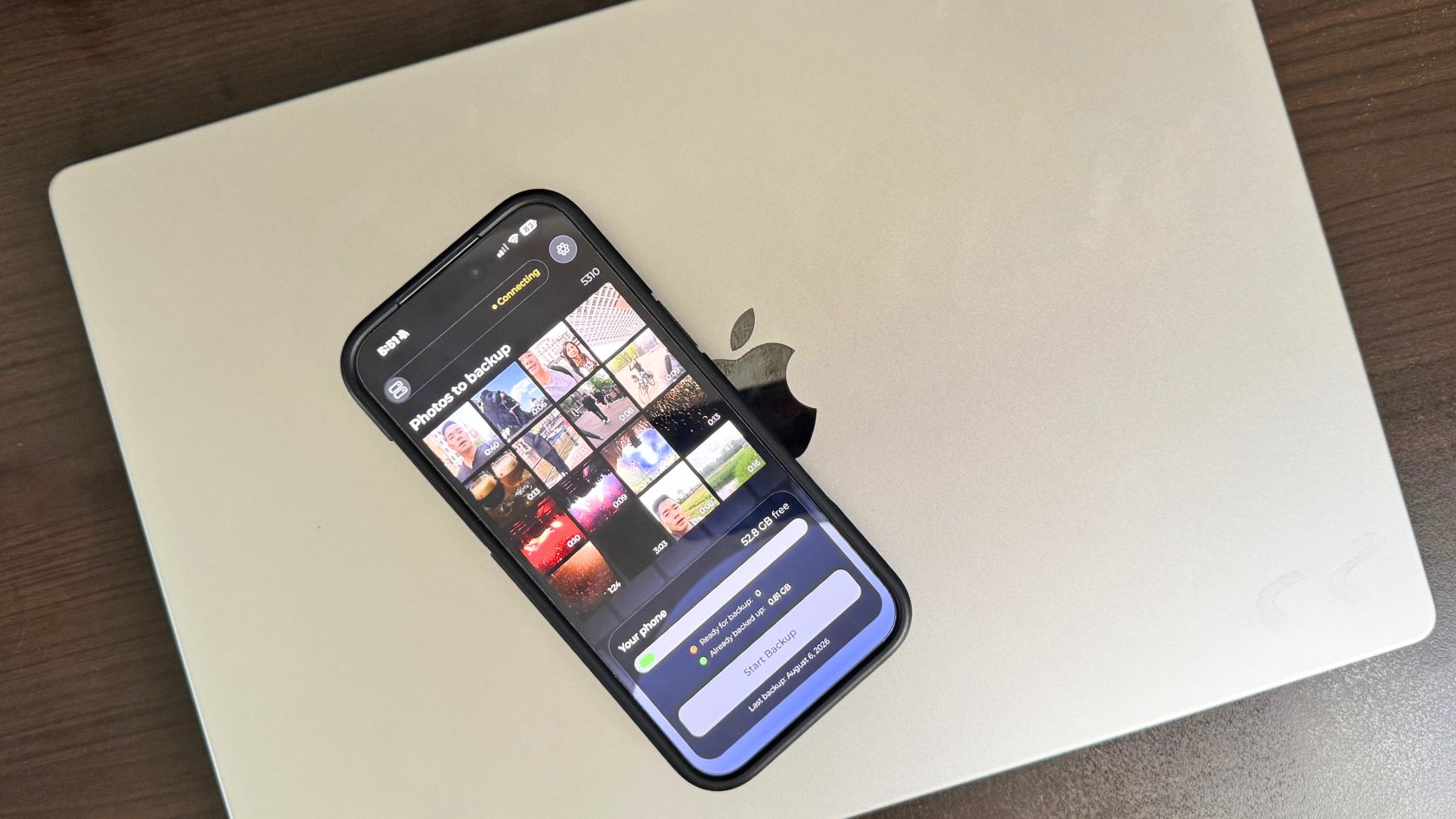
A practical guide to keeping your photos safe, whether you shoot on a phone, a mirrorless body, or both.
Quick answer: There is no single “best” photo backup, only the best fit for how you shoot and how much control you want. Cloud services are the most convenient and automatic. External drives are the cheapest per gigabyte. A NAS gives serious photographers room to grow. Local computer backups keep your master library under your own roof. And for the photos that matter most to most people, the ones on your phone, a dedicated phone-to-computer tool closes the gap that everything else leaves open. The strongest setup combines a couple of these using the classic 3-2-1 rule: three copies, on two types of media, with one kept offsite.
Why a reliable photo backup system matters
Photo libraries have never grown faster. Between phones, cameras, and video, most households are adding thousands of images a year, and nearly all of them live in exactly one place until something forces the issue. Phones get lost, dropped, or stolen. Hard drives fail without warning. Cloud accounts get locked, and files get deleted by accident, sometimes by the person who took them.
The uncomfortable truth is that “I’ll deal with it later” is the default backup plan for most people, right up until a device dies and takes a decade of memories with it. A real backup system removes that risk quietly in the background, so you never have to think about the worst case.
This guide walks through the five most common ways to back up photos, what each does well, where each falls short, and which type of user each suits best. We tested these approaches ourselves, and where we land on a specific tool, we will tell you exactly what we use and why.
What to look for when choosing a backup solution
Before comparing the options, it helps to agree on what actually matters. We evaluated every solution below against the same six factors, which also form the columns of the comparison table:
- Privacy and security. Who can technically access your photos? Are they encrypted in transit and at rest? Does a third party hold a copy?
- Storage capacity. How much can it hold, and how painful is it to expand when you fill it up?
- Accessibility. Can you reach your photos from anywhere, or only when you are at home or plugged in?
- Automation. Does it run by itself, or does it depend on you remembering to do it?
- Cost. Is it a one-time purchase, a recurring subscription, or free with limits?
- Ease of setup. How much technical skill does it take to get running and keep running?
At a glance: the options compared
| Solution | Best for | Privacy | Capacity | Automation | Accessibility | Cost |
|---|---|---|---|---|---|---|
| Cloud storage | Hands-off, anywhere access | Lower, provider holds a copy | Effectively unlimited (paid) | Fully automatic | Anywhere, any device | Recurring subscription |
| External hard drives | Budget archiving | High, offline | Large, add drives as needed | Manual | Only when connected | Low, one-time |
| NAS systems | Large or pro libraries | High, on your network | Very large, expandable | Automatic | Home network, remote optional | Higher upfront |
| Local computer backup | Master library | High, on your PC | Limited by internal drive | Semi-automatic | Only at that computer | Free to low |
| Phone-to-computer tools (AirDrop, Google Photos, Syncthing, TonfotosSync) |
Transfer phone photos to a computer | Varies (TonfotosSync: high) | Limited by your computer/NAS | Automatic | Local or remote | Free to low |
Cloud storage solutions
Cloud services like iCloud, Google Photos, and Dropbox store your photos on servers you access over the internet. For sheer convenience, nothing beats them. Setup is trivial, backups happen automatically, and your library is available on every device you own.
The trade-offs are cost, privacy, and dependence. Free tiers fill up quickly, and once you cross that line you are paying every month, indefinitely, for space you never truly own. Your photos also sit on someone else’s servers, which may be scanned, and are only ever a billing lapse or account lockout away from becoming inaccessible.
Best for: people who value convenience and anywhere-access above all, and do not mind an ongoing subscription.
External hard drives
An external drive is the simplest backup there is: copy your photos onto it, and you have a second copy you fully control. Cost per gigabyte is the lowest of any option, there is no subscription, and an offline drive is immune to remote hacking.
The weaknesses are that it is manual and singular. You have to remember to copy files over, and a single drive is itself a single point of failure. Drives fail, and a backup you forget to update is not much of a backup. Best practice is to keep at least two drives and rotate them.
Best for: budget-conscious users and long-term cold archives, ideally as one layer in a larger plan.
NAS systems
A NAS (network-attached storage) is essentially your own storage server that lives on your home network. Multiple drives can be combined for redundancy, so a single drive failure does not lose data, and everyone in the house can reach the same archive. Modern units can also be configured for secure remote access.
The cost is money and complexity. A multi-bay NAS plus drives is a real upfront investment, and setup asks more of you than plugging in a USB drive. For photographers with large or fast-growing libraries, though, it is often the best long-term home base.
Best for: serious hobbyists and professionals with large libraries who want room to grow and built-in redundancy.
Local computer backups
Keeping your master photo library on your own computer, backed up with a tool like Time Machine or File History, gives you speed, full control, and no recurring cost. Your photos live where you edit and view them, and a scheduled backup to a second drive protects against failure.
The limits are capacity and location. You are bounded by your computer’s storage, and a copy that never leaves the building is still vulnerable to theft, fire, or flood, which is exactly why the 3-2-1 rule calls for one offsite copy.
Best for: users who want their definitive library on their own machine and are willing to pair it with an offsite copy.
Smartphone-to-computer backup tools: what we use, and the alternatives
Here is the gap almost every plan above leaves open: most photos today are taken on a phone, and getting them off that phone and safely onto a computer is the step people most often skip. Cloud apps capture some of this, but plenty of us want a full-resolution copy on hardware we own, not just in a subscription we rent.
There are several ways to bridge that gap, and they are worth knowing before we tell you which one we settled on:
AirDrop / Finder / Photos import (Apple). Fast and free inside the Apple ecosystem, but manual, Apple-only, and easy to lose track of what you have already transferred.
Google Photos / Google Drive. Automatic and cross-platform, but cloud-dependent and a recurring cost once you outgrow the free tier, which brings back the same subscription and privacy questions as any cloud service.
Syncthing. A powerful, private, open-source way to sync folders between devices with no middleman. It is excellent, but genuinely technical to set up and maintain, which puts it out of reach for a lot of families.
Our pick: TonfotosSync (with Tonfotos)
After trying the options above, the tool we actually use for phone-to-computer backup is TonfotosSync, paired with its companion desktop app, Tonfotos. It hits the balance we care about most: it is genuinely simple, it is private by design, and it puts a full-resolution copy of our phone photos onto our own computer without a monthly bill.
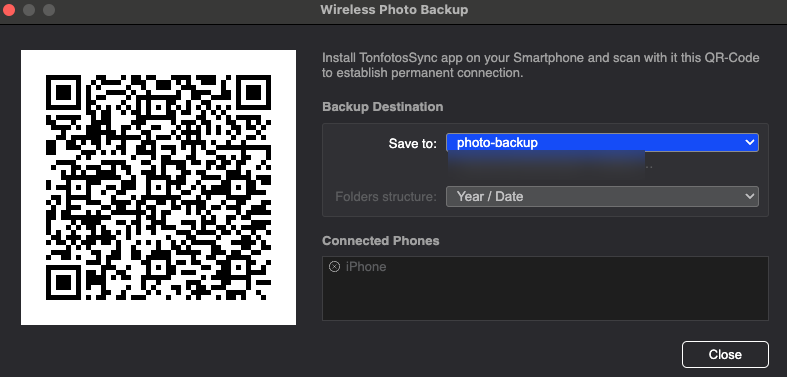
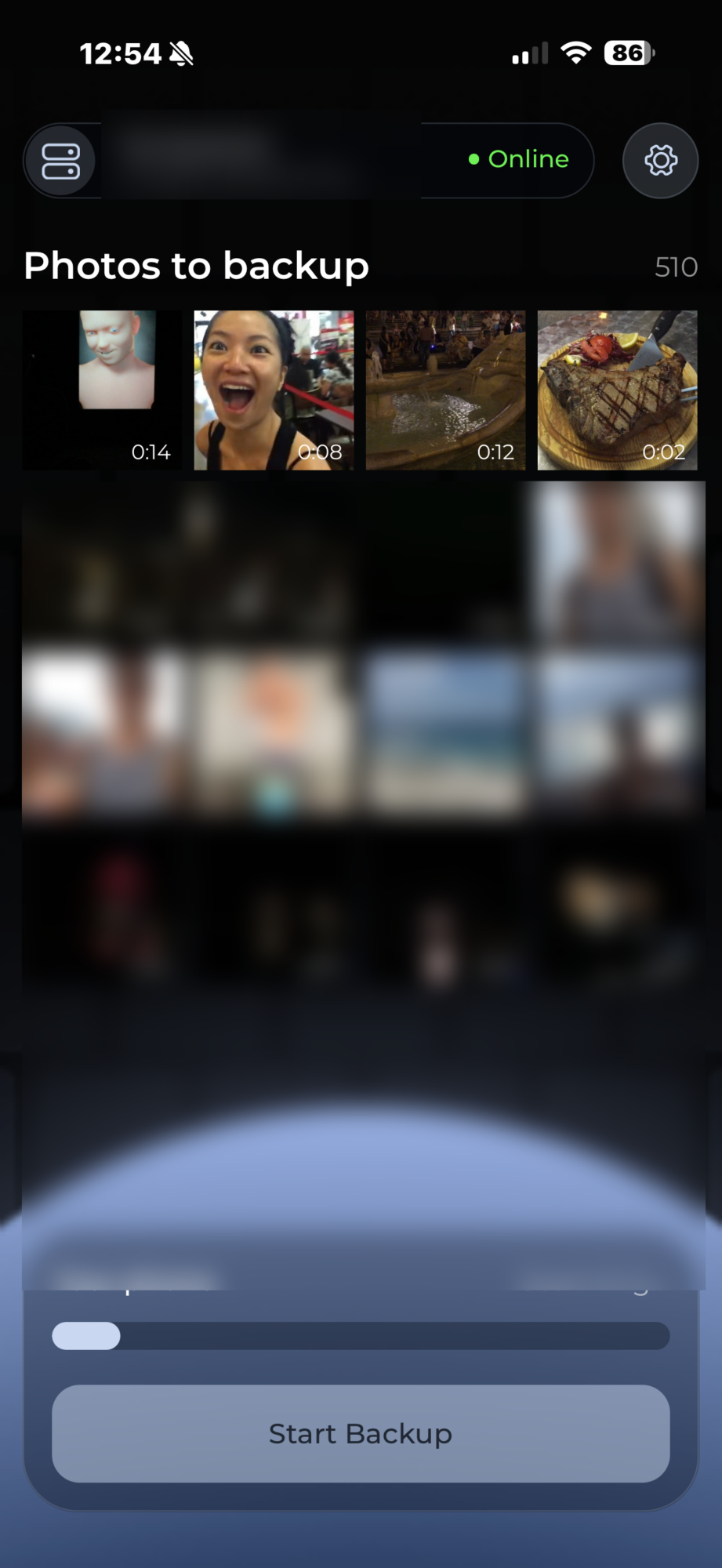
Here is how it works. You install the free Tonfotos app on your Windows, Mac, or Linux computer (or point it at a NAS), open the Sync feature, and scan the on-screen QR code with the TonfotosSync app on your phone. That is the entire setup. From then on, one tap starts a secure backup of your camera photos straight to your archive.
Why we landed on it:
It is genuinely simple. Scan a QR code, press one button. There is nothing to configure and nothing to babysit.
It backs up new photos automatically. The app detects new shots in your phone’s camera roll, so you are not manually choosing files each time.
It never loses its place. If a backup is interrupted, it resumes exactly where it left off, and it knows what has already been saved even if you previously used a different tool.
It works from anywhere. Your phone does not need to be next to the computer. On the same network it can back up locally, and over the internet it uses an encrypted point-to-point connection, so photos from a trip land in your home archive before you get home.
It is smart about what it saves. It can identify camera photos and skip the screenshots, memes, and messenger clutter, so your archive stays clean.
It handles a whole family. Several phones can connect to one Tonfotos installation, so photos from every family member collect in a single shared archive, organized automatically by Tonfotos with features like face recognition and duplicate removal.
It is private by design. Photos travel directly between your phone and your computer over an encrypted channel. There are no intermediary servers storing your images, and the developer has no access to your photos or personal data.
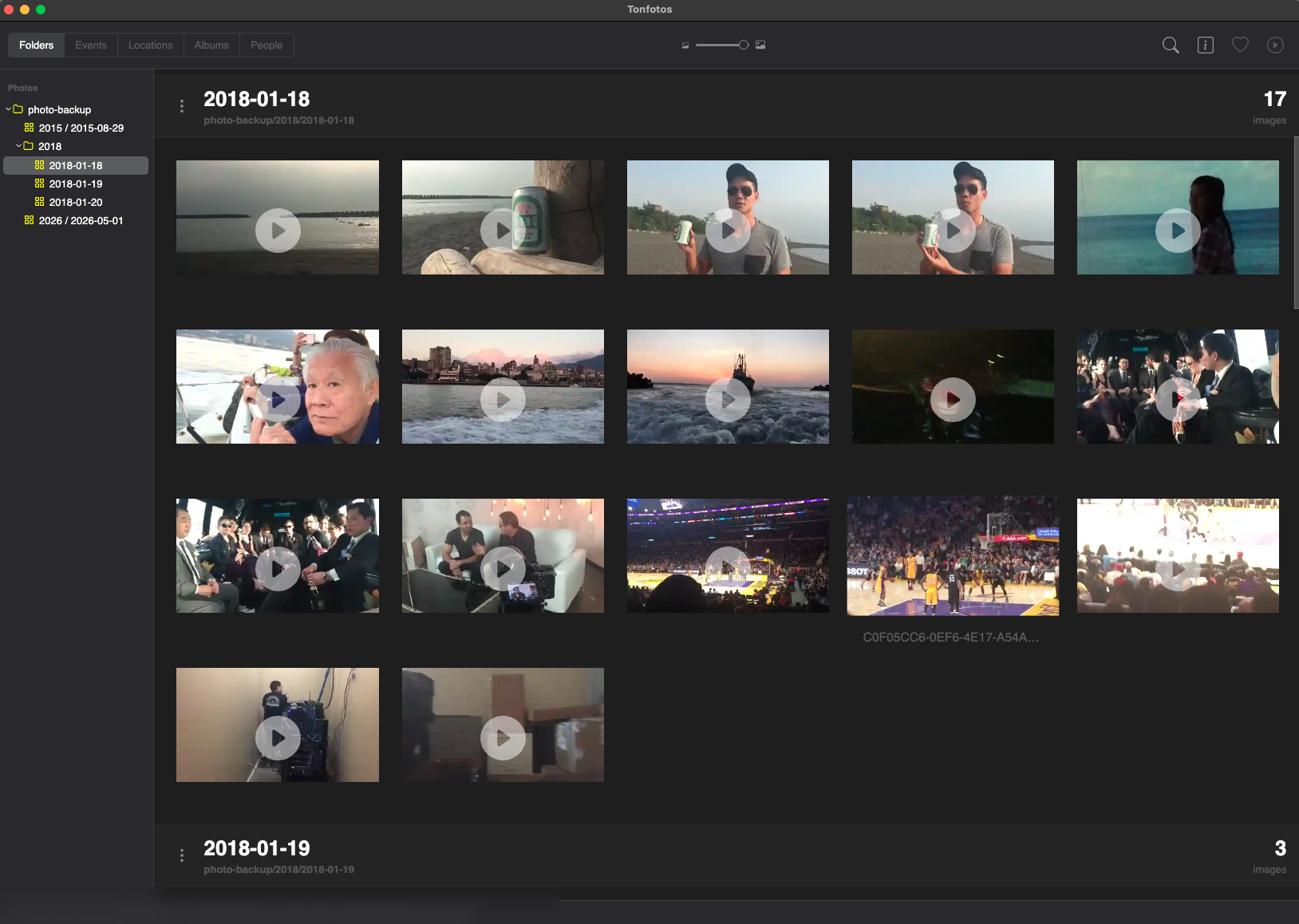
An honest note on where it fits. TonfotosSync is a local-first tool, not a cloud service on its own. That is the point, and it is why we like it, but it also means that on its own it does not give you an offsite copy. For full 3-2-1 protection we pair it with an offsite layer (a rotated drive kept elsewhere, or a cloud copy of the archive). It also works hand-in-hand with the Tonfotos desktop app rather than as a standalone utility, which is a plus if you want your photos organized, and worth knowing if you only wanted a bare transfer tool. Tonfotos itself is free with full core functionality; optional one-time licenses (Personal at $59, Family at $159 for up to five devices) unlock extras, with no subscription.
Best for: families and individuals who want their phone photos safely and automatically copied onto a computer or NAS they own, with strong privacy and no monthly fee.
Which solution is best for you?
There is no universal winner, but there is usually a clear best fit:
Best for families: a phone-to-computer tool that pulls everyone’s photos into one shared archive. This is where TonfotosSync plus Tonfotos works well for us, since multiple phones feed a single organized library.
Best for professional photographers: a NAS as the primary home base, paired with an offsite or cloud copy for the 3-2-1 rule.
Best budget option: external hard drives, rotated and stored in two locations.
Best for privacy: local and offline options, external drives, a NAS, or a direct, encrypted phone-to-computer tool, all of which keep third parties out of your library.
Best hands-off option: cloud storage, if you are comfortable with the ongoing cost and are fine with a provider holding a copy.
The real takeaway is that the strongest plan is layered. Most people are well served by combining a local copy of their master library, an automatic phone-to-computer backup for the photos they take every day, and one offsite copy for peace of mind. That satisfies the 3-2-1 rule without much ongoing effort.
Frequently asked questions
How often should I back up my photos?
Ideally continuously, or at least automatically. The best backup is the one you never have to remember, which is why automatic tools beat manual copying for most people.
Is cloud storage safe for private photos?
It is convenient and reasonably secure, but your photos do sit on a third party’s servers and may be scanned. If privacy is a priority, a local or direct, encrypted backup keeps your images entirely under your control.
What is the best way to back up photos from my phone to my computer?
Use a tool built for it. Manual transfers work but are easy to forget. A dedicated app that automatically detects and copies new photos, such as TonfotosSync, removes the guesswork. AirDrop, Google Photos, and Syncthing are other options depending on your ecosystem and comfort with setup.
Do I still need a backup if I use iCloud or Google Photos?
Yes. Cloud sync is not the same as a backup you control. Accounts can be locked, files can be deleted across all devices at once, and subscriptions can lapse. A separate copy on your own hardware protects against all of that.
How can a whole family back up photos to one place?
Connect each family member’s phone to a single desktop archive. Tools like TonfotosSync let several phones feed one shared Tonfotos library, which then organizes everything automatically.
What is the 3-2-1 backup rule?
Keep three copies of your photos, on two different types of media, with one copy stored offsite. It is the simplest reliable framework for making sure no single failure can wipe out your memories.
The bottom line
Backing up your photos is not about finding one perfect product; it is about making sure no single mishap can erase your memories. Choose based on what matters most to you, privacy, capacity, automation, accessibility, or cost, and lean toward a layered setup that covers more than one of those.
For the everyday photos most of us take on our phones, the piece people most often neglect, we use TonfotosSync with Tonfotos because it makes an automatic, private, subscription-free copy on hardware we own. Whatever you choose, the best time to set up a real backup is before you need it.