How to Color Correct with Lightroom


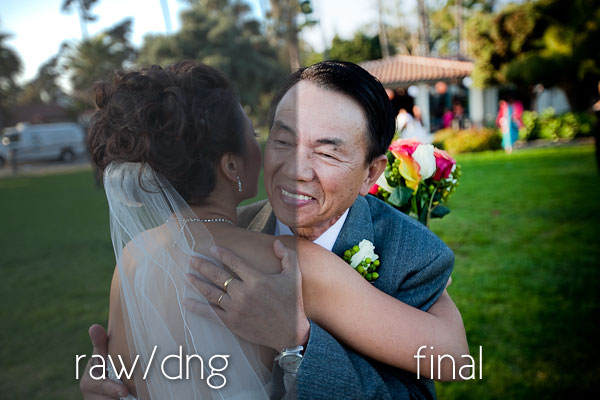
before after image How to Color Correct with Lightroom

Literally 98% of our editing occurs in Lightroom using RPG Keys. Lightroom is extremely powerful making Photoshop necessary only on a handful of images in each wedding. This article will help you understand basic post production/color correction in Lightroom, an essential skill for today’s photographer. Keep in mind that post production is a very stylistic subject, what looks right to some may not to others. This article shows you how to color correct based on our style and preferences.

Below is an example of one of our RAW images taken directly from our Canon 5D Mark II. The image has been “zeroed out” meaning that all default Lightroom settings are set to 0 so you can see what it looks like in its pure RAW form. While it may look under exposed, this shot was actually nearly perfectly exposed, however in RAW form, everything will tend to look dark and murky until post produced.

wedding photography example raw file How to Color Correct with Lightroom

Metadata – Canon 5D Mark II, EF 16-35mm f/2.8L II USM, 1/200 sec at f/2.8 at ISO 100

One quick note, if you are shooting in JPG mode, your camera will apply a default set of post production settings to your image file at the time of shooting. We shoot RAW simply because it is a more powerful file format, don’t let anyone tell you differently. A RAW file contains all of the tonal detail your camera has to offer, where as a JPG does not. This means that you can do much more in post production to a RAW image before affecting image quality than you can with JPG.

Also, regardless of whether you shoot RAW or JPG, your camera applies post production settings to each shot when you are previewing it on the camera LCD. So, don’t be surprised when images loaded onto your computer don’t look the same.

Post Producing the Image

To get to the final image, I am going to perform a number of steps (using my workflow sequence), each described in detail below.

Step 1) Brightness +60 – I am going to start by raising Brightness to +60, this will give me a baseline to be able to add my other effects like Contrast, Blacks.

step 1 brightness How to Color Correct with Lightroom

Step 2) Contrast +80 – Since the image exposure is close to correct, I am going to start by boosting Contrast to begin helping the image to pop. Now, I want to balance Contrast w/ Blacks to get the right pop. If I use too much contrast, skin tones can be too candied and contrasty, if I use too much blacks, I will kill detail in the shadows such as the hair. So I am going to start with +80 then fine tune if I need to after I add in my Blacks.
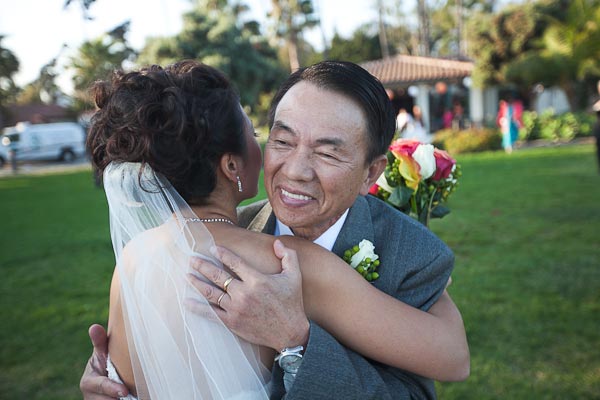
step 2 contrast How to Color Correct with Lightroom

Step 3) Blacks +11 – Now I am going to bring up my Blacks a bit to make sure the black levels are truly black, and not a deep grey. You should see something like the image below now.

step 3 blacks How to Color Correct with Lightroom

Step 4) Brightness +84 – Once I have adjusted my Contrast and Blacks, I can tune in the final brightness level. I am going to want to raise brightness a bit since Contrast and Blacks darkened the image.

step 4 brightness final How to Color Correct with Lightroom

Step 5) Temperature 5050 Tint -4 – Temperature and Tint often will affect the Brightness/Exposure of the image, so if you make a large change in Temperature you will need to adjust the Brightness/Exposure of the image. If the Temperature is way off to start with, I would recommend that be your Step 1 before adjusting Brightness. However, here we are just making a little adjustment to warm up the image slightly. Color temperature is a very subjective area, some people produce their images so skin tones are more yellow where as others border on the pink side. I prefer that my skin tones look very natural, with just a hint of warmth (yellow) to give them a nice sunglow.

step 5 temperature How to Color Correct with Lightroom

Step 6) Clarity -25 & Recovery +50 – Now, since this is a close up shot of faces, I want to smooth out the lines and highlights on the fathers face. To do so, I am going to first bring my Recovery up to +50 which is going to tone down the highlights a bit, then I am going to reduce Clarity a bit which is going to smooth out the lighting as well as the lines on the father’s face, ultimately making him look younger. Be careful with Clarity, if it’s too low you will be killing too much detail, and if it’s too high you can end up showing too much detail and even outlining objects with black shadows.
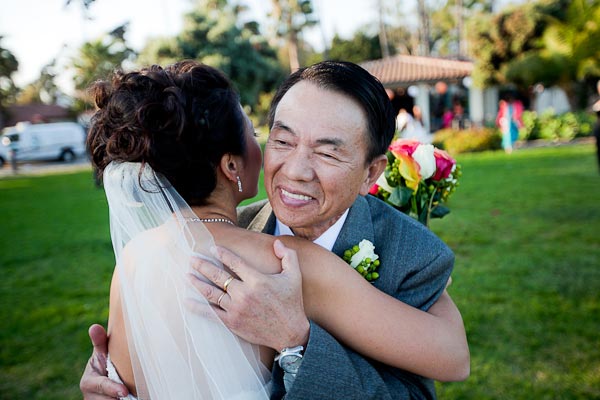
step 6 clarity recovery How to Color Correct with Lightroom

Step 7) Lens Correction Amount -100 & Midpoint 50 – The final touch is to bring in a little artistic edge burning by applying a Pre-Crop Lens Correction vignette. This will bring focus from the outside of the frame into the subject, as well as provide a nice burn affect on the outside colors. Remember that Post-Crop and Pre-Crop (i.e. Lens Correction) Vignettes are different. Lens Corrections simply burn down or brighten the edges of the frame, where as Post-Crop Vignettes will add a black or white vignette to the frame.

wedding photography example finished How to Color Correct with Lightroom

Viola, you are done! Your image is now color corrected (in our books at least). While this may take you a bit of time the first few times, you should be able to get quite speedy at this process. With the aid of RPG Keys, we can produce over 500 image like this one per hour!

If you found this article helpful, we would ask that you let us know in the comments below. We are currently considering developing a full course and workshop for photographers on basic, advanced and artistic post production. So, let us know if you would be interested!

Like this post? Share it!

  • Tweet
  • Facebook
  • Diggit
  • Delicious
  • Diggit
  • Diggit

  • http://twitter.com/JerryZambrano Jerry Z

    Thanks for the tutorial. A very great read. My photos tent to be “candied.” Also, your tutorial gives instructions on “smoothing out” wrinkles etc. Not sure if my response is a good one or not, but I prefer my “personal” photos to be as sharp and detailed as possible.

    I can however understand if it’s a photo shot for someone else. Capturing an image most flattering for that/those individuals.

    Thanks again.

    Jerry Z.

  • http://www.linandjirsa.com admin

    Everyone for sure has their own style, that’s why I had to preface the article with this style being our own, and being very subjective.

    Most of our clients are concerned simply with looking good. However, I am with you, for personal stuff I totally side on tack sharp detail. Then again, if the shot was a portrait of yours truly, I would probably want a little softening and smoothing, haha!

  • http://jenniferbunce.com jen

    I am a LR beginner and have been teaching myself to use it, reading books about it, and picking up a few tips on the web here and there. This post is IMMENSELY helpful and I really appreciate your taking the time the put it together. I’ve been using presets to make most of my adjustments, but I think now I might have the confidence to try adjusting some sliders all by myself. :) I follow a lot of LR-related blogs, and this is the first post I’ve seen that details the post-production steps taken on a photo.

    I would be very interested in a course/workshop on post-production if you put one together.

  • http://www.mississippitokorea.com jason

    This seems like a great tutorial. I can’t wait to put it into action.

  • iLifephotography

    Thanks for shareing…

  • http://www.ilifephotography.co.uk iLifephotography

    cant wait to try it out…

  • Neil Patel

    Thanx for LR color correction, very helpful. so thats how they do it…share more if you have other ways to bring our color cotrast..
    Neil patel

  • Luke Adams

    I look forward to trying this out when I get the chance. Though, I do notice that there’s some significant loss of detail in the gentleman’s hair… How to get that back while keeping the edit time to a reasonable amount?

    Thanks!

  • http://cameraguyzack.blogspot.com/ Zack Jones

    It’s amazing the difference between before and after. I would be interested in your workshop. Wedding photography isn’t my thing but I do find the the hints and tips you guys share most valuable.

  • La Sélection du Weekend – 13/02/2010: De la colorimétrie en noir et blanc inédit | Steakhachai.fr

    [...] De la colorimétrie: How to Color Correct with Lightroom [...]

  • David T.

    This post surely started my great LR journey! ;-) Thank you!

  • Oliver Higgins

    Thanks for this article it has really helped my with my toning and work-flow. What do you recommend when it comes to sharpening in LR?

    Cheers
    Oliver

  • http://www.katie-whitcomb.com Chris Whitcomb

    Thank you for this peak into your workflow with Lr. I’ve always been one to go from the very top working my way down but this makes a ton of sense just from a creative and noise perspective. I would like to know if you import your images using the Zeroed preset or some special “starter” preset that you have created?

    Thanks,
    Chris

  • http://www.carlagatesphotography.com Carla

    I love this article, so helpful! My workflow is waaaay too long and eats up time I’d rather be spending behind the camera. I’d absolutely be interested in a workshop :)
    Thank you so much for the time you guys spend giving back, such a blessing!

  • http://www.konarik.info Kluk

    Great! Does anybody knows similar workflow for Apple Aperture ?

  • Cindy

    Thanks for the tip! I’m just starting out in Lightroom but this is very helpful.

  • http://www.absoluteandalivephotography.com.au Wedding Photographer in Perth

    Well done on this review of LR and how you work, including RPG Keys, I just got mine and will go through a similar process and am looking forward to reducing the long work flow using RPG Keys.

    Great read, thanks.

    Peter.

  • http://jimmygilmorephotography.com Jimmy Gilmore

    I love checking out other people’s work flow. Mine is fairly similar only I usually start with exposure to set my white level and then to brightness and contrast. Another thing that’s slightly different is I do most of my clarity adjustment with the brush (soften skin) when I’m adjusting for facial features. I try do limit the slider use to the overall image look I’m going for, with wedding stuff it often a little softer anyway which works in the brides favor.

    Interesting to see how much you guys crush the blacks. Are you watching your histogram to keep the detail?

    Love your blog/work. Thanks, Jimmy

  • http://www.linandjirsa.com admin

    Hey Jimmy,

    Thanks for the comments. I am actually a huge fan of blacks =) haha. I just like to make sure that every shot has some true highlights as well as some true deep blacks. I don’t want everything to be clipped, but I do want a small amount of full shadows. Some prefer to retain all detail in their blacks, where as I like to have a small part of my shadows that are fully clipped, then retain detail through the majority. I feel like the images pop more. But, that is just our style. =)

  • http://www.getcolormanaged.com René

    “Defaults” for LR (and ACR) are 50 for brightness and 25 for contrast. And that’s with a reason: 0 / 0 will be too dark and too low in contrast.

    Using “all zeroed” as a starting point is pointless IMO.

    Agree it’s mostly a matter of taste for the rest: I prefer less clipped blacks (around 5) and less obvious vignette. (Something like 40-60% with about 20 for midpoint)
    Biggest issue however I have with the +50 for recovery: squashes the highlights.

  • Ken

    Great tutorial, thank you. I am also new to SLR photography and I’ve been reading and learning as much as I possibly can. Along the way, there were suggestions to have the camera setting to use JPG only and now RAW. I know that RAW images takes up a lot more storage. My question is, shouldn’t we almost always set to RAW+JPG? At least with RAW, we can perform post processing, correct?

  • Pye

    Ken, I was posting an answer to your question when it became so long that I realized it would make for a great article. I will be posting the article soon, and I will provide the link here. Thanks for your question =)

    – Pye

  • http://www.royalphotogallery.com Anna

    Thanks for sharing! This is wonderful, easy to follow step by step instructions and you even put up several pictures to show how it changes with each adjustment, that’s awesome, thanks. Would deffinetley be interested if your put together a post production workshop.

    By the way love your work! Ideas, lighting, editing, absolutely awesome!

  • Debbie

    Excellent tutorial! I love Lightroom. Have not gone to Lightroom 3 but definitely going to in about a month. Nothing like it. I am not a big fan of Photoshop! Don’t have the time to deal with it. :) Keep the tips coming! Thank you.

  • http://cadoimages.com Ric

    Great Tutorial, would it be easier to create a preset and apply it during import instead of using RPG keys? Thanks.

  • http://artsyphotographer.com Pam

    It is so refreshing to see other wedding photographers who actually take the time to CREATE and who utilize RAW format. Shoot and burn photographers terrify and frustrate me. I love taking the time to adjust and amp up an image.

    Your site is wonderful, interesting and very informative. Thank you!

  • http://digital-photography-school.com/forum/macro-critique/140049-neon-like-color.html#post1133266 neon like color

    [...] Google for "color correction using Lightroom" and you will get a ton of hits, like this one: How to color correct with lightroom Hope this helps. __________________ flickr | Nikon D90 | Tamron AF 18-270mm Di II VC | Tamron [...]

  • Mortaldiabo

    thxxx for tutorial brother

  • http://twitter.com/itsoverprods Stephen Reasonover

    As always, you guys deliver 110% greatness. Thanks.

  • Nancy Cuppy

    Great tutorials, would love to see some classes for lightoom.

  • http://www.facebook.com/people/Mitch-Gusat/100003116968792 Mitch Gusat

    thanks, this basic workflow was well-chosen to achieve the target!

  • Pamsfocus

    Thank you, thank you!!!

  • jill

    Incredible! 

RELATED ARTICLES


  1. How to Color Correct Portraits and Skin Tones – Lightroom Color Correction Video Tutorial
  2. How to Color Correct High ISO Images – Lightroom Video Tutorial
  3. How to Color Correct Flares and Overexposures – Lightroom Video Tutorial
  4. How to Color Correct for an Editorial Photography Look – Lightroom Video Tutorial
  5. How to Color Correct Artistic Mood Shots – Lightroom Video Tutorial

Write Photography Tips


SLR Lounge is a resource for photography tutorials, photo news, camera reviews and more. We're in search of writers to cover a range of topics. Click to learn more about our jobs.

SUBSCRIPTIONS


Polls


What Type of Photographer Are You?

View Results

Loading ... Loading ...