

Welcome to Part Three of our three part series on our Photoshop Actions and Automation tutorial series. These tutorials will go through the following:
1) How to Create a Logo Watermark in Photoshop
2) How to Create a Photoshop Watermark Action
3) How to Automate Photoshop Actions in Lightroom (Current Article)
So without any further delay, let’s jump right in to Part Three of our series and finish the last step in fully automating our watermark process.
In Part One and Part Two of this tutorial series we taught you how to create a logo watermark in Photoshop and then create an action so it is a push button process. Well, now we are going to make it even easier. After learning this tutorial you will be able to export straight from Lightroom and have the images automatically stamped in Photoshop without you doing anything!
This process is done by creating Photoshop droplet and then importing and using that droplet as an export setting in Lightroom. Before you get started, make sure you have completed the Photoshop Watermark Action from Part Two of our series.
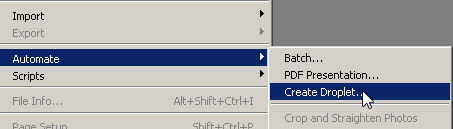
1) Select create droplet – First thing we are going to do is load up Photoshop and click File –> Automate –> Create Droplet from the main menu as shown below.
2) Adjust your droplet settings – Once the Create Droplet window pops up, start with a location to save your droplet file by clicking the Choose button under theSave Droplet In text. I choose the desktop since we are going to be dragging and dropping it to a new location shortly.Then, choose your action Set and the Action you would like to automate. For me, I saved the Logo Watermark Action to the Default Actions Set, so that is what I have selected. Make sure the rest is set to default as shown below then hit Enter. You should now have your droplet file saved to your desktop as a .exe file.

1) Open up Lightroom – Open up lightroom and pull up your Export Window by right clicking and exporting any image as shown below.

2) Find the After Export pull down menu – Scroll to the bottom of the Export Window where you see the Post-Processing option. If you click on the After Export pull down list, you wil see the option “Go to Export Actions Folder Now” as shown in the image below. Click on that option.

3) Open the actions folder – Once you have clicked the “Go to Export Actions Folder Now” it should bring up a window that displays the Export Actions folder as shown in the image below. Now, all you need to do is simply drag the droplet you created into the Export Actions folder.
4) Select your new droplet on export – At this point, you can go back into the Lightroom Export Window and click the same Post-Processing –> After Export pull down list and viola! You should see your newly imported droplet in the list.

5) Export with your droplet – When you select that droplet as your After Export option, it will automatically export your files and then run the Photoshop Action Droplet for you!
I hope you enjoyed this article, if so, please share the love and feel free to comment and add additional insight below!
By: Lin and Jirsa Wedding Photography, Los Angeles and Orange County Wedding Photographers
_______________________________________________________________________________
If you’ve found this article informative, please consider donating below:
_______________________________________________________________________________



Get Connected!